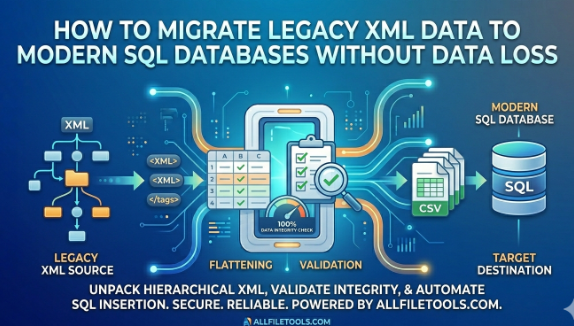
For developers and IT managers, "Data Migration" is often a phrase that triggers anxiety: Legacy XML Data. While XML was once the gold standard for data exchange, modern applications demand the speed and queryability of SQL databases (like PostgreSQL, MySQL, or SQL Server).
However, moving data from a deeply nested XML file to a rigid SQL table isn't as simple as copy and paste. The risk of Data Loss specifically through schema mismatch or encoding errors is high.
This guide outlines a professional migration workflow using a Flatten and Insert strategy to ensure 100% data integrity.
The Core Challenge: The "Schema Mismatch" Risk
XML is hierarchical (tree-like), while SQL is relational (table-like). When you migrate directly, you often run into three major risks:
- Data Truncation: SQL columns have fixed lengths; XML nodes do not.
- Attribute vs. Element Confusion: XML can store data in both tags and attributes, which can lead to missed fields during a direct import.
- Nesting Overload: A single XML record might have multiple child nodes (like "phone numbers") that don't fit into a single SQL row.
The Professional 3-Step Migration Workflow
To eliminate these risks, we recommend a Middle-Man approach using CSV as a validation layer.
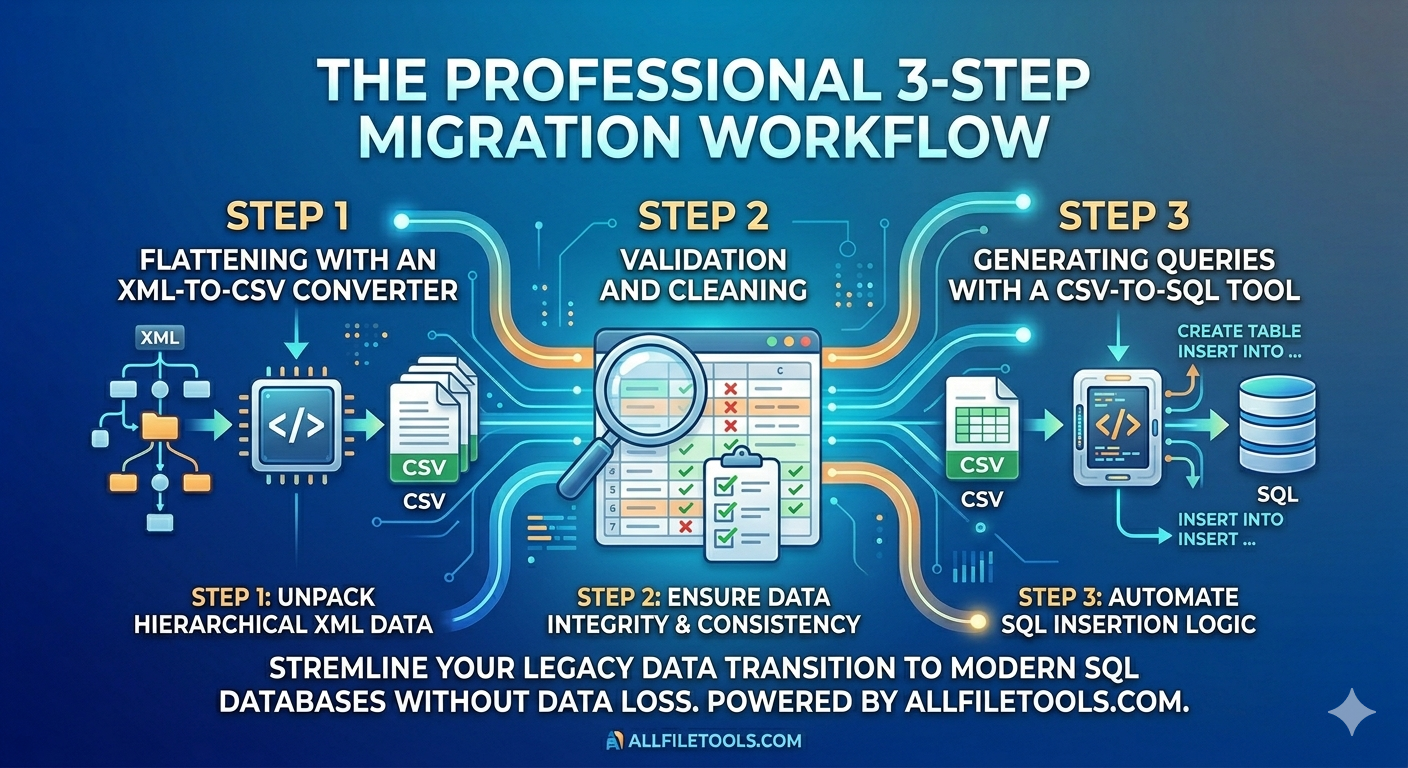
Step 1: Flattening with an XML-to-CSV Converter
Before touching your database, you must transform the XML tree into a flat structure. Using a dedicated XML to CSV tool, you can map nested elements into individual columns.
- Why this prevents loss: Converting to CSV forces you to see exactly how the data will look in a row-based format. If a nested field is missing, you'll see an empty column immediately before you commit to the database.
- Action: Upload your legacy .xml file and ensure "Auto-detect Delimiters" is turned on to handle special characters.
Step 2: Validation and Cleaning
Once you have your CSV, open it in a spreadsheet or a text editor. This is your "Audit Phase."
- Check for consistent date formats (e.g., changing DD/MM/YYYY to YYYY-MM-DD for SQL compatibility).
- Ensure that "Null" values in XML are correctly represented as empty strings in CSV.
Step 3: Generating Queries with a CSV-to-SQL Tool
Now that your data is flat and clean, use a CSV to SQL tool to generate the INSERT INTO statements.
- Mapping: Align your CSV headers with your SQL column names.
- Data Types: Ensure the tool identifies strings as VARCHAR, numbers as INT or DECIMAL, and dates as TIMESTAMP.
- Execution: Run the generated script in your SQL environment (e.g., pgAdmin or MySQL Workbench).
Summary of the "Data Migration" Workflow
|
Step |
Action |
Tool Category |
Goal |
|
1 |
Flatten |
XML to CSV |
Transform hierarchy to rows. |
|
2 |
Audit |
CSV Editor |
Manual check for schema mismatch. |
|
3 |
Migrate |
CSV to SQL |
Generate safe INSERT queries. |
How This Solves the Business Problem
For an IT Manager, the goal isn't just moving files, it's maintaining business continuity.
- Zero Data Loss: By using the CSV "bridge," you ensure that every nested XML attribute is accounted for in a specific column before the final injection.
- Developer Efficiency: Instead of spending hours writing custom Python or Perl scripts to parse legacy XML, your team can complete the migration in minutes using the AllFileTools web interface.
- Security & Privacy: At AllFileTools, we understand the sensitivity of legacy data. Our converters process your files securely and delete them immediately after the task is done, ensuring your migration remains private.
Final Thought for Developers
Migration doesn't have to be a "black box" operation where you hope for the best. By breaking the workflow into XML → CSV → SQL, you gain full visibility into your data at every stage.
Ready to start your migration? Head over to AllFileTools.com and use our XML to CSV and CSV to SQL utilities to turn your legacy headache into a modern asset.



Leave a Comment
No comments yet. Be the first to comment!