Converting audio files from AAC to MP3 might sound like a simple task, but if you’re a musician, editor, podcaster, student, developer, or just a general user, you know the struggle of maintaining high audio quality while making the file usable across different devices. That’s where an efficient online AAC to MP3 converter comes into play. In this blog, we’ll cover everything from how to convert AAC to MP3, understanding advanced settings, to tips for high-quality audio conversion. Plus, we’ll walk you through using your very own AAC to MP3 Converter online.
Why Convert AAC to MP3?
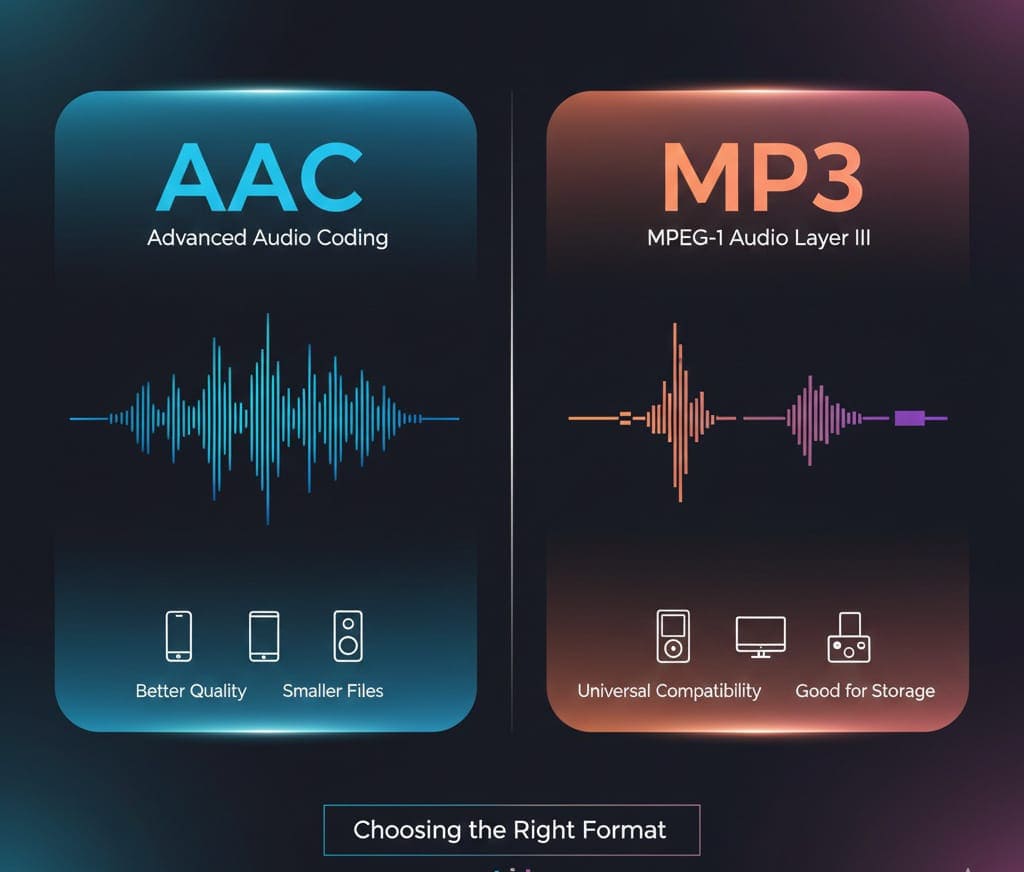
AAC (Advanced Audio Coding) is a popular compressed audio format widely used by Apple devices, iTunes, and streaming platforms. While AAC files offer high-quality audio at smaller file sizes, there are limitations:
-
Compatibility issues: Not all devices and media players support AAC. MP3, on the other hand, is universally supported.
-
Editing requirements: Audio editors or DAWs sometimes have limited AAC support. Converting to MP3 simplifies workflow.
-
Sharing & distribution: MP3 files are easier to share across platforms without worrying about playback issues.
By converting AAC to MP3, you ensure compatibility, ease of use, and high-quality output suitable for podcasts, music, video projects, or online content.
Features to Look for in an AAC to MP3 Converter
When choosing a converter, it’s essential to consider features that maintain quality and enhance usability. Your AAC to MP3 Converter excels in these areas:
1. High-Quality Conversion
-
Converts AAC files to MP3 without losing audio fidelity.
-
Supports multiple bitrate options (128kbps, 256kbps, 320kbps) for different quality requirements.
-
Ensures stereo and mono audio output based on project needs.
2. Batch Conversion
-
Convert multiple AAC files to MP3 simultaneously, saving time.
-
Ideal for musicians, editors, and podcasters with large audio libraries.
3. Advanced Settings
-
Set bitrate, sample rate, and audio channels.
-
Fine-tune volume normalization, fade in/out, and preserve metadata/ID3 tags.
-
Ensures that converted MP3s retain all essential info for playlists or podcasts.
4. No Software Required
-
Works directly online; no installation needed.
-
Compatible with Windows, Mac, Linux, and mobile devices.
5. Secure and Private
-
Uses SSL encryption for file uploads.
-
Files are automatically deleted after conversion.
Step-by-Step Guide: How to Convert AAC to MP3 Online
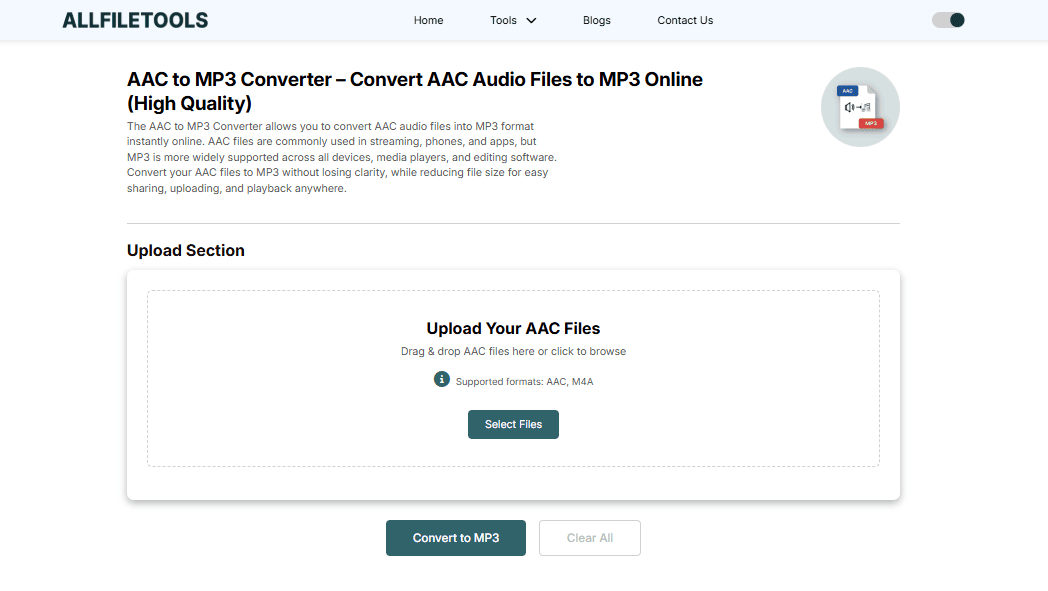
Your AAC to MP3 Converter simplifies the process into five easy steps:
Step 1: Upload AAC Files
-
Click “Choose File” or drag and drop your AAC files.
-
Optionally, import from Google Drive, Dropbox, or a URL.
Step 2: Choose MP3 as Output Format
-
Select MP3 from the list of supported formats.
-
This ensures maximum compatibility with devices and players.
Step 3: Adjust Advanced Settings (Optional)
-
Choose your bitrate: 128kbps for smaller files, 320kbps for high-fidelity audio.
-
Set sample rate (44.1kHz is standard for music).
-
Select mono or stereo depending on your project.
-
Preserve metadata tags like artist, album, and track info.
Step 4: Convert AAC to MP3
-
Click the Convert button.
-
Wait for the conversion to complete; processing time depends on file size and number of files.
Step 5: Download MP3 Files
-
Download your converted MP3s.
-
Optionally, receive a download link via email for convenience.
Understanding Technical Settings for High-Quality Conversion
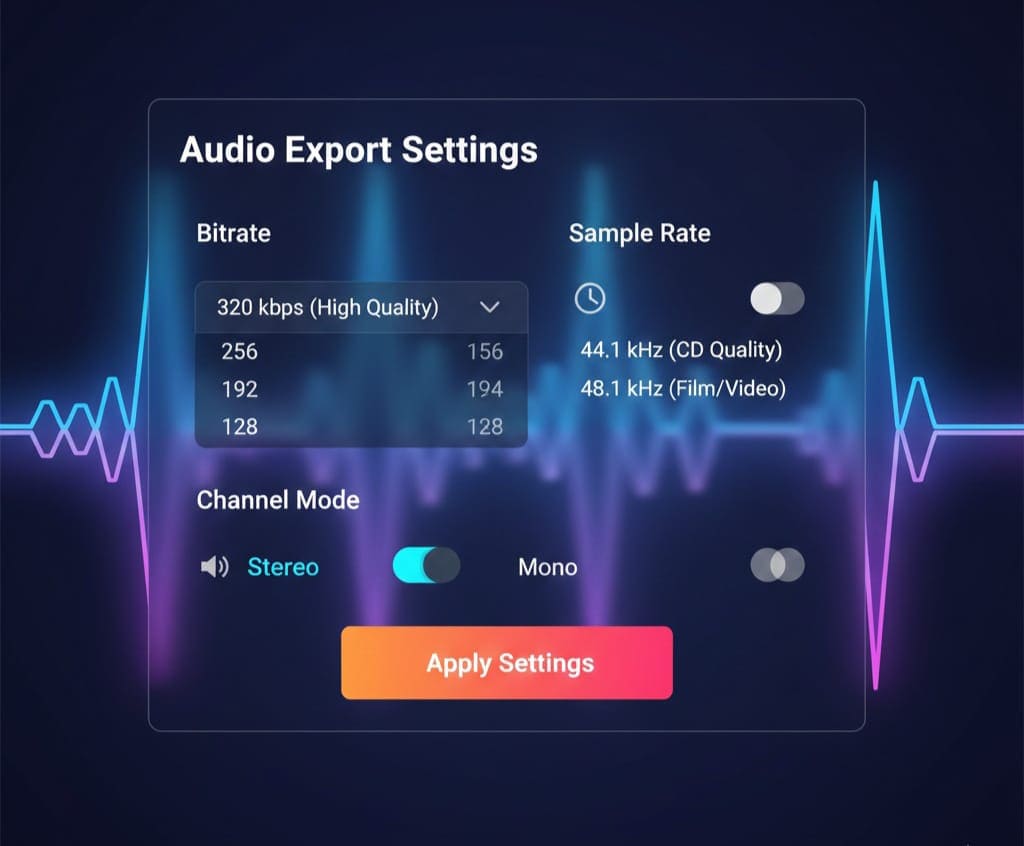
For musicians, podcasters, and audio editors, understanding technical options ensures optimal results.
1. Bitrate
-
Determines the audio file’s quality and size.
-
Higher bitrate = better quality but larger file.
-
Typical settings:
-
128kbps: Standard quality, smaller files.
-
256kbps: Good quality, medium file size.
-
320kbps: High-quality audio, ideal for professional use.
-
2. Sample Rate
-
Standard audio sample rate is 44.1kHz (CD quality).
-
48kHz is common for video projects.
3. Stereo vs Mono
-
Stereo for music, podcasts with multiple speakers, or immersive audio.
-
Mono for voice-only recordings or to save space.
4. Metadata / ID3 Tags
-
Retain song title, artist, album info, track number.
-
Important for organizing playlists and podcasts.
Why Your Tool Stands Out
While there are many AAC to MP3 converters online, AllFileTools AAC to MP3 Converter provides high-quality, fast, and secure conversion:
-
No signup required: Start converting immediately.
-
Batch processing: Save time converting multiple files.
-
Advanced options: Customize bitrate, sample rate, stereo/mono settings.
-
Privacy-focused: Files automatically deleted after processing.
-
Universal compatibility: Works on all major platforms and browsers.
By combining these features, it serves both professional users (musicians, editors, podcasters) and general users seeking convenience.
Tips for Best Results
-
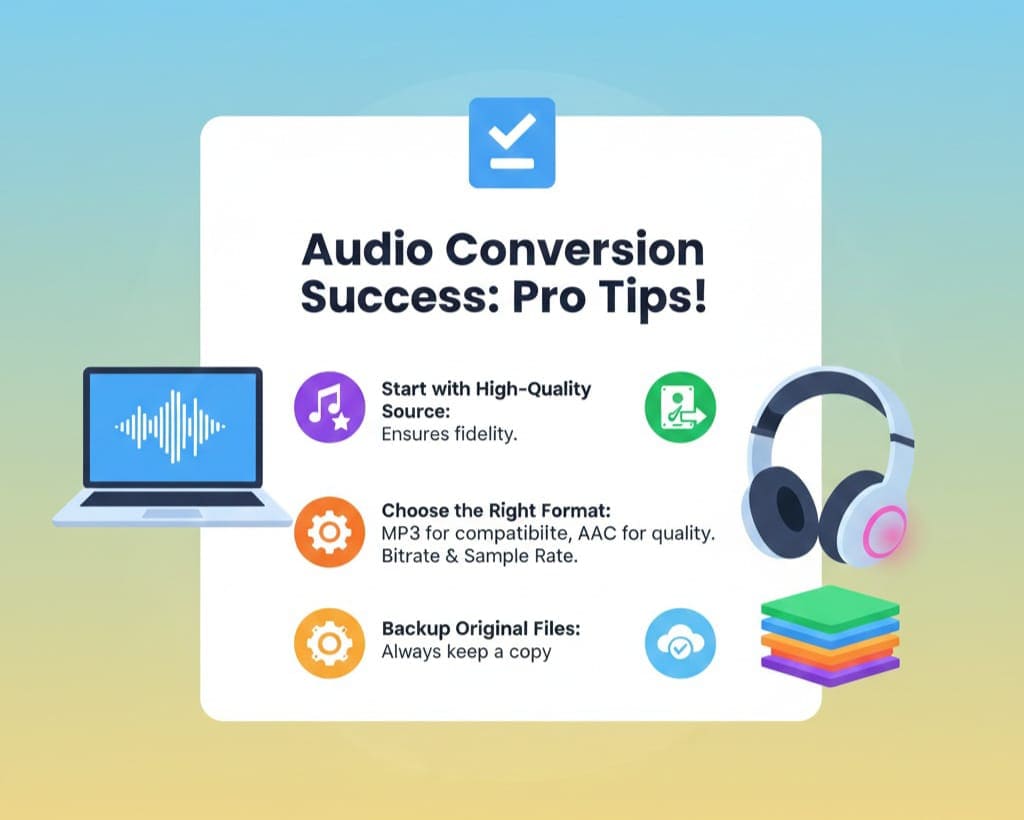
Choose the right bitrate: For professional audio, select 320kbps. For casual listening, 128kbps is fine.
-
Preserve metadata: Keeps your music library organized.
-
Use batch conversion for efficiency: Especially useful for podcasts or albums.
-
Check file size: Large AAC files may take longer; ensure stable internet.
-
Use stereo for rich audio: Mono is only recommended for voice or small files.
Common Mistakes to Avoid When Converting AAC to MP3
-
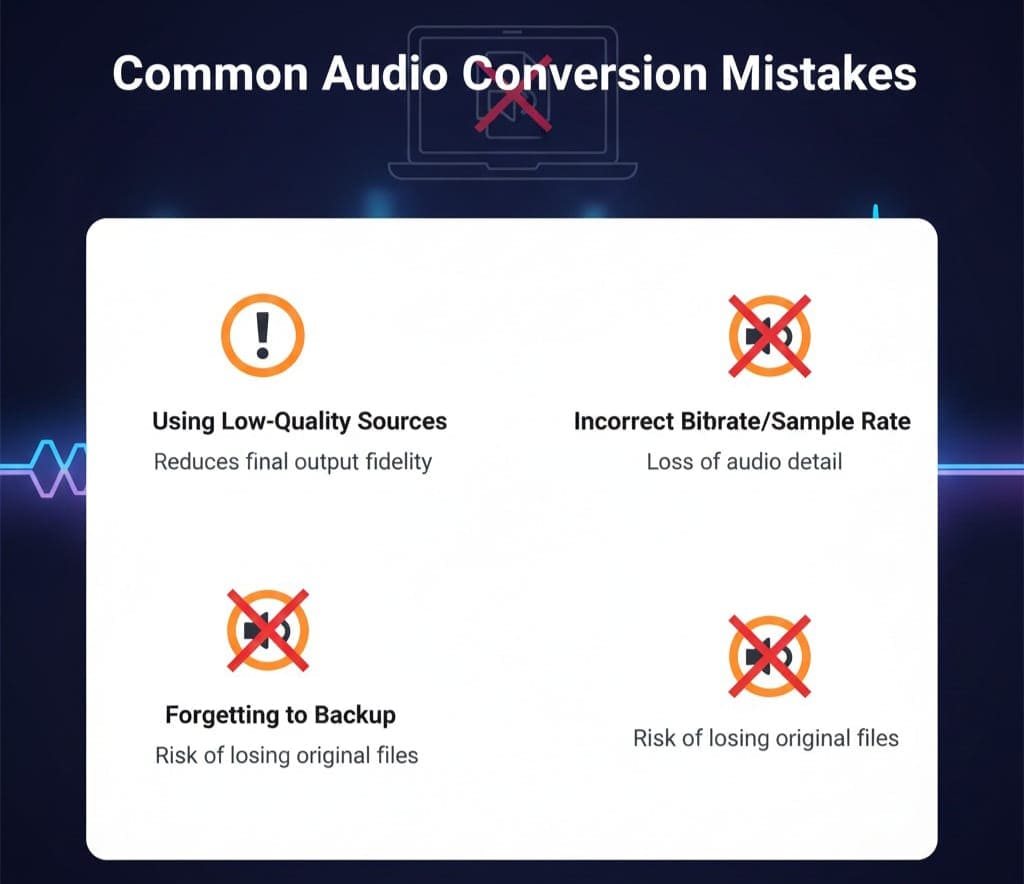
Skipping advanced settings: Leads to lower quality or unintended mono/stereo mix.
-
Ignoring metadata: Your tracks might lose artist, album, or title information.
-
Using outdated converters: Could reduce quality or limit format compatibility.
-
Not verifying file security: Always use converters that encrypt files and auto-delete them.
Conclusion
Converting AAC files to MP3 doesn’t have to be complicated. With the AllFileTools AAC to MP3 Converter, you get high-quality, fast, and secure audio conversion, whether you’re a musician, podcaster, editor, student, or general user. Its advanced features, batch processing, and ease of use make it the perfect online tool for all your audio needs. Start converting today and enjoy universal compatibility with your MP3 files.
FAQs About AAC to MP3 Conversion
Q1: What is AAC and how is it different from MP3?
A: AAC (Advanced Audio Coding) is a compressed audio format providing better sound quality at similar file sizes compared to MP3. MP3 is more widely supported, making it the go-to format for universal playback.
Q2: Can I batch convert multiple AAC files to MP3?
A: Yes! The AllFileTools AAC to MP3 Converter supports batch processing, saving time for large projects like albums or podcast series.
Q3: Will converting AAC to MP3 reduce audio quality?
A: Minimal loss may occur if a low bitrate is chosen. For high-quality output, use 256kbps or 320kbps settings.
Q4: Do I need to install software to convert AAC to MP3?
A: No, it’s 100% online. Just upload your file, choose MP3, adjust optional settings, and download.
Q5: Can I preserve metadata like artist, album, and track info?
A: Absolutely. The tool allows preservation of ID3 tags so your converted MP3s remain well-organized.
Q6: Is it safe to use the online AAC to MP3 converter?
A: Yes, files are encrypted using SSL, and automatically deleted after conversion to ensure privacy.
Q7: What devices support MP3 after conversion?
A: MP3 is universally compatible with PCs, Macs, smartphones, tablets, gaming consoles, car stereos, and media players.
Q8: Can I convert AAC to MP3 without internet?
A: Online converters require internet. For offline, you’d need desktop software, but the online tool is convenient and quick for most users.
Q9: Can I adjust audio channels and sample rate?
A: Yes, the converter allows stereo/mono selection and sample rate adjustment (44.1kHz standard, 48kHz for video projects).
Q10: Is the converter free to use?
A: Yes, it’s completely free for normal usage. Some advanced batch options may have limits, but basic and high-quality conversions are fully free.
Leave a Comment
No comments yet. Be the first to comment!