
In today’s digital world, audio files are an integral part of our personal and professional lives. Whether it’s for music, voice recordings, lectures, or podcasts, having the right audio format is essential. Many times, you might encounter audio files in AMR format (Adaptive Multi-Rate), which is highly optimized for voice recordings but not universally compatible across all devices and platforms. That’s where an AMR to MP3 converter comes to the rescue. In this blog, we’ll explore everything you need to know about converting AMR audio to MP3 online using a free, fast, and reliable tool like AllFileTools AMR to MP3 Converter.
What is AMR Audio?
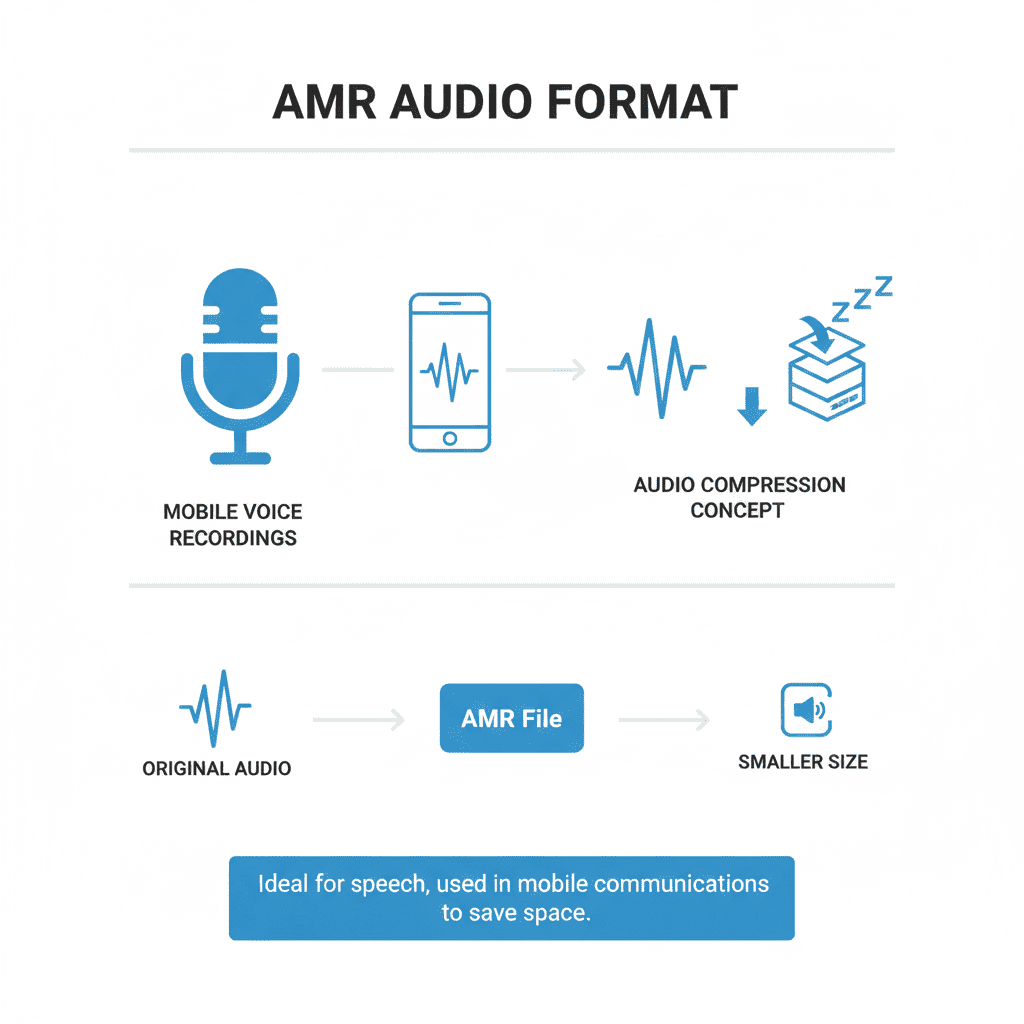
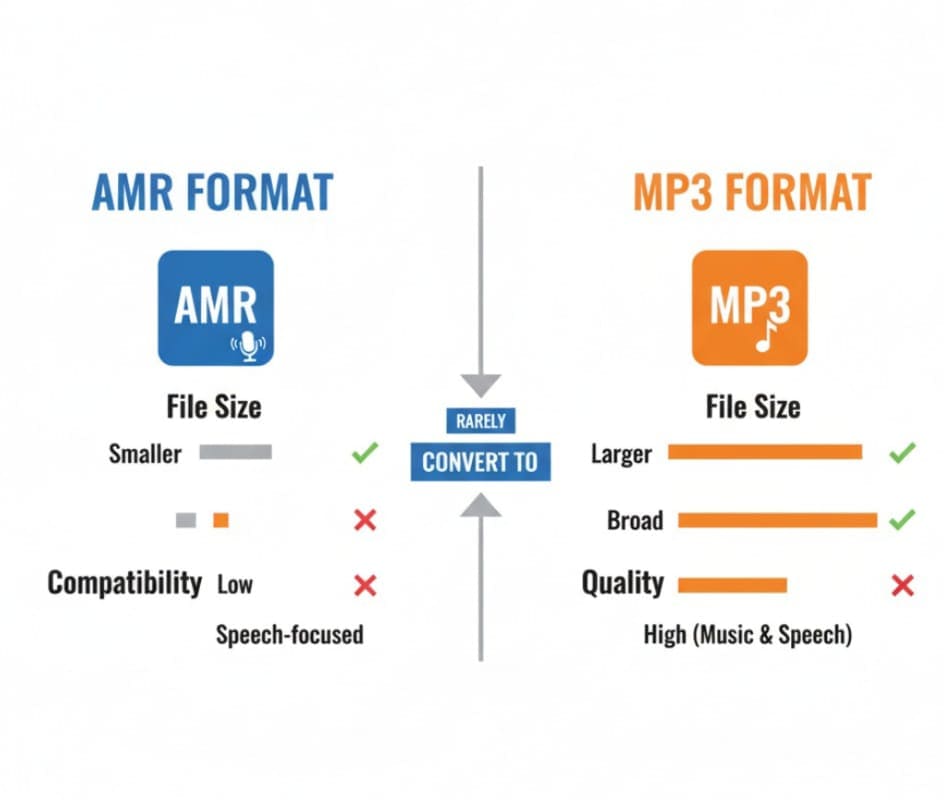
Before diving into conversion, let’s understand AMR. The Adaptive Multi-Rate (AMR) audio format is specifically designed for voice recordings. It compresses voice data efficiently, making it ideal for mobile voice notes, call recordings, and low-bandwidth communications. However, AMR files are not as versatile as MP3 files. Many media players, software, and devices cannot natively play AMR, which makes converting to MP3 format necessary for compatibility and convenience.
Key Features of AMR:
-
Optimized for voice clarity
-
Low file size
-
Supported mainly on mobile devices
-
Not widely compatible with PCs or media players
Why Convert AMR to MP3?
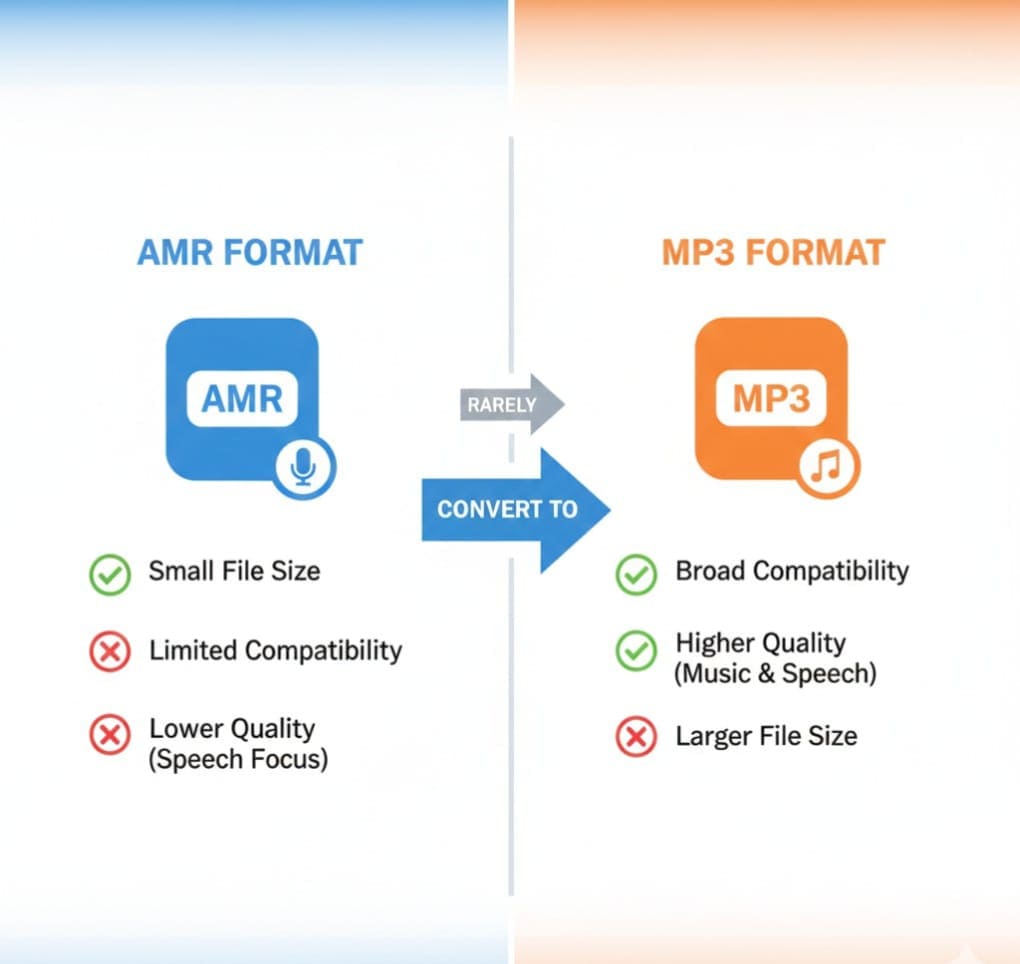
There are several reasons why converting AMR files to MP3 is a smart move:
-
Universal Compatibility: MP3 is the most widely supported audio format. By converting AMR to MP3, you can play your files on any device, from smartphones to PCs, and even on media apps like Spotify or iTunes.
-
Better Sharing Options: MP3 files are more flexible for sharing via email, social media, or cloud platforms, unlike AMR files which may face restrictions.
-
High-Quality Output: Modern AMR to MP3 converters, especially online ones, maintain the audio quality during conversion, ensuring your voice recordings or music files sound clear.
-
Editing & Mixing: MP3 is compatible with audio editing software, allowing musicians and podcasters to edit recordings or mix tracks easily.
Introducing the Free AMR to MP3 Converter Tool
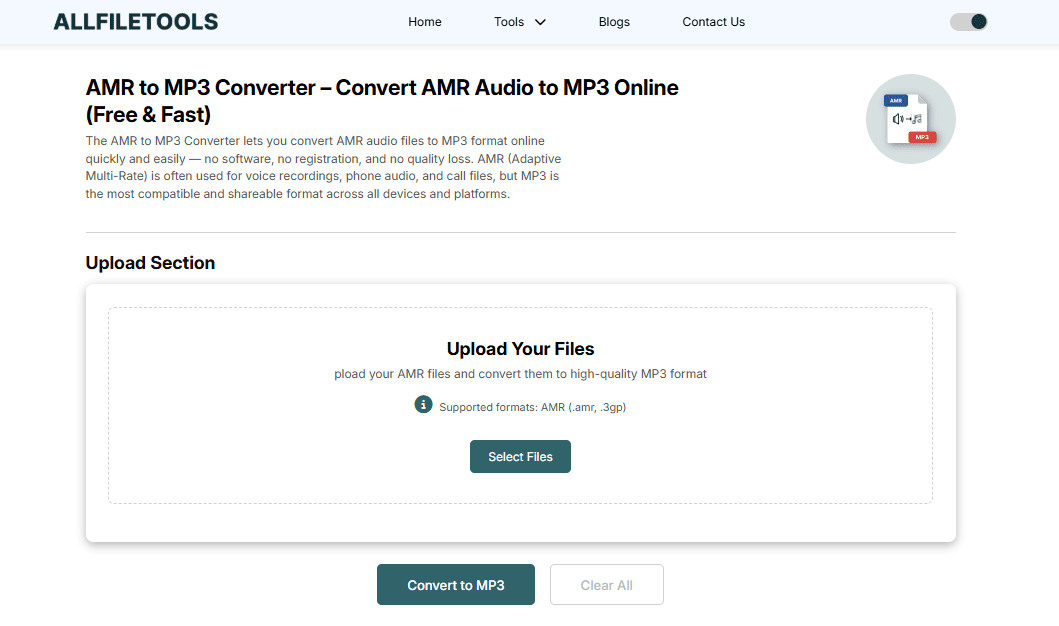
If you’re looking for a fast, easy, and free solution, AllFileTools AMR to MP3 Converter is the perfect choice. Here’s why:
-
Online & Browser-Based: No software download needed. You can convert directly in your browser.
-
Lightning Fast Conversion: Convert multiple files within seconds.
-
Free & Unlimited: No hidden charges or subscription requirements.
-
High-Quality Output: Maintains audio clarity with customizable bitrate options.
-
Cross-Device Compatible: Works on desktops, laptops, tablets, and smartphones.
-
Secure & Private: Your files are not stored or shared; complete privacy is maintained.
This tool stands out from other AMR to MP3 converters due to its simplicity and professional-grade performance, making it suitable for students, musicians, developers, and general users alike.
Step-by-Step Guide to Convert AMR to MP3 Online
Converting AMR files to MP3 is surprisingly simple, even if you have no technical background. Follow these steps:
-
Visit the Tool
Go to AllFileTools AMR to MP3 Converter. -
Upload Your AMR File
Click the upload button or drag and drop your AMR audio file. The tool supports single and batch file uploads. -
Select MP3 as Output Format
Choose MP3 from the list of output formats. You can also adjust bitrate settings for higher quality audio or smaller file size. -
Start Conversion
Click the “Convert” button. The tool will process your file quickly and efficiently. -
Download MP3 File
Once conversion is complete, download the MP3 file. You can now play, share, or edit your audio effortlessly.
Key Benefits of Using This Online Converter
Using AllFileTools AMR to MP3 Converter offers numerous benefits beyond just format conversion:
-
User-Friendly Interface: Even beginners can navigate the tool easily.
-
Time-Saving: Conversion happens in seconds, saving you valuable time.
-
No Installation Needed: Works entirely online without any software.
-
Multiple File Support: Convert AMR recordings from calls, lectures, or music in one batch.
-
Privacy & Security: Files are processed securely, ensuring complete confidentiality.
-
High-Quality Audio: Adjustable bitrate ensures MP3 retains the best possible quality.
This combination of speed, quality, and convenience makes it one of the top-rated AMR to MP3 converters online.
Common Use Cases
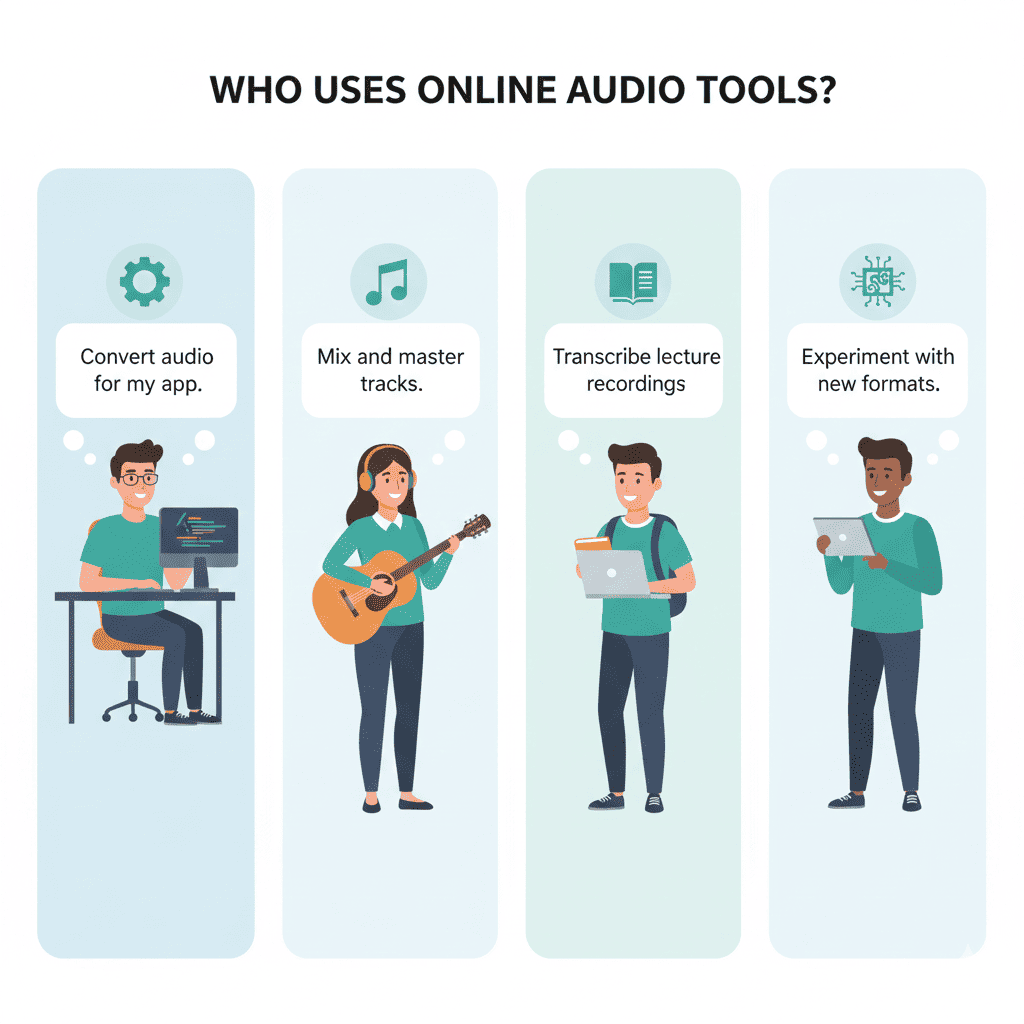
Here are some real-world scenarios where converting AMR to MP3 comes in handy:
-
Students & Lectures
Students often record lectures in AMR format using mobile apps. Converting them to MP3 allows easy playback on any device and integration with study tools. -
Musicians & Podcasters
Artists may record vocals or interviews in AMR. MP3 conversion ensures compatibility with audio editing software like Audacity, GarageBand, or FL Studio. -
Business & Professional Use
Voice memos, meeting recordings, and interviews often come in AMR format. Converting to MP3 ensures smooth sharing and archiving. -
General Users
Anyone with AMR files from old mobile devices can convert them to MP3 to play on modern devices or upload to cloud platforms. -
Developers & Tech Enthusiasts
Developers working with audio apps or online platforms may need batch conversion of AMR to MP3 for compatibility testing or integration into projects.
Tips for Best Conversion Results
-
Check Bitrate Settings: Choose a higher bitrate (e.g., 256kbps or 320kbps) for high-quality audio, or lower bitrate for smaller file size.
-
Batch Conversion: If you have multiple AMR files, upload them together for time-efficient processing.
-
Secure Connections: Always use HTTPS-enabled converters to ensure privacy and data security.
-
Device Compatibility: Test your converted MP3 files on the device or media player you intend to use.
Storytelling Example: A Real User Journey
Imagine Sarah, a university student. She recorded all her lectures on her phone in AMR format. Initially, she couldn’t play them on her laptop because her media player didn’t support AMR. She found the AllFileTools AMR to MP3 Converter. Within minutes, she converted all her lecture recordings to MP3, allowing her to listen during commute, study efficiently, and even share files with classmates.
Similarly, John, a musician, recorded an impromptu acoustic session using his mobile recorder (AMR). By converting to MP3 using the online tool, he could import tracks directly into his editing software and start mixing immediately, saving hours of effort.
These stories show that the right AMR to MP3 converter not only solves technical problems but also enhances productivity and creativity.
Conclusion
Converting AMR files to MP3 doesn’t have to be complicated. With AllFileTools AMR to MP3 Converter, you get a free, fast, and secure online tool that works across devices and platforms. Whether you’re a student, musician, developer, or general user, this tool ensures your audio files are compatible, high-quality, and ready for sharing or editing.
Take control of your audio today — don’t let incompatible AMR files hold you back. Convert them to MP3 effortlessly and enjoy universal playback anytime, anywhere.
Frequently Asked Questions
1. What is an AMR file and why convert it to MP3?
AMR (Adaptive Multi-Rate) is optimized for voice recordings but has limited compatibility. Converting to MP3 ensures playback on any device or media player.
2. Is the AMR to MP3 conversion tool free?
Yes! AllFileTools AMR to MP3 Converter is completely free with no hidden charges.
3. Can I convert multiple AMR files at once?
Absolutely. The tool supports batch conversion, saving time for users with multiple files.
4. Will my converted MP3 files retain high quality?
Yes. You can choose bitrate settings to maintain clarity and quality during conversion.
5. Do I need to install software to use the converter?
No installation is required. The tool works entirely online in your browser.
6. Are my files safe during conversion?
Yes. The platform ensures secure and private processing, and files are not stored or shared.
7. Can I use this tool on mobile devices?
Yes! It is cross-device compatible, working on smartphones, tablets, laptops, and desktops.
Leave a Comment
No comments yet. Be the first to comment!