In today’s digital era, photographers, designers, students, developers, and tech enthusiasts often face the challenge of handling RAW image files. One of the most common RAW formats is DNG (Digital Negative), which preserves all image data captured by the camera sensor. While DNG files are excellent for professional editing, they are not universally compatible with every device, software, or platform. This is where a reliable online converter becomes essential.
In this blog, we’ll explore how to convert DNG to PNG, JPG, and other popular image formats online using a free, fast, and easy tool – AllFileTools DNG to Images Converter. Whether you are a professional photographer needing quick conversions or a student working on a graphic project, this tool simplifies your workflow.
What is a DNG File?
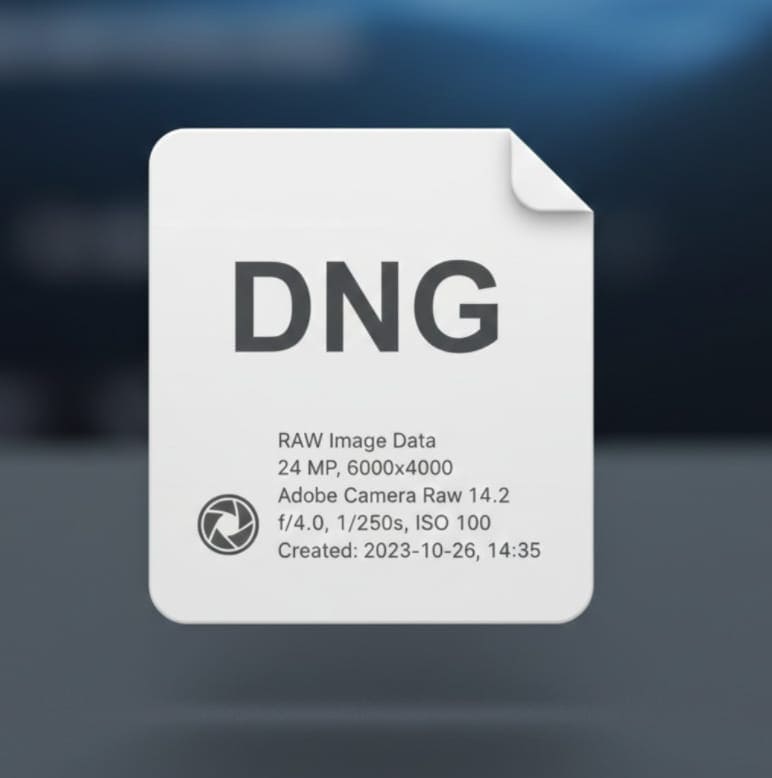
A DNG (Digital Negative) is a type of RAW image file developed by Adobe to standardize RAW formats across cameras. Unlike JPEG or PNG, a DNG preserves unprocessed data, allowing photographers to make precise adjustments like exposure, white balance, and color correction without losing quality.
Why DNG Files Are Popular
-
High-quality preservation: DNG retains the maximum image data from the camera sensor.
-
Standardization: Works across multiple software platforms, unlike proprietary RAW formats.
-
Non-destructive editing: Changes can be applied without affecting the original file.
-
Metadata embedding: DNG files can store camera settings, location, and editing history.
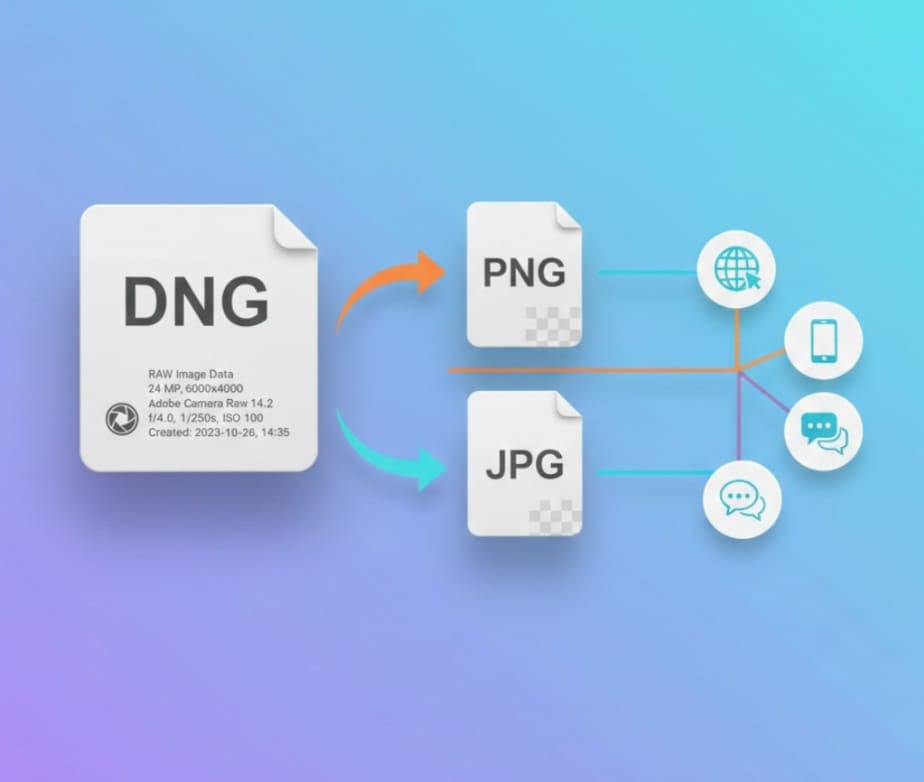
Despite these benefits, DNG files are large in size and not compatible with all devices, creating a need to convert them into universal formats like PNG, JPG, or JPEG for sharing, printing, or web use.
Why Convert DNG to PNG or JPG?
1. Compatibility
Most online platforms, social media, and image editors support JPG and PNG, but not RAW formats. Converting DNG to these formats ensures your images can be easily opened and shared.
2. File Size Reduction
DNG files are typically larger than compressed formats like JPG or PNG. By converting, you reduce file size without losing significant visual quality, making it easier to upload, send, or store.
3. Ease of Editing
While DNG is perfect for professional editing, not everyone has advanced tools like Adobe Photoshop or Lightroom. Converting to PNG or JPG allows users to edit images using basic tools or online editors.
4. Faster Web Loading
Websites load images faster when they are in optimized formats like JPG or PNG. Converting DNG to these formats improves website performance and user experience.
Introducing AllFileTools Free DNG to Images Converter
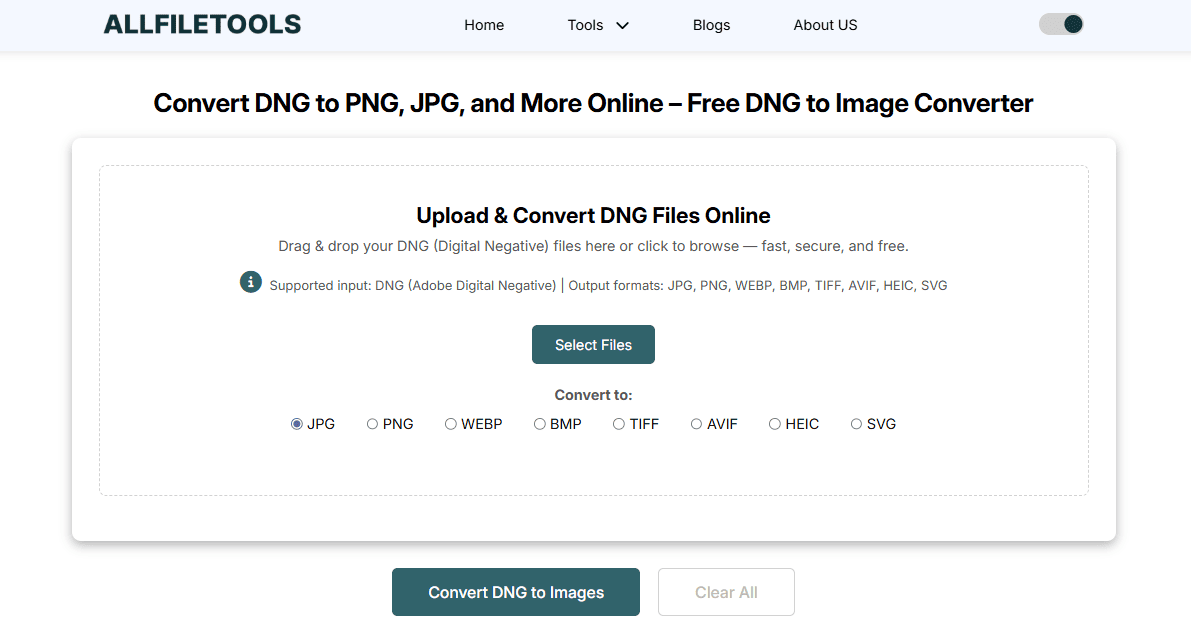
The AllFileTools DNG to Images Converter is a free online tool designed for anyone who needs a quick and reliable way to convert DNG files to PNG, JPG, JPEG, or other popular formats.
Key Features
-
Instant conversion: Convert DNG files in seconds without waiting.
-
No registration required: Start converting immediately without signing up.
-
Supports multiple formats: Convert DNG to PNG, JPG, JPEG, and more.
-
High-quality output: Retains the original image resolution and details.
-
Cross-platform compatibility: Works on Windows, Mac, Linux, and mobile devices.
-
Secure and private: Your files are not stored permanently and are deleted after processing.
How to Convert DNG to PNG, JPG, or JPEG Online
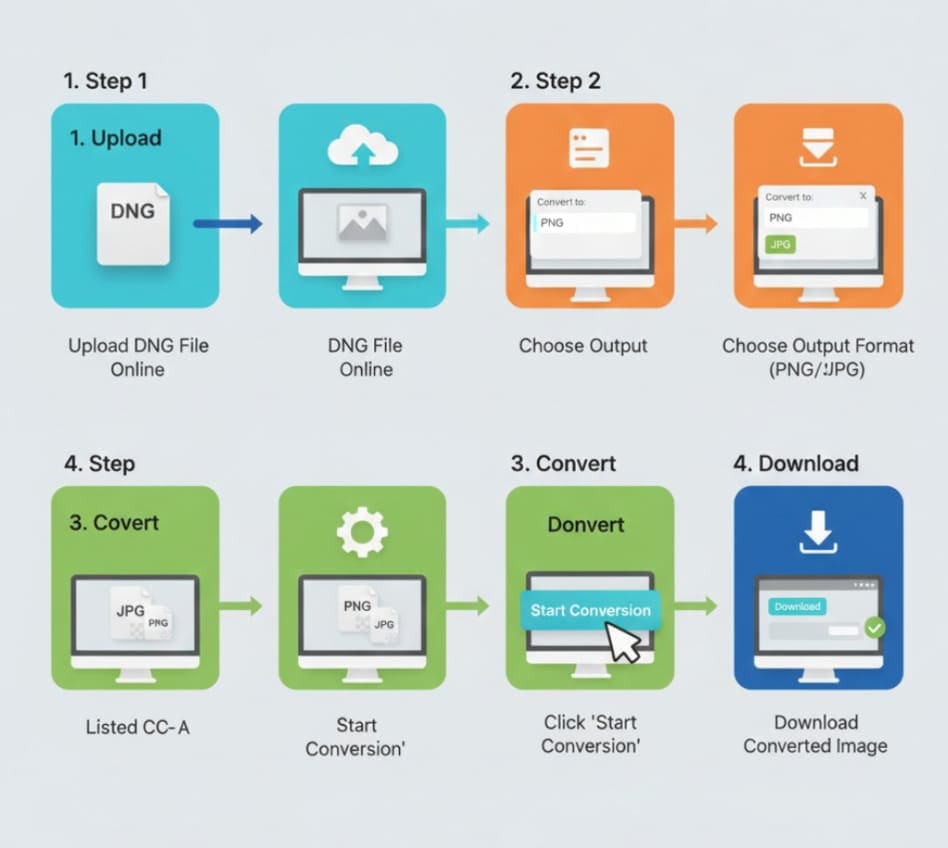
Using the AllFileTools converter is straightforward. Here’s a step-by-step guide:
Step 1: Visit the Tool
Open your browser and go to https://www.allfiletools.com/dng-to-images/. The interface is clean, simple, and user-friendly, ensuring even beginners can use it easily.
Step 2: Upload Your DNG File
Click the “Upload DNG” button and select the file from your device. You can upload single or multiple files for batch conversion.
Step 3: Select Output Format
Choose the desired output format: PNG, JPG, or JPEG. The tool provides options to maintain original quality or compress the image if needed.
Step 4: Start Conversion
Click “Convert”. The tool processes the file instantly, thanks to its fast online engine. No downloads, plugins, or software installation is required.
Step 5: Download Your Converted Image
Once the conversion is complete, click “Download” to save the converted image to your device. You can now share, edit, or upload the image wherever you need.
Advantages of Using an Online DNG to Image Converter
Using a free online converter like AllFileTools offers several benefits compared to offline software:
1. Convenience
No installation is required. You can convert images directly from your browser on any device, anywhere.
2. Speed
Online converters are optimized for fast processing. Large DNG files can be converted in seconds.
3. Accessibility
Supports all major platforms – Windows, Mac, Linux, and mobile devices. Ideal for professionals on the go.
4. Cost-effective
Completely free to use, eliminating the need for expensive software subscriptions.
5. Security
Files are processed securely and automatically deleted, ensuring privacy.
Who Can Benefit From This Tool?
-
Photographers: Quickly convert RAW images for clients, portfolios, or online sharing.
-
Graphic Designers: Transform high-quality DNG images into editable JPG/PNG formats.
-
Students: Convert images for projects, presentations, or online submissions.
-
Developers: Optimize images for websites, apps, or software testing.
-
General Tech Users: Easily view, share, and store images without compatibility issues.
Comparison: DNG vs PNG vs JPG
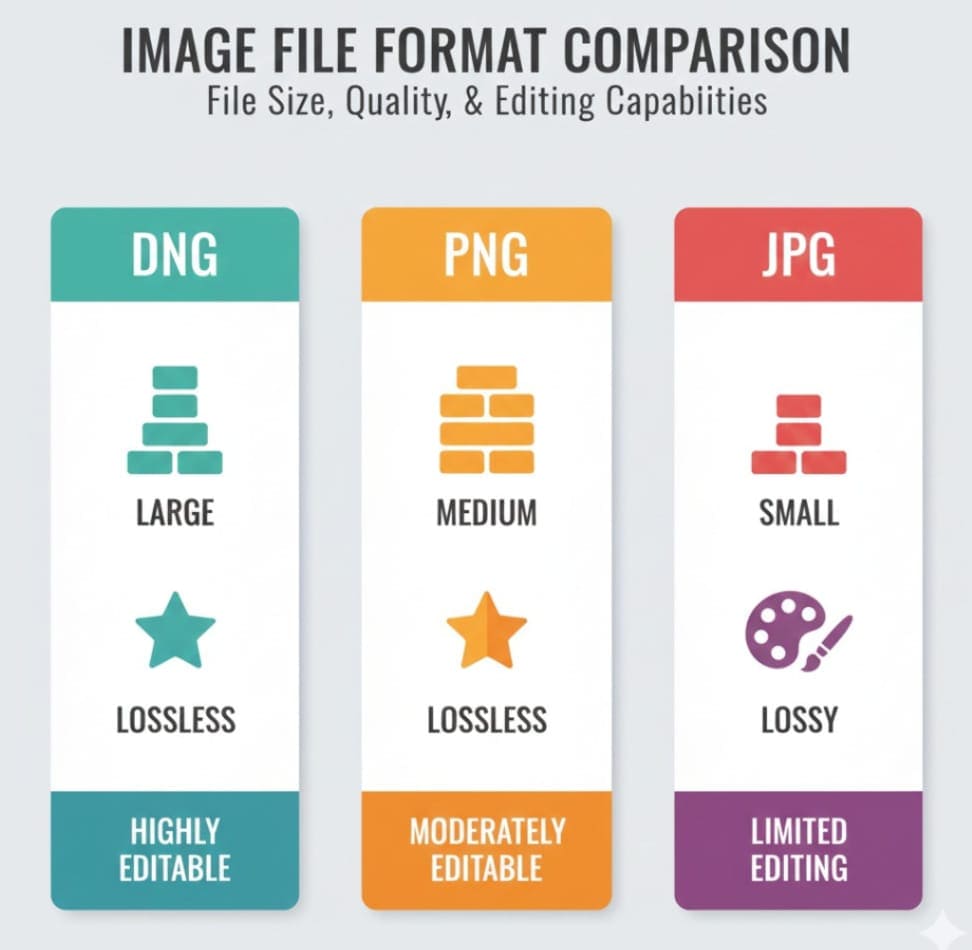
| Feature | DNG | PNG | JPG |
|---|---|---|---|
| File Size | Large | Medium | Small |
| Quality | Highest | High (lossless) | Good (lossy) |
| Editing | Non-destructive | Editable | Limited |
| Compatibility | Limited | Universal | Universal |
| Use Case | Professional editing | Graphics, transparency | Web, social media, sharing |
This comparison shows why converting DNG to PNG or JPG is often necessary for everyday use.
Tips for Converting DNG Files
-
Batch conversion: Use tools that support multiple files to save time.
-
Check output quality: Ensure the converted image retains important details.
-
Optimize for web: Compress JPG/PNG images for faster website loading.
-
Backup original files: Keep DNG files safe for future professional editing.
-
Use secure online tools: Choose tools like AllFileTools that respect privacy and security.
How Keyword Optimization Works for Your Blog
When writing about DNG to image converters, it’s important to naturally integrate high-volume keywords like:
-
Convert DNG to PNG
-
Convert DNG to JPG
-
Free DNG to Image Converter
-
Online DNG to Image converter
-
DNG file converter
Using these keywords in headings, paragraphs, and CTAs ensures SEO-friendly content while keeping the text readable for humans.
Common Issues Users Face & How the Tool Solves Them
Issue 1: DNG Not Opening on Devices
Most devices don’t natively support DNG. The AllFileTools converter solves this by converting to universal formats like PNG or JPG.
Issue 2: Large File Sizes
DNG files can be very large. Online conversion reduces file size without sacrificing quality.
Issue 3: Time-consuming Offline Software
Installing software like Photoshop just to convert a few files is inefficient. The online tool converts instantly in the browser.
Issue 4: Privacy Concerns
Some online converters store files permanently. AllFileTools processes securely and deletes files after conversion, keeping your images safe.
Why Choose AllFileTools Over Other Converters
| Feature | AllFileTools | Other Online Converters |
|---|---|---|
| Free | ✅ | Sometimes ❌ |
| No Registration | ✅ | Often ❌ |
| Multiple Formats | ✅ | Limited |
| Fast Conversion | ✅ | Slower |
| Privacy | ✅ | Varies |
The table shows why AllFileTools stands out as a trusted DNG to image converter.
Conclusion

Converting DNG files to PNG, JPG, or JPEG is no longer a complicated task. With tools like AllFileTools DNG to Images Converter, you can instantly convert RAW files online, maintain high image quality, and work efficiently across devices. Whether you’re a photographer, designer, student, or developer, this tool saves time, simplifies workflows, and ensures your images are ready for any platform.
Take control of your DNG files today — convert them online for free and instantly!
Frequently Asked Questions (FAQs)
1. What is a DNG file?
A DNG (Digital Negative) is a RAW image format developed by Adobe that preserves unprocessed image data for professional editing.
2. Why should I convert DNG to PNG or JPG?
Converting allows you to use images on all devices, reduce file size, edit in common software, and share online.
3. Is the AllFileTools converter free?
Yes, it is completely free and requires no registration.
4. Can I convert multiple DNG files at once?
Yes, the tool supports batch conversion for multiple files simultaneously.
5. Will converting DNG files reduce image quality?
The tool retains high image quality, though some formats like JPG are compressed. You can adjust settings if needed.
6. Is it safe to use an online converter?
Yes, AllFileTools ensures privacy by deleting files after processing and using secure online methods.
7. Which formats can I convert DNG files to?
You can convert DNG to PNG, JPG, JPEG, and other popular image formats for maximum compatibility.
Leave a Comment
No comments yet. Be the first to comment!