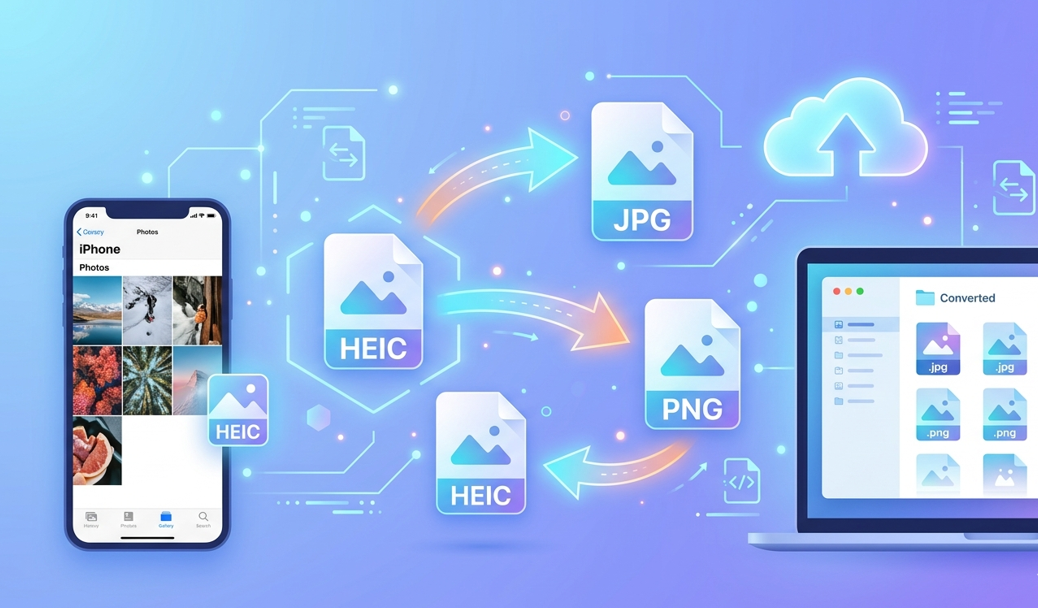
Apple introduced the HEIC image format to improve photo quality while reducing file size. However, many apps, websites, and operating systems still struggle to open HEIC files.
That’s why millions of users search every month for ways to:
- Convert HEIC to JPG
- Convert HEIC to PNG
- Convert PNG to HEIC
In this complete guide, you’ll learn:
- What HEIC files are
- Why iPhone photos use HEIC
- How to convert HEIC images easily
- The best free online converters
Let’s start with the basics.
What Is a HEIC File?
HEIC (High Efficiency Image Container) is an image format used by Apple devices starting with iOS 11.
It is based on the HEIF (High Efficiency Image Format) standard and uses HEVC compression, which allows images to:
- Maintain high quality
- Use smaller file sizes
- Store extra image data like Live Photos
Advantages of HEIC
✔ Smaller file size than JPG
✔ Better compression
✔ Higher image quality
✔ Supports multiple images in one container
✔ Stores metadata and depth data
Disadvantages of HEIC
❌ Limited compatibility with older apps
❌ Some websites don't support it
❌ Windows systems often can't open it natively
Because of these limitations, many users convert HEIC files into JPG or PNG.
HEIC vs JPG vs PNG
|
Format |
Compression |
Transparency |
Compatibility |
File Size |
|
HEIC |
Advanced compression |
❌ |
Limited |
Small |
|
JPG |
Lossy compression |
❌ |
Universal |
Medium |
|
PNG |
Lossless compression |
✔ |
Universal |
Large |
When to Use JPG
Use JPG when you want:
- Smaller file sizes
- Maximum compatibility
- Easy sharing online
When to Use PNG
PNG is best for:
- Graphics
- Transparent backgrounds
- Design work
- High-quality images
When to Use HEIC
HEIC works best for:
- iPhone photography
- Storage efficiency
- Apple ecosystem devices
How to Convert HEIC to JPG (Fastest Method)
The easiest way to convert HEIC images is by using an online converter tool.
Step 1: Open the Converter
Go to the HEIC to JPG tool:
👉 https://www.allfiletools.com/heic-to-jpg/
Step 2: Upload Your HEIC File
Upload your image by:
- Dragging and dropping the file
- Selecting it from your device
Step 3: Convert the File
Click Convert and the tool will instantly process the image.
Step 4: Download the JPG
Download the converted JPG file to your device.
This method works on:
- Windows
- Mac
- iPhone
- Android
No software installation is required.
How to Convert HEIC to PNG
PNG files are ideal when you need high-quality graphics or transparent backgrounds.
To convert your images quickly:
👉 Use the HEIC to PNG tool
https://www.allfiletools.com/heic-to-png/
Steps
- Upload your HEIC image
- Start the conversion
- Download the PNG file
The process takes only a few seconds.
How to Convert PNG to HEIC
Sometimes you may want to convert images into HEIC format to save storage space.
For example:
- iPhone photo libraries
- Apple device storage optimization
- Smaller image uploads
You can easily do this using our tool:
👉 PNG to HEIC Converter
https://www.allfiletools.com/png-to-heic/
Steps
- Upload your PNG image
- Click convert
- Download the HEIC file
Your file will be compressed efficiently without losing visual quality.
How to Convert HEIC on iPhone
You can convert HEIC images directly from your iPhone by:
Method 1: Using Online Tools
Upload the file to an online converter and download it as JPG or PNG.
Method 2: Change Camera Settings
Go to:
Settings → Camera → Formats
Select Most Compatible to save photos as JPG.
Why Many Websites Don’t Support HEIC
Even though HEIC is efficient, many platforms still use JPG or PNG because:
- HEIC support is inconsistent
- Older browsers cannot display it
- Many CMS systems reject HEIC uploads
That’s why converting HEIC files remains a common task.
Benefits of Using an Online Image Converter
Online converters provide several advantages.
No Software Installation
You can convert files directly in your browser.
Works on Any Device
Compatible with:
- Windows
- Mac
- Linux
- iPhone
- Android
Fast Conversion
Most tools convert images in seconds.
Easy to Use
Simply upload, convert, and download.
Frequently Asked Questions
Is HEIC better than JPG?
HEIC usually provides better compression and smaller file sizes while maintaining similar image quality.
However, JPG is more widely supported.
Can Windows open HEIC files?
Yes, but you may need to install HEIF Image Extensions or convert the file into JPG or PNG.
Does converting HEIC reduce quality?
It depends on the format.
- JPG uses lossy compression
- PNG uses lossless compression
Most converters preserve high image quality.
Can I convert HEIC files for free?
Yes. Many online tools allow you to convert HEIC images completely free without installing software.
Final Thoughts
HEIC is an efficient image format used by Apple devices, but compatibility issues often require converting files into JPG or PNG.
Fortunately, the process is quick and easy with online tools.
You can instantly convert your files using:
- HEIC → JPG
https://www.allfiletools.com/heic-to-jpg/ - HEIC → PNG
https://www.allfiletools.com/heic-to-png/ - PNG → HEIC
https://www.allfiletools.com/png-to-heic/
These tools work directly in your browser and allow you to convert images in seconds.
🔹 Explore more powerful file conversion and online utilities at AllFileTools
🔹 For technical support, digital solutions, and expert services, visit LetDigitalFly IT Services
🔹 Discover additional career and productivity resources at Resume Slip Builder
Leave a Comment
No comments yet. Be the first to comment!