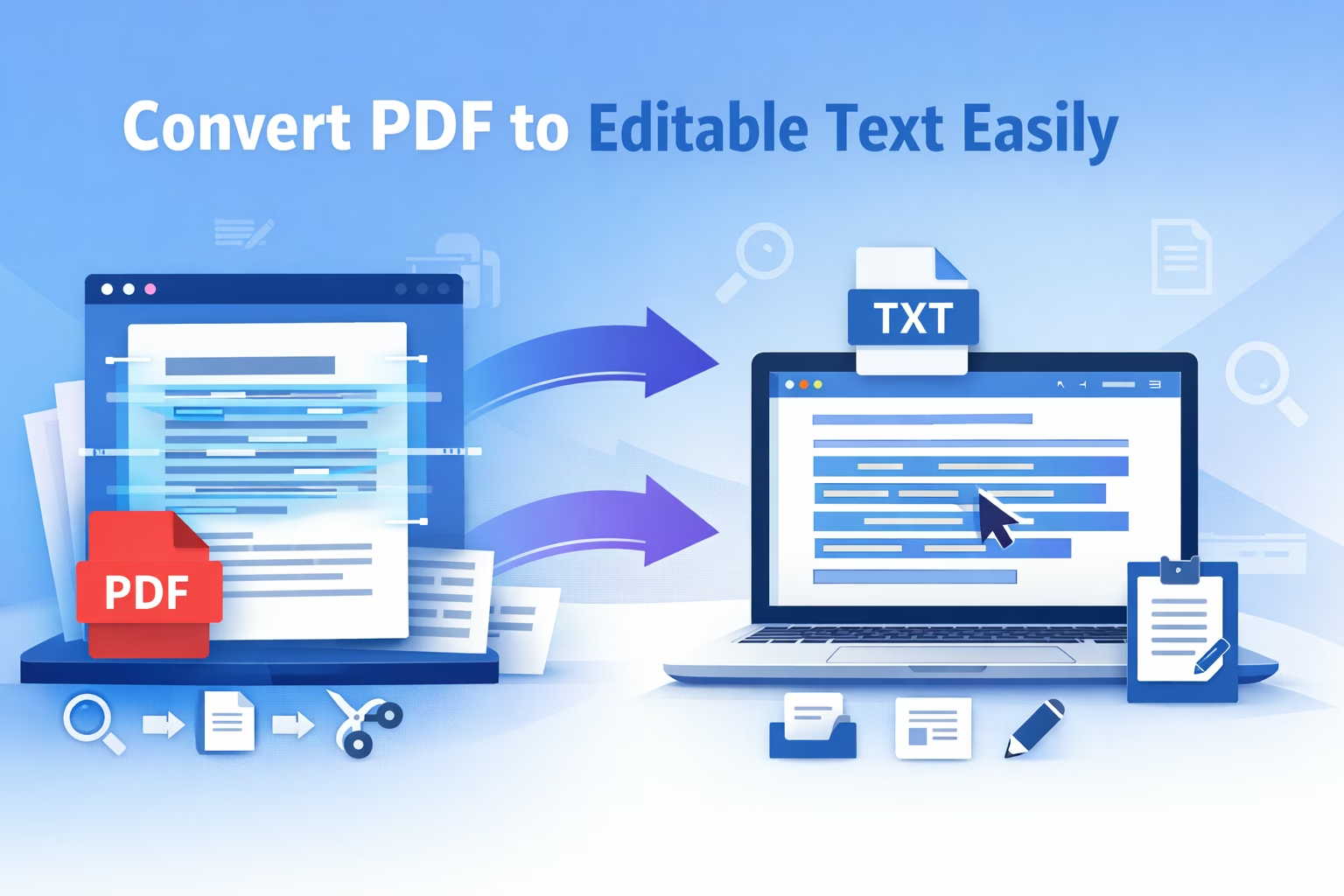
PDF files are one of the most reliable formats for sharing documents without breaking layout or formatting. However, they become frustrating when you need to copy, edit, search, or reuse the text inside them.If you have ever tried copying text from a PDF and ended up with messy formatting or missing content, you are not alone. Many PDFs are either locked, scanned, or structured in a way that makes extraction difficult.Fortunately, converting a PDF into editable text is easier than ever. With the right tool, you can extract clean, usable text from both digital PDFs and scanned documents in just a few minutes.
If you want to quickly extract editable text from any document, you can try the free
PDF to Text Extractor tool here:
https://www.allfiletools.com/pdf-to-text-extractor/
In this guide, you will learn:
- what it means to convert a PDF to editable text
- how OCR works for scanned PDFs
- common problems when extracting text
- the easiest method to convert PDF files to TXT
- which tool works best when standard converters fail
What Does “Convert PDF to Editable Text” Mean?
Converting a PDF to editable text means extracting the written content from a PDF file and turning it into text you can modify or reuse.
Once converted, the text can be:
- copied
- edited
- searched
- saved as a TXT file
- reused in notes, documents, databases, or AI workflows
This is especially useful when you need to:
- copy text from lecture slides
- extract clauses from contracts
- pull quotes from research papers
- turn scanned documents into searchable text
- prepare PDF content for indexing or analysis
However, not all PDFs behave the same way. Some contain selectable text, while others are simply images of text.
Understanding that difference is important before choosing a conversion method.
Why TXT Output Is Useful
Many people assume they need Word files or editable PDFs, but TXT files are often the best option for pure text extraction.
TXT files are useful because they are:
- lightweight
- easy to edit
- compatible with almost every device
- ideal for scripting and automation
- perfect for text cleanup and analysis
If your goal is simply to reuse the wording inside a document, exporting to TXT is often the fastest and cleanest option.
Types of PDFs You May Need to Convert
Before extracting text from a PDF, it helps to understand the type of document you are working with.
1. Digital PDFs
Digital PDFs are created directly from software such as Word, Google Docs, design tools, or report generators.
These files already contain embedded text, so extraction is usually fast and accurate.
2. Scanned PDFs
Scanned PDFs are created from:
- scanners
- phone photos
- printed documents
- archived paperwork
These files contain images of text rather than real text layers, which means normal converters cannot read them properly.
To extract text from these documents, you need OCR technology.
3. Locked or Flattened PDFs
Some PDFs restrict copying or are generated in ways that make extraction difficult.
These may include:
- flattened files
- protected PDFs
- documents exported from complex software
- multi-layer scanned documents
In these cases, standard converters often produce messy or incomplete output.
Why Standard PDF Converters Sometimes Fail
Many free PDF tools work well for simple documents but struggle with more complex files.
Common issues include:
- scanned pages
- low-quality images
- rotated pages
- mixed text and images
- multi-page structures
- partially searchable documents
When this happens, the extracted output may contain:
- missing lines
- broken sentences
- merged paragraphs
- unreadable formatting
That is why using a smarter extraction engine becomes important.
How to Convert PDF to Editable Text for Free
The easiest method for most users is using an online PDF text extractor.
Step 1: Upload Your PDF
Open a PDF text extraction tool and upload your document.
Tools like the AllFileTools PDF to Text Extractor allow drag-and-drop uploads and automatically detect whether OCR is required.
Step 2: Let the Tool Analyze the File
A good converter will check whether the PDF contains:
- embedded text
- scanned pages
This determines whether OCR is required.
Step 3: Extract the Text
Click the extraction button and allow the system to process the document.
Step 4: Review the Output
Check the extracted text for:
- readability
- page structure
- missing sections
Step 5: Copy or Download the Text
Most tools allow you to:
- copy the text directly
- download it as a TXT file
How OCR Helps Convert Scanned PDFs
OCR stands for Optical Character Recognition.
It is a technology that reads characters from images and converts them into digital text.
Without OCR, scanned PDFs cannot be properly converted because there is no real text layer inside the document.
OCR is essential for extracting text from:
- scanned contracts
- printed forms
- textbook scans
- archived paperwork
- photographed documents
- signed and flattened PDFs
Modern OCR systems analyze the shapes of characters and reconstruct them as editable text.
Online vs Desktop PDF Text Extraction
Different methods exist for converting PDFs to editable text.
|
Method |
Advantages |
Limitations |
|
Online tools |
Fast, no installation required |
Requires internet |
|
Desktop software |
More control and features |
Setup required |
|
Manual copy |
No tools needed |
Slow and unreliable |
For most users, online converters provide the fastest workflow, especially when OCR support is included.
A Better Way to Extract Text from PDF Files
If you regularly work with PDFs, basic converters may not be enough. You need a tool that can handle both digital files and scanned documents.
One option designed for this purpose is the PDF to Text Extractor by AllFileTools.
The tool uses a dual-engine extraction system.
If a PDF contains embedded text, it extracts it instantly.
If the file is image-based, the system automatically switches to OCR.
This removes the need for users to manually determine which method to use.
Key Features
Smart Multi-Engine Extraction
The tool combines high-speed data extraction for digital PDFs with OCR for scanned documents.
Automatic File Detection
After uploading a document, the system automatically determines whether the PDF contains text or images.
Bulk Processing
Multiple PDFs can be uploaded at once and downloaded as a single ZIP archive.
Page-by-Page Navigation
Instead of merging everything into one large block of text, the extractor preserves page structure for easier review.
Document Statistics
Users can see:
- page count
- character count
- estimated word count
This is particularly useful for researchers, writers, and legal professionals.
Who Should Use a PDF to Text Converter?
PDF text extraction tools are useful across many fields.
Students
Convert lecture slides, textbooks, and study materials into editable notes.
Researchers and Academics
Extract quotes and references from papers and journals for citation work.
Legal Professionals
Pull clauses from scanned agreements and archived documents.
Developers and Data Scientists
Convert PDF content into machine-readable text for indexing, automation, or AI workflows.
Business Teams
Extract text from reports, invoices, and internal documents without retyping information.
Common Problems When Converting PDFs
Even with advanced tools, a few issues can affect extraction quality.
Low-Quality Scans
Blurry or low-resolution images reduce OCR accuracy.
Mixed-Content Documents
Some PDFs contain both text and images, which may confuse weak converters.
Formatting Loss
TXT output removes most visual formatting. This is normal when exporting raw text.
Protected Files
Restricted PDFs may require the correct password before extraction.
Large Batch Jobs
Uploading files individually can be time-consuming without bulk conversion support.
Tips for Better PDF Text Extraction
For the best results:
- use high-quality scans when possible
- ensure pages are upright and not cropped
- choose tools with OCR support
- use batch conversion for multiple documents
- review long documents page by page
- export results in TXT format for easier editing
Is It Safe to Use an Online PDF to Text Tool?
Security is important when working with sensitive documents such as:
- contracts
- research data
- financial reports
- internal documents
Before using an online tool, check whether it provides:
- HTTPS encryption
- automatic file deletion
- temporary file storage
- secure upload processing
Many modern tools follow a privacy-first workflow where files are automatically removed after processing.
FAQs
Can I convert scanned PDFs to editable text?
Yes. Scanned PDFs require OCR technology to recognize the characters inside the image.
Does converting PDF to TXT remove formatting?
Yes. TXT files contain only raw text without formatting like fonts, colors, or layout.
What is the easiest way to extract text from a PDF?
Using an online PDF text extractor with OCR support is usually the fastest method.
Can I convert multiple PDFs at once?
Some tools support bulk conversion, allowing you to process multiple files and download the results as a ZIP archive.
Final Thoughts
Extracting editable text from PDFs no longer needs to be complicated. With modern extraction tools and OCR technology, both digital PDFs and scanned documents can be converted into clean, usable text within seconds.
Whether you are a student, researcher, developer, or business professional, having the ability to quickly extract text from PDFs can save hours of manual work.
If you frequently need to pull text from documents, using a reliable PDF to text extraction tool with automatic OCR detection can significantly simplify the process
🔹 Explore more powerful file conversion and online utilities at AllFileTools
🔹 For technical support, digital solutions, and expert services, visit LetDigitalFly IT Services
🔹 Discover additional career and productivity resources at Resume Slip Builder

Leave a Comment
No comments yet. Be the first to comment!