
In today’s fast-paced digital world, image quality and format compatibility are more important than ever. Whether you are a professional photographer, a graphic designer, or a developer dealing with images for apps, having a reliable tool to convert image formats is essential. One of the most common needs is converting PNG files to DNG. In this blog, we will dive deep into the PNG to DNG conversion process, explore why DNG is valuable, and guide you on using a free online PNG to DNG converter for secure, fast, and high-quality conversions.
Why Convert PNG to DNG?
Before we jump into the tools and methods, let’s understand why converting PNG to DNG matters.
-
Preserve Quality: PNG is a lossless format, but DNG (Digital Negative) is a RAW image format that allows editing without quality degradation.
-
Professional Editing: DNG files are widely supported in professional editing software like Adobe Lightroom and Photoshop.
-
Smarter Storage: DNG offers more flexibility in metadata handling and compression without losing critical image details.
-
Cross-Platform Compatibility: Many professional cameras output RAW images, and converting PNG to DNG ensures compatibility with workflows designed for RAW files.
In short, converting PNG images to DNG can elevate your editing capabilities and maintain the original quality of your digital work.
Understanding PNG and DNG Formats

PNG Format
-
Portable Network Graphics (PNG) is a raster image format.
-
Lossless Compression: Preserves image quality while reducing file size.
-
Transparency Support: Perfect for web graphics, logos, and UI designs.
-
Limitations: PNG is not ideal for extensive photo editing since it lacks RAW flexibility.
DNG Format
-
Digital Negative (DNG) is Adobe’s open RAW image format.
-
High-Quality Editing: Stores unprocessed image data, allowing advanced edits.
-
Metadata-Friendly: Supports embedded metadata for better cataloging and editing workflow.
-
Compression: Offers efficient lossless compression.
Converting PNG to DNG allows you to combine PNG’s clarity with DNG’s editing flexibility.
Features of a High-Quality PNG to DNG Converter
When selecting a converter, consider the following features:
-
Free and Fast Conversion: No downloads or complicated software installations.
-
Secure Online Tool: Ensures your images are not stored or shared.
-
High-Resolution Output: Maintain original image quality during conversion.
-
Batch Processing: Convert multiple images at once to save time.
-
Cross-Platform Compatibility: Works on Windows, Mac, and Linux.
-
User-Friendly Interface: Minimal clicks, no technical hassle.
-
Metadata Preservation: Keeps EXIF and other important metadata intact.
Step-by-Step Guide to Convert PNG to DNG Online
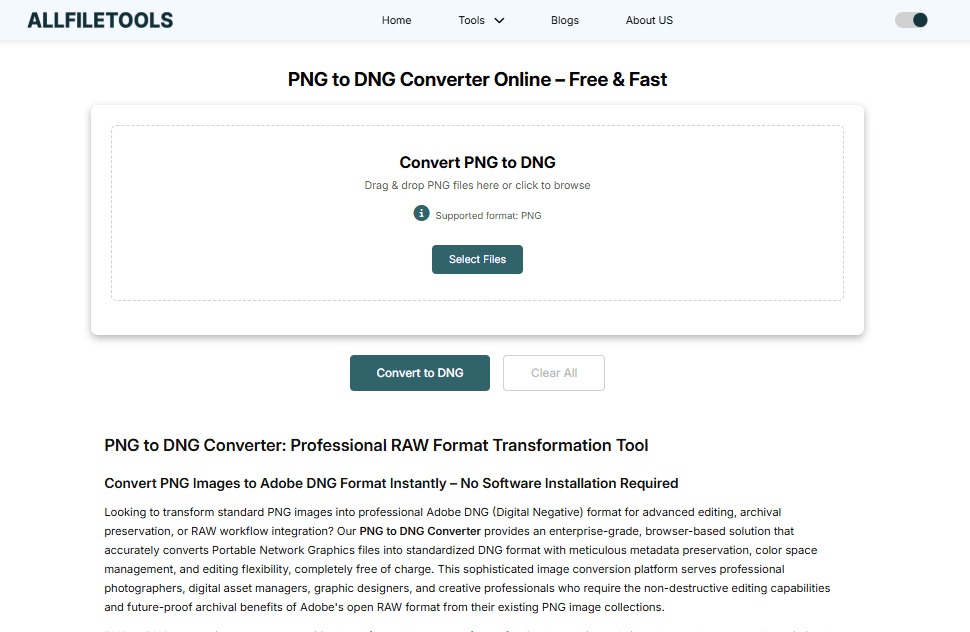
Here’s a detailed walkthrough using a free online converter:
-
Visit the Tool
Go to AllFileTools PNG to DNG Converter. -
Upload Your PNG File
-
Click the Upload button.
-
Select your PNG file(s) from your computer.
-
For batch conversion, hold Ctrl (Windows) or Cmd (Mac) while selecting files.
-
-
Choose Output Settings (Optional)
Some converters allow you to:-
Adjust resolution
-
Preserve metadata
-
Apply minor compression
-
-
Start Conversion
-
Click Convert.
-
Wait for the process to complete (usually seconds for small files).
-
-
Download DNG File
-
After conversion, download the DNG file.
-
You can now open it in professional software like Adobe Lightroom, Photoshop, or Darktable.
-
Pro Tip: Always check the converted DNG file quality to ensure no data is lost during the process.
Advantages of Using an Online PNG to DNG Converter
Using an online tool for PNG to DNG conversion has several benefits:
-
No Installation Required: Works directly from your browser.
-
Cross-Device Support: Convert from any device – desktop, laptop, or tablet.
-
Time-Efficient: High-speed processing, especially for single or multiple files.
-
Secure & Private: Many trusted online converters delete files automatically after conversion.
-
Free Access: No subscription or premium plan required.
Use Cases for PNG to DNG Conversion

Photographers
-
Convert edited PNG images into RAW DNG for further adjustments.
-
Maintain original color profiles and details.
Graphic Designers
-
Prepare transparent PNG assets for high-end print and digital workflows.
-
Use DNG files in professional editing software for advanced effects.
Developers & App Designers
-
Convert PNG assets to DNG for apps requiring RAW image handling.
-
Maintain image fidelity across platforms.
Students & Hobbyists
-
Learn RAW editing techniques using PNG-to-DNG converted images.
-
Experiment with metadata and exposure settings.
Image & Camera Professionals
-
Convert PNG renders from cameras or scanners to DNG for archival.
-
Integrate with Lightroom/Photoshop workflows efficiently.
Tips for Best Results
-
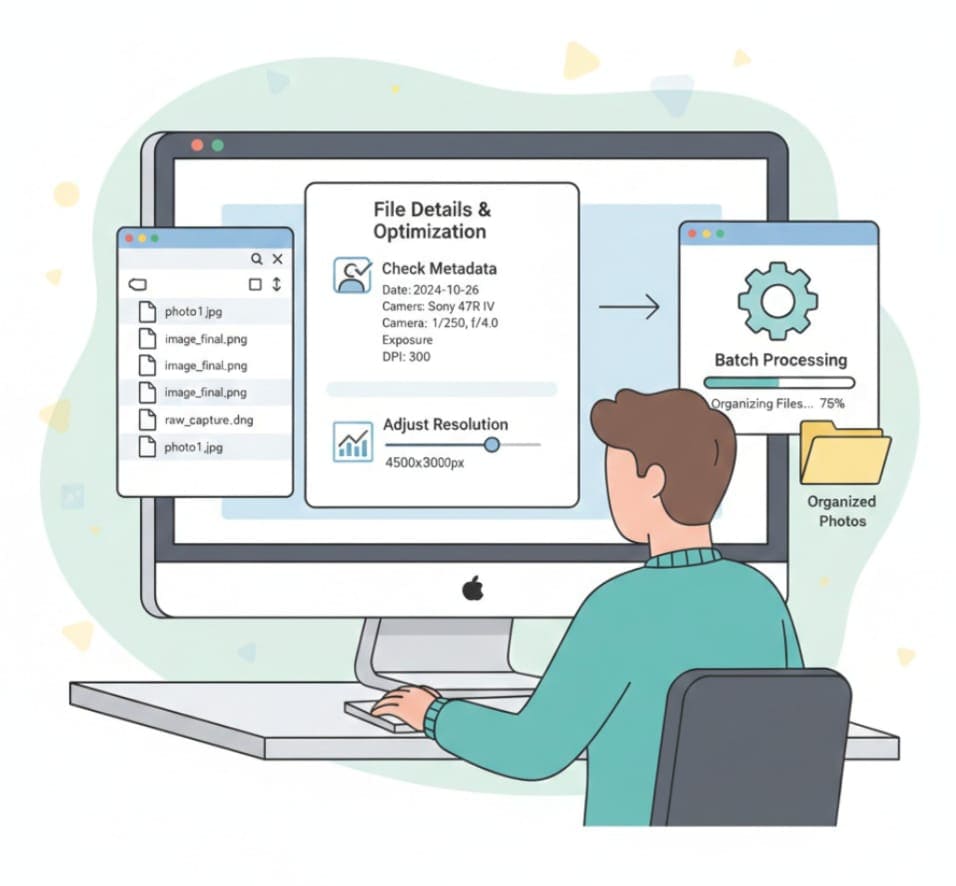
Check File Size: Large PNGs may take longer to convert; batch processing is more efficient.
-
Backup Original Files: Always keep the original PNG in case you need it.
-
Use High-Quality Source: Conversion cannot improve image quality; start with high-resolution PNGs.
-
Leverage Metadata: Ensure your converter preserves EXIF data for professional workflows.
-
Optimize Output Settings: Some converters allow adjustments to compression and resolution.
Common Mistakes to Avoid
-
Using low-resolution PNG files — results in low-quality DNG.
-
Ignoring metadata preservation — may lose important information.
-
Relying on outdated software or offline converters — slower and risk of errors.
-
Converting without checking DNG compatibility with your editing software.
Free vs Paid PNG to DNG Converters
| Feature | Free Converter | Paid Converter |
|---|---|---|
| Cost | Free | Paid subscription |
| Speed | Fast | Fast |
| File Size Limit | Limited | Usually unlimited |
| Advanced Options | Basic | Full metadata, compression, batch settings |
| Security | Usually secure | Very secure |
Observation: For most users, a free online converter like AllFileTools is sufficient for personal or professional use, while advanced photographers may prefer paid software for batch editing and advanced metadata handling.
Tips for Integrating PNG to DNG in Workflows
-
Photography Workflow: Import converted DNG files into Lightroom for editing exposure, color, and sharpness.
-
Graphic Design: Use DNG in Photoshop to retain layers and high-resolution edits.
-
App Development: Use DNG assets for apps requiring RAW processing or AR/VR images.
SEO & Keyword Integration Strategy
When writing a blog about PNG to DNG conversion, using high-volume keywords naturally is crucial. Some examples include:
-
PNG to DNG converter online
-
Convert PNG to DNG free
-
Free PNG to DNG converter
-
High-quality PNG to DNG tool
-
Fast PNG to DNG online
-
PNG to DNG batch conversion
-
Secure PNG to DNG converter
Placement tips:
-
Include keywords in H1, H2, meta title, meta description, first paragraph, and naturally throughout the blog.
-
Avoid keyword stuffing — maintain readability.
-
Use semantic variations like “convert PNG images to DNG” or “online PNG to DNG converter tool.”
Conclusion
Converting PNG files to DNG format is an essential step for anyone seeking high-quality, editable images. With the free, fast, and secure online PNG to DNG converter from AllFileTools, users across professions — photographers, designers, developers, and students — can seamlessly convert their images while preserving quality and metadata. By integrating DNG files into professional editing workflows, you can unlock more advanced editing features, maintain consistency, and streamline your image processing tasks.
🔹 Explore more powerful file conversion and online utilities at AllFileTools –
🔹 For technical support, digital solutions, and expert services, visit LetDigitalFly IT Services –
🔹 Discover additional career and productivity resources at Resume Slip Builder –
Frequently Asked Questions (FAQs)
1. What is the difference between PNG and DNG?
PNG is a lossless raster format ideal for web and graphics, while DNG is a RAW format designed for professional editing, offering more flexibility and preserving metadata.
2. Is the online PNG to DNG converter free?
Yes, AllFileTools PNG to DNG Converter is completely free to use without hidden charges.
3. Can I convert multiple PNG files to DNG at once?
Yes, the tool supports batch conversion for multiple files, saving time and effort.
4. Will converting PNG to DNG reduce image quality?
No, converting to DNG preserves the original image quality and metadata.
5. Can I use the converted DNG files in Adobe Lightroom or Photoshop?
Absolutely, DNG files are compatible with most professional editing software including Lightroom, Photoshop, and Darktable.
6. Is my data safe using the online converter?
Yes, the converter is secure, and most online tools automatically delete your uploaded files after processing.
7. Do I need to install software to use the converter?
No, it is an online tool — accessible directly from your browser on any device.
Leave a Comment
No comments yet. Be the first to comment!