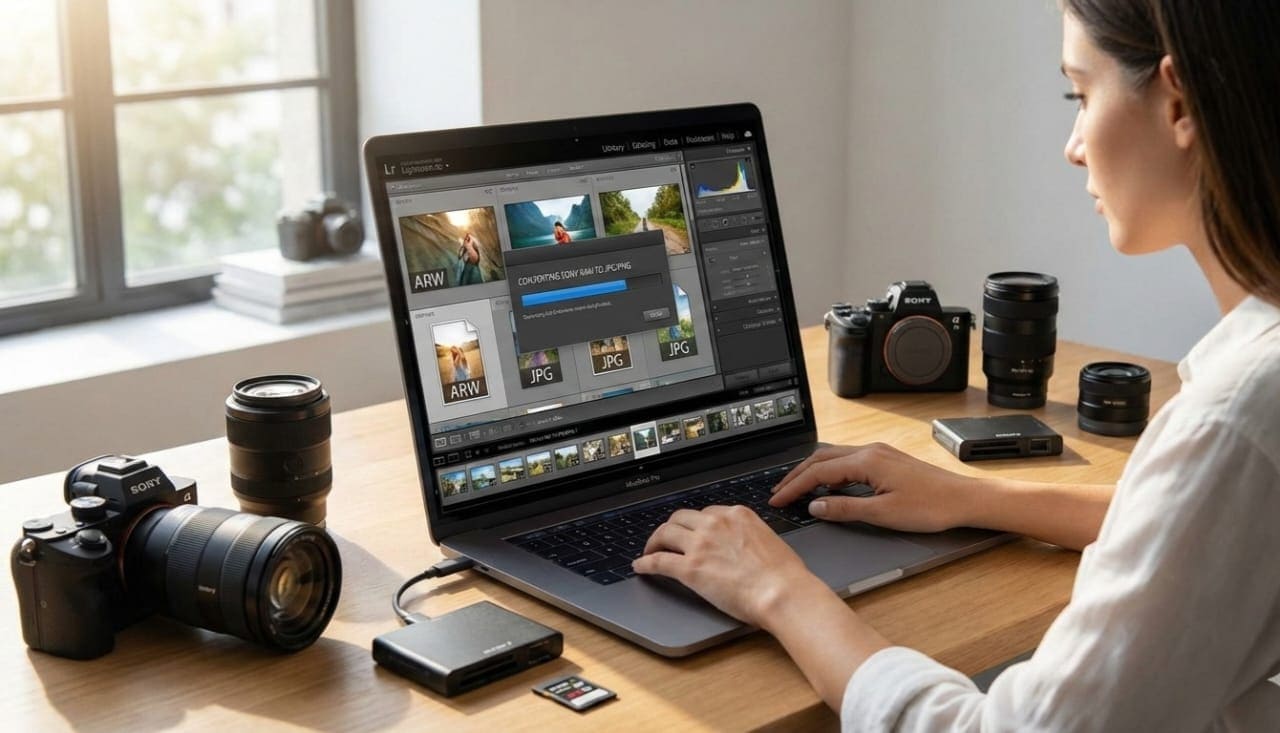
In the world of digital photography, every click counts. Whether you are a professional photographer, a graphic designer, a content creator, or even a beginner experimenting with your first camera, the quality of your images can make a huge difference. One challenge that often arises is dealing with RAW photo files, especially from Sony cameras. RAW files store uncompressed, high-quality image data, which is perfect for editing, but they are often not compatible with common software or easy to share online. That’s where a Sony RAW to Image Converter Online comes in—a tool designed to convert your RAW photos into widely compatible formats like JPG, PNG, or TIFF, quickly and efficiently.
In this comprehensive guide, we’ll explore everything you need to know about Sony RAW file conversion, the features and benefits of using an online converter, step-by-step instructions on how to convert your images, and FAQs that answer common questions. By the end of this post, you’ll have a clear understanding of why this tool is essential for photographers, designers, and anyone handling Sony RAW files.
What Are Sony RAW Files?
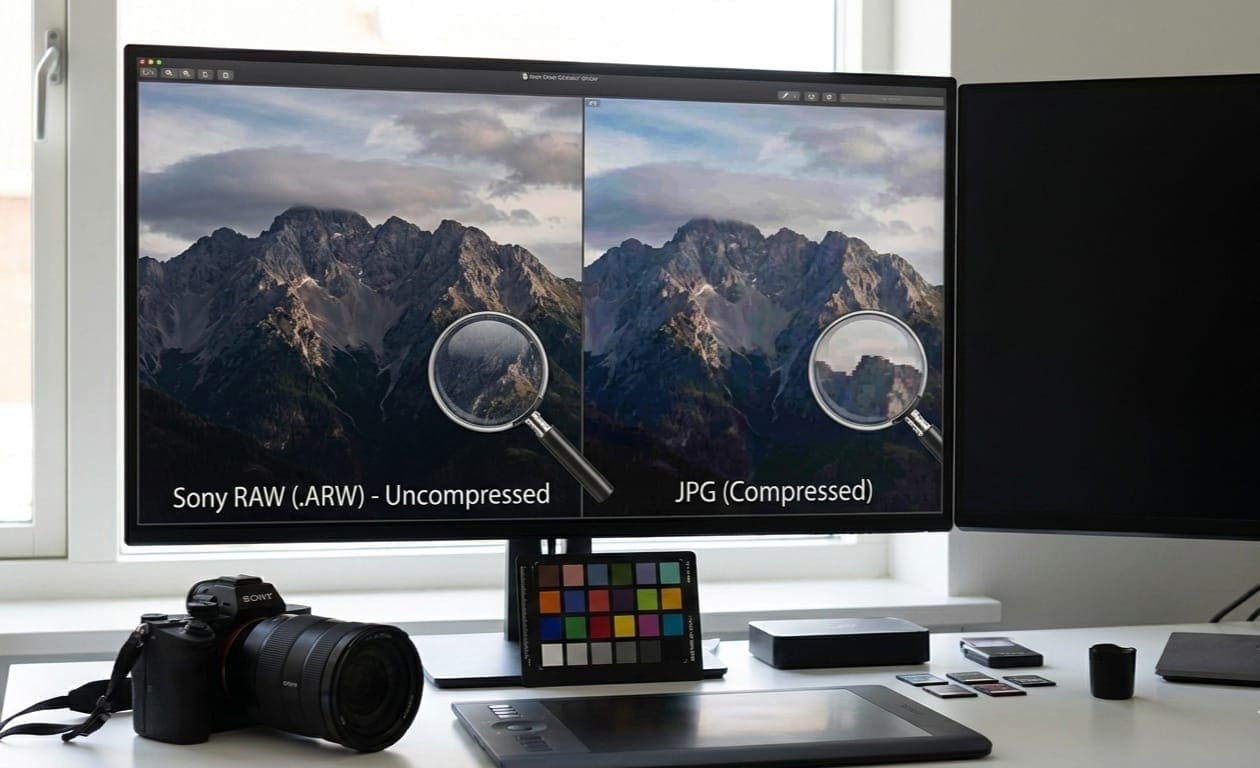
Before diving into converters, it’s important to understand what Sony RAW files are. RAW is a file format that contains unprocessed image data directly from a camera sensor. For Sony cameras, RAW files are typically saved with extensions like .ARW. These files offer unmatched flexibility in post-processing because they retain all the image information captured by the sensor, unlike compressed formats such as JPG.
Key Characteristics of Sony RAW Files:
-
High Quality: Retains full sensor data for maximum clarity.
-
Uncompressed: No loss in image quality, making it perfect for professional editing.
-
Large File Size: RAW files are significantly larger than JPGs, which can make sharing difficult.
-
Editing Flexibility: Allows adjustments in exposure, white balance, contrast, and more without losing quality.
Technical Note: Working with RAW files requires specialized software, such as Adobe Lightroom, Photoshop, Capture One, or dedicated RAW converters. While professional software offers advanced features, it may not always be accessible or convenient, especially if you need a quick conversion online.
Why Convert Sony RAW to Image Formats?
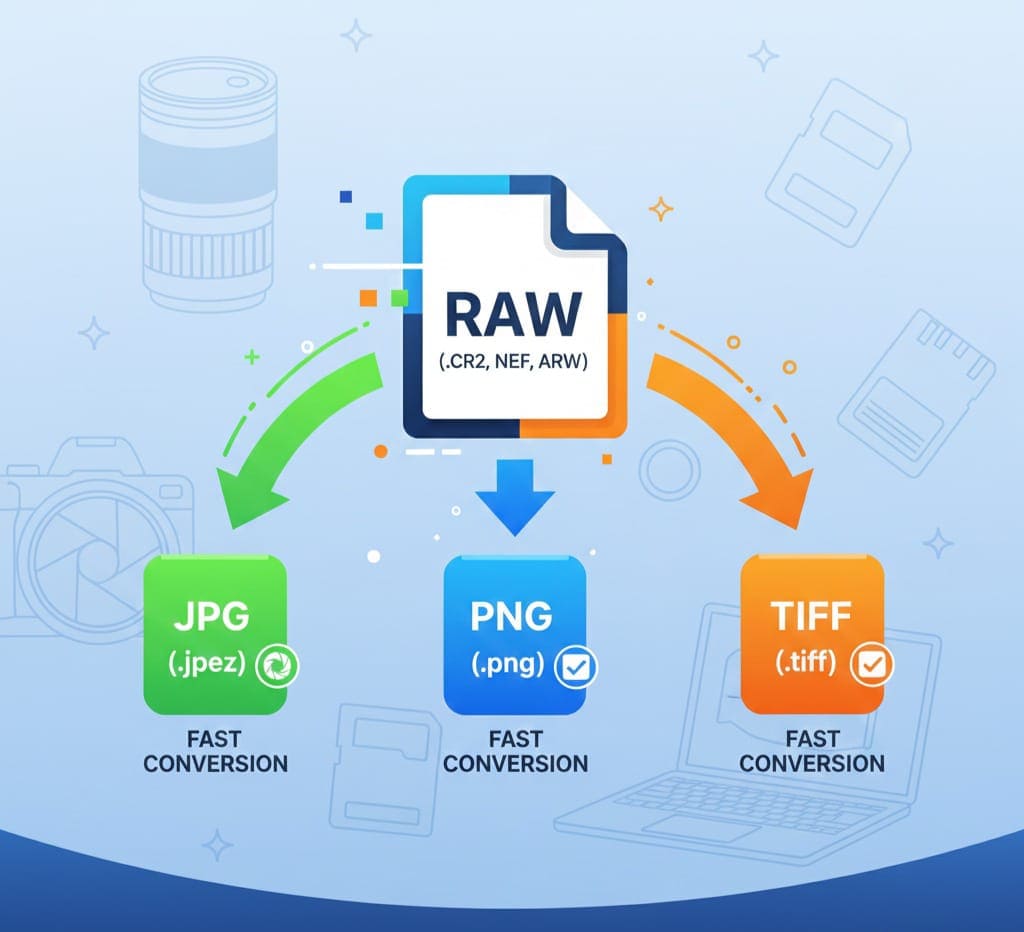
While RAW files are excellent for professional editing, they are not ideal for immediate sharing or casual use. Converting RAW to common image formats offers several advantages:
-
Compatibility: JPG, PNG, and TIFF files can be opened on almost any device or software.
-
Smaller File Size: Converted images are easier to store, share, and upload online.
-
Instant Use: JPG or PNG images can be used in presentations, websites, social media, and marketing materials without additional processing.
-
Quick Access: Online converters provide fast, hassle-free conversion without installing heavy software.
-
Preserves Quality: Modern converters, especially those designed for Sony RAW files, maintain high resolution and image fidelity.
Introducing Sony RAW to Image Converter Online
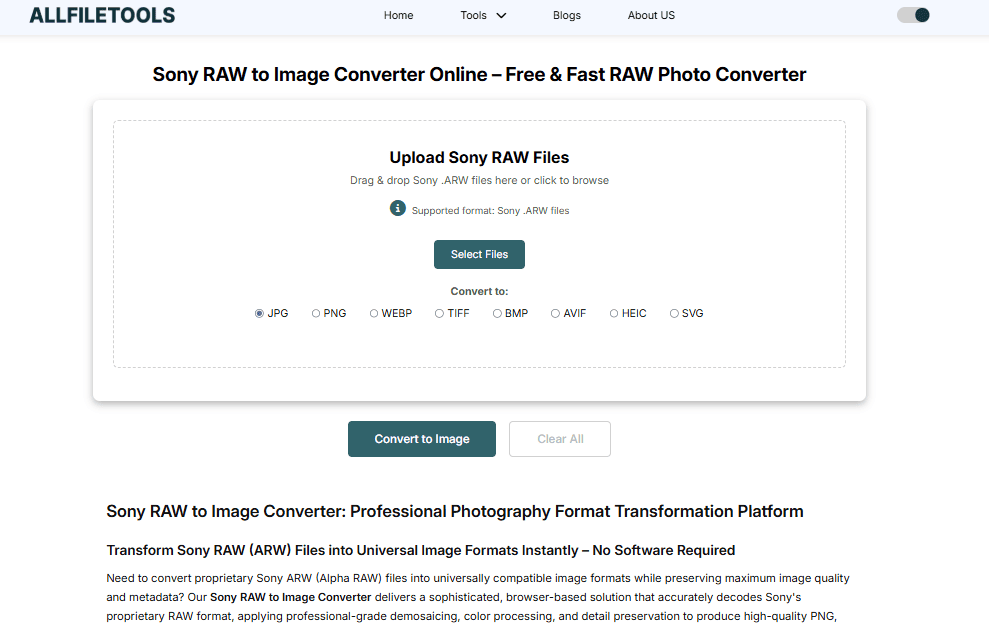
The Sony RAW to Image Converter Online is a free, fast, and efficient tool that allows you to convert RAW files to formats like JPG, PNG, or TIFF instantly. It is designed with simplicity and speed in mind, making it perfect for users across all skill levels.
Key Features:
-
Free & Online: No need to download or install software.
-
High-Speed Conversion: Processes large RAW files in seconds.
-
Multiple Output Formats: Convert to JPG, PNG, or TIFF based on your needs.
-
Batch Conversion: Convert multiple RAW files at once to save time.
-
High-Quality Output: Maintains image clarity, sharpness, and color accuracy.
-
Cross-Platform: Works on Windows, Mac, and even mobile browsers.
Feature Keyword Notes: These features are commonly searched by photographers and designers, making the tool highly discoverable via keywords like “Sony RAW converter online,” “convert ARW to JPG,” or “fast RAW photo converter.”
How to Use Sony RAW to Image Converter Online
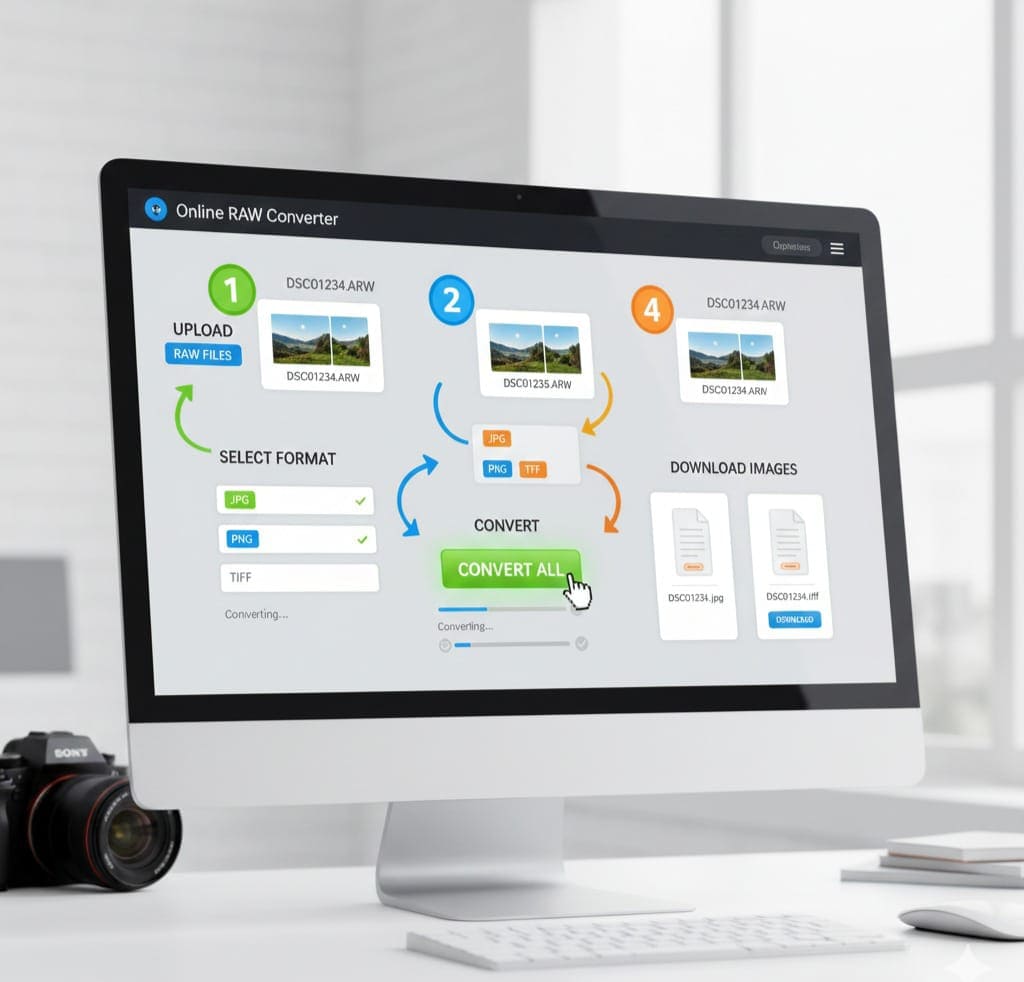
Using this online tool is straightforward. Here’s a step-by-step guide:
Step 1: Open the Tool
Visit the tool using this link: Sony RAW to Image Converter Online.
Step 2: Upload RAW Files
Click the “Upload” button and select your .ARW or other Sony RAW files. You can upload one file at a time or multiple files for batch conversion.
Step 3: Choose Output Format
Select the desired image format:
-
JPG for web use or sharing
-
PNG for images requiring transparency
-
TIFF for high-quality prints and professional editing
Step 4: Start Conversion
Click “Convert Now.” The tool will process your RAW files and prepare them for download. Conversion speed depends on file size, but the tool is optimized for fast results.
Step 5: Download Converted Images
Once conversion is complete, download your images directly to your device. The files are ready for editing, sharing, or uploading.
Tip: For best results, ensure your RAW files are not corrupted and are compatible with Sony ARW format standards.
Benefits of Using This Online Converter
Using an online converter for Sony RAW files provides multiple benefits for different user types.
For Photographers:
-
Quickly convert images for client previews.
-
Reduce file size for emailing or cloud storage.
-
Maintain original photo quality for portfolio usage.
For Graphic Designers:
-
Easily integrate high-quality images into projects.
-
Convert multiple RAW images for batch processing.
-
Avoid compatibility issues with design software.
For Content Creators:
-
Convert RAW photos for social media or blog posts.
-
Ensure images are web-ready without compromising clarity.
-
Save time with fast online conversion.
For Beginners:
-
No need for expensive software.
-
Simple interface and step-by-step process.
-
Learn the basics of RAW conversion without technical knowledge.
Primary Keywords to Include:
-
Sony RAW to Image Converter Online
-
Free RAW Photo Converter
-
Convert Sony RAW to JPG
-
Convert ARW to PNG online
-
Fast RAW image conversion
Secondary & Long-Tail Keywords:
-
Best Sony RAW to JPG converter free
-
How to convert Sony RAW photos online
-
High-quality Sony RAW to PNG converter
-
Online RAW photo conversion tool for photographers
-
Batch convert Sony RAW files to JPG
-
Sony ARW to TIFF converter for professional use
Technical Keywords:
-
ARW file conversion
-
RAW photo editing
-
Image format conversion
-
Lossless RAW conversion
-
High-resolution image processing
Feature-Related Keywords:
-
Fast conversion speed
-
Batch processing RAW files
-
High-quality image output
-
Free online RAW converter
-
Web-based photo conversion tool
Other Related Keywords:
-
Sony camera RAW files
-
RAW to JPG online
-
Free online photo converter
-
Convert RAW images without software
-
Online image conversion service
Why This Tool Stands Out
Many RAW converters exist, but this Sony RAW to Image Converter Online excels because:
-
No Installation Required: Works in any modern web browser.
-
Cross-Platform Compatibility: Windows, Mac, and mobile users can all use it.
-
Batch Conversion: Save time with multiple file conversions simultaneously.
-
High-Quality Output: Ensures professional-grade images without losing detail.
-
User-Friendly Interface: Designed for both beginners and experts.
Insight: Using these feature and technical keywords throughout your blog improves Google discoverability and matches user search intent, which is mainly transactional (users want to convert RAW files quickly).
Comparison With Other Methods
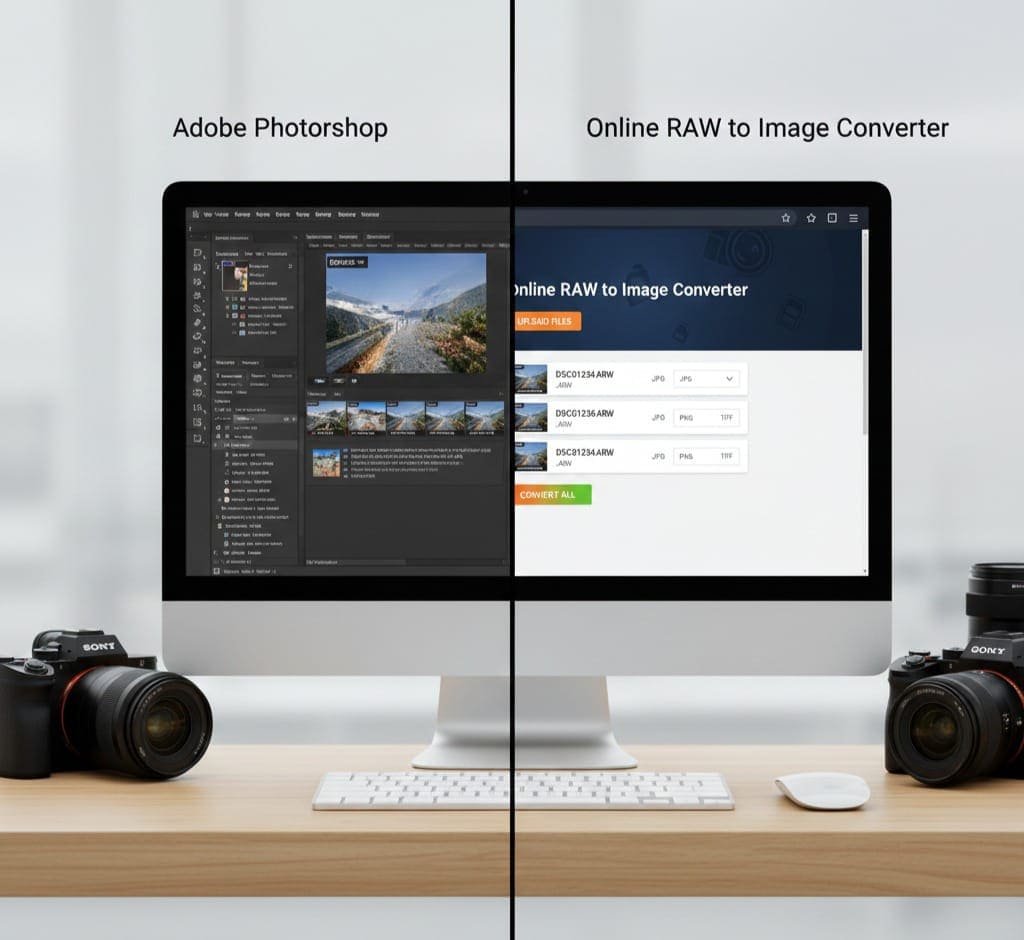
Traditional Software vs Online Converter
| Feature | Software (Photoshop/Lightroom) | Online Converter |
|---|---|---|
| Installation | Required | None |
| Cost | Paid | Free |
| Speed | Moderate | Fast |
| Accessibility | Desktop only | Anywhere with browser |
| Batch Conversion | Limited | Supported |
| Learning Curve | High | Low |
Observation: For users who want quick, hassle-free conversions, the online tool is much more convenient while still maintaining professional image quality.
Tips for Optimal Conversion
-
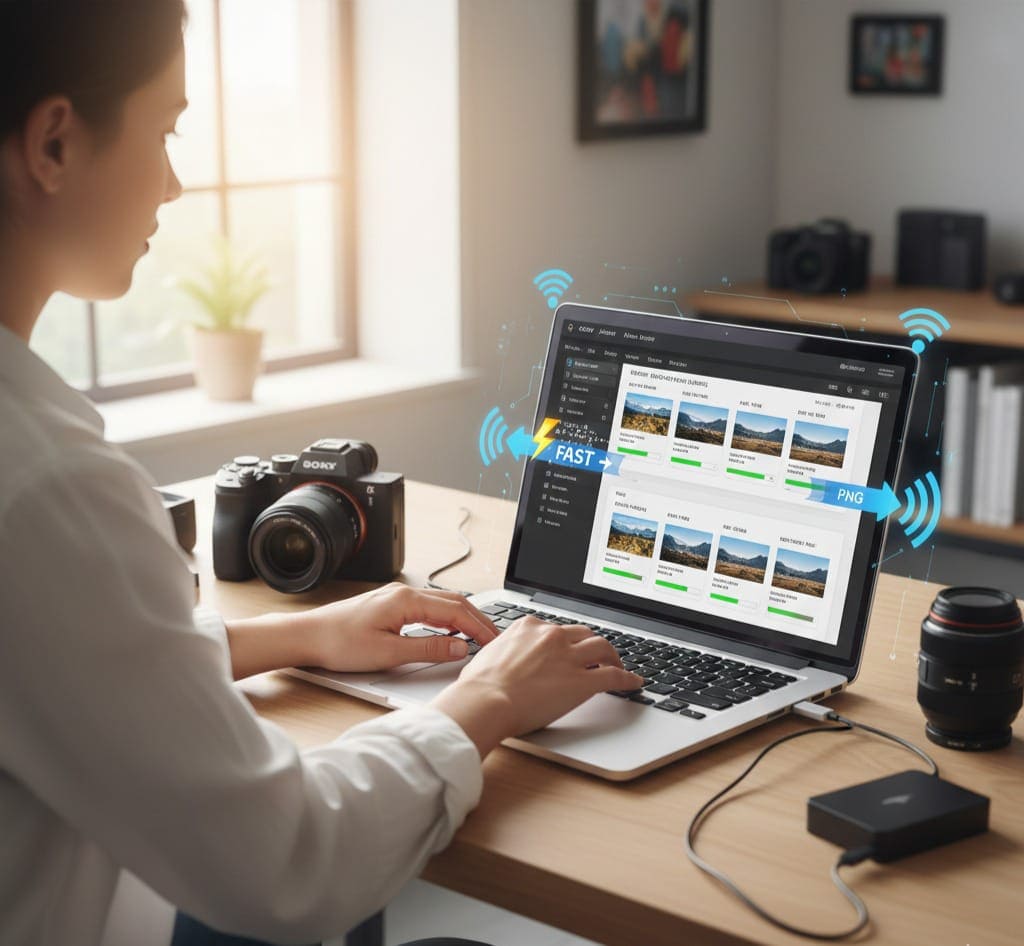
Always use the latest browser version for best performance.
-
Check your internet speed; faster connections yield quicker conversions.
-
Organize RAW files before uploading to simplify batch conversion.
-
Verify converted files for color accuracy and resolution.
Technical Note: While online tools are excellent for immediate conversions, advanced editing should still be performed in professional software for precise color grading or retouching.
Conclusion
Converting Sony RAW files to widely used image formats doesn’t have to be complicated. The Sony RAW to Image Converter Online – Free & Fast RAW Photo Converter provides a simple, fast, and reliable solution for photographers, graphic designers, content creators, and beginners alike. With features like batch conversion, high-quality output, multiple format support, and cross-platform compatibility, this tool saves time while maintaining professional-grade images. Whether you need images for web, print, or social media, this converter ensures your Sony RAW files are ready to use instantly.
👉 Start converting your Sony RAW files today using the free tool here: Sony RAW to Image Converter Online
Frequently Asked Questions
Q1: What is a Sony RAW file?
A: A Sony RAW file, usually with the .ARW extension, contains uncompressed image data captured by the camera sensor, offering maximum flexibility for editing.
Q2: Can I convert multiple RAW files at once?
A: Yes! The tool supports batch conversion, allowing you to convert multiple Sony RAW files in one go.
Q3: Is this converter free to use?
A: Absolutely. The Sony RAW to Image Converter Online is completely free and requires no installation.
Q4: Which image formats can I convert my RAW files to?
A: You can convert to JPG, PNG, or TIFF, depending on your needs.
Q5: Will the image quality be affected after conversion?
A: No, the tool maintains high-resolution quality and color accuracy to ensure professional-grade output.
Q6: Can I use this converter on my phone or tablet?
A: Yes! The tool is web-based and works on Windows, Mac, and mobile devices with a browser.
Q7: How fast is the conversion process?
A: The conversion is fast, often completing in seconds, depending on file size and your internet speed.
Leave a Comment