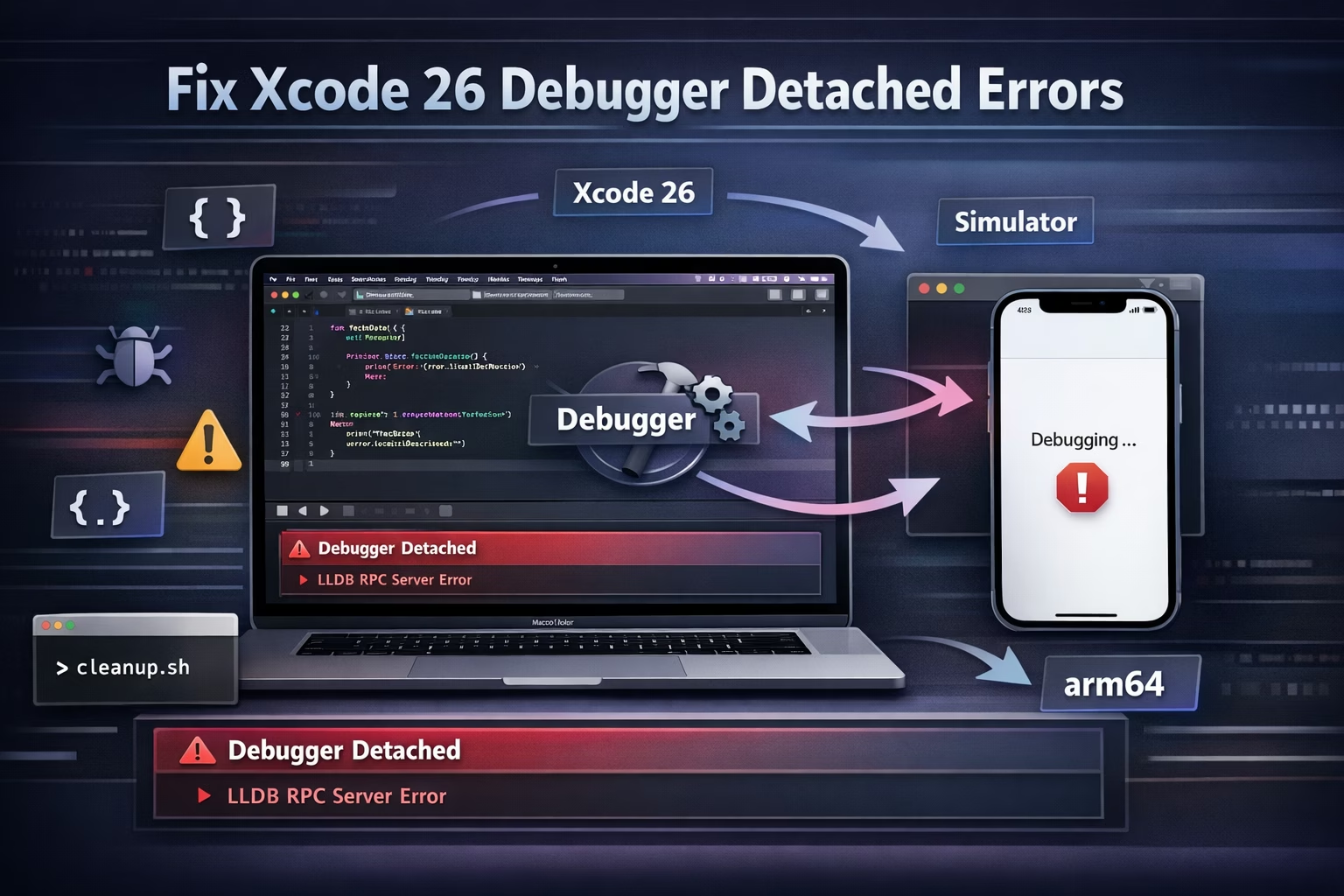
In iOS development, 2026 has brought us incredible tools like Gemini-integrated Coding Assistants and Hardware Memory Tagging. However, these advancements come with a new set of "2026-exclusive" bugs.
If you've encountered the dreaded "Xcode has killed the LLDB RPC server" or found your simulator stuck in an infinite "Attaching..." loop, you aren't alone. These issues are often symptoms of the new "Guard" security layer in macOS 16 (Tahoe) clashing with legacy build artifacts.
Navigating the "RPC Server" Crisis in Xcode 26
The Problem: The "Ghost" in the Debugger In Xcode 26, the LLDB RPC Server crash usually occurs because the debugger's security protocol (the "Guard") detects an unexpected memory access or a mismatch in the arm64 architecture. This is common when your app is heavy on motion graphics or uses custom frameworks.
Step 1: The "Atomic" Reset
When LLDB detaches and tells you to "manually terminate your process," your DerivedData is likely corrupted.
- Terminal command: sudo rm -rf ~/Library/Developer/Xcode/DerivedData/*
- Simulator Fix: Run xcrun simctl runtime dyld_shared_cache update --all. This forces the simulator to rebuild its link library, which often fixes the "Failed to attach to pid" error.
Step 2: Leveraging AI-Debugging
Xcode 26 has an "Explain This Error" button. If the RPC server crashes, don't just restart. Click the error in the Issue Navigator and select Ask Coding Assistant. It will analyze your build logs and check if a specific library (like a JSON decoder or a graphic library) is triggering the crash.
Step 3: The "Soft-Mode" Workaround
If you are using the new Hardware Memory Tagging (a new safety feature in Xcode 26), it can sometimes cause the debugger to lag or crash during "Real-Time" debugging.
- Fix: Go to Target > Capabilities > Enhanced Security.
- Switch Memory Safety from "Hard Mode" to "Soft Mode". This allows the app to run without the debugger killing the process on minor memory spikes.
Step 4: Network & USB Stability
Users in 2026 are reporting that wireless debugging is significantly slower on iOS 26. For high-fidelity apps like yours, always use a physical USB-C cable (Thunderbolt 4 preferred). Wireless debugging can cause a "timeout" in the RPC server, leading to the exact "Killed LLDB" error you saw.
3. Summary Checklist for your Workflow
- Proactive Audits: Use Xcode Cloud to run a "Clean Build" once a week to catch dependency drifts early.
- Asset Hygiene: Use the Icon Composer to ensure your production and test icons meet the new "No Alpha" requirements before archiving.
- Migration Deadline: Remember that Apple mandates Xcode 26 for all App Store submissions starting April 28, 2026.
The Top 3 Xcode 26 Issues (And Their Fixes)
1. The LLDB RPC Server Crash
This usually occurs when the debugger's security protocol detects an unexpected memory spike, common in high-fidelity apps.
- The Symptom: An error message stating Xcode has killed the RPC server to detach from your process.
- The Fix: Switch your project’s Memory Safety mode from "Hard" to "Soft" in the Target Settings. This allows for the minor memory variances that often trigger the debugger's panic mode.
2. The "Alpha Channel" Icon Rejection
As we discussed in our recent guide on AllFileTools, Xcode 26 has a zero-tolerance policy for transparency in app icons.
- The Symptom: Validation errors during Archive or "Missing Alpha" warnings.
- The Fix: Always export your PNGs with the Alpha channel unchecked. You can automate this with a simple Python script using the Pillow library to strip the alpha layer from your entire /Assets folder.
3. Simulator Architecture Mismatch (arm64)
With the final sunset of Intel-based support in many 2026 frameworks, running simulators on hybrid environments can cause "Failed to attach to PID" errors.
- The Fix: Ensure your Excluded Architectures for "Any iOS Simulator SDK" is clean. If issues persist, running the command xcrun simctl runtime dyld_shared_cache update via Terminal is the magic bullet that forces the simulator to re-index its libraries.
Building a "Clean-First" Workflow
At AllFileTools, we believe in efficiency. Instead of manually clicking through menus, professional developers use Maintenance Scripts. Automating the removal of DerivedData and resetting the CoreSimulator service can save you up to 30 minutes of troubleshooting per day.
The "Xcode 26 Pulse" Bash Script
This script is designed to be a one-click fix for the most common 2026 developer issues, including the LLDB RPC crash and simulator dyld lag.
Filename: xcode_pulse.sh
Bash
#!/bin/bash
# --- Xcode 26 Maintenance & Repair Script ---
# Author: Raymond (AllFileTools.com)
echo "🚀 Starting Xcode Pulse Cleanup..."
# 1. Terminate "Zombie" Debugger Processes
echo "🧹 Killing rogue debugger processes..."
killall Xcode 2> /dev/null
killall lldb-rpc-server 2> /dev/null
killall debugserver 2> /dev/null
pkill -int com.apple.CoreSimulator.CoreSimulatorService 2> /dev/null
# 2. Nuclear Derived Data Wipe
echo "💾 Wiping DerivedData..."
rm -rf ~/Library/Developer/Xcode/DerivedData/*
# 3. Clear Module & SPM Caches
echo "📦 Cleaning Swift Package & Module Caches..."
rm -rf "$(getconf DARWIN_USER_CACHE_DIR)/org.llvm.clang/ModuleCache"
rm -rf ~/Library/Caches/org.swift.swiftpm
# 4. Simulator Deep Reset (Erases all content)
echo "📱 Resetting all simulators to factory state..."
xcrun simctl erase all
# 5. Fix Shared Cache (The fix for "Failed to attach to pid")
echo "🔧 Rebuilding simulator dyld shared cache..."
xcrun simctl runtime dyld_shared_cache update --all
echo "✅ Pulse Cleanup Complete! Restart Xcode and enjoy a clean build."
How to use: Save this code, run chmod +x xcode_pulse.sh in Terminal, and execute it with ./xcode_pulse.sh whenever Xcode starts acting up.
🔹 Explore more powerful file conversion and online utilities at AllFileTools
🔹 For technical support, digital solutions, and expert services, visit LetDigitalFly IT Services
🔹 Discover additional career and productivity resources at Resume Slip Builder


Leave a Comment
No comments yet. Be the first to comment!