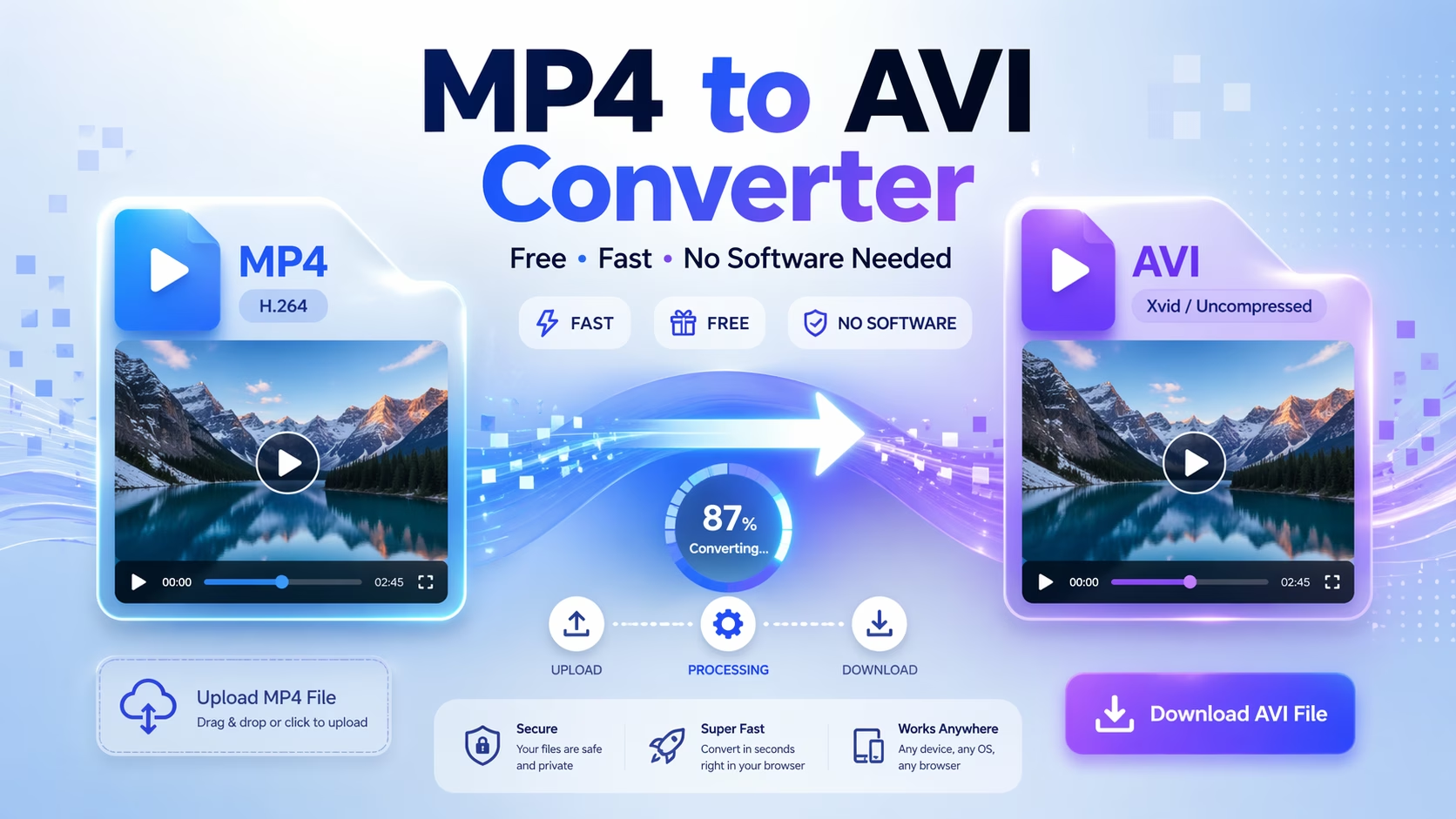
You have an MP4 file. You need AVI. Maybe an older editing program won't open MP4. Maybe a device only reads AVI. Maybe your client specifically asked for it.
Whatever the reason, converting MP4 to AVI does not require installing any software or paying for a subscription. You can do it right from your browser in under a minute. This guide explains exactly how — plus when AVI is actually the better format and what to watch out for during conversion.
Why Would You Need to Convert MP4 to AVI?
MP4 is the dominant video format today. It is compact, widely supported, and plays on almost every device. So why would anyone still need AVI?
A few real situations where AVI is required:
Legacy editing software. Older versions of video editors like Windows Movie Maker, Sony Vegas 9, or certain broadcast tools do not handle MP4 well. AVI is their native format and opens without codec errors.
Industrial and CCTV systems. Many surveillance and machine vision systems still record and export in AVI. If you need to add footage from another source, AVI compatibility matters.
Uncompressed quality for post-production. AVI supports uncompressed or lightly compressed video, which means no quality loss during editing. If you are doing frame-by-frame editing, AVI gives you cleaner data to work with than a heavily compressed MP4.
DVD authoring software. Some older DVD burning tools import AVI but not MP4 directly.
In short, AVI is not dead. It is a professional workhorse format that many workflows still depend on.
MP4 vs AVI: What Is Actually Different?
Before you convert, it helps to understand what you are actually changing.
MP4 is a container format that typically uses H.264 or H.265 compression. It wraps video, audio, and subtitles into a single small file. Excellent for streaming and sharing.
AVI (Audio Video Interleave) is Microsoft's container format from 1992. It supports multiple codecs — DivX, Xvid, uncompressed — and tends to produce larger files. The advantage is raw compatibility with older software and hardware that predates modern codec standards.
The key difference: MP4 prioritizes file size and streaming efficiency. AVI prioritizes compatibility and editing flexibility.
When you convert MP4 to AVI, you are not losing the video content — you are repackaging it in a different container, often with a different codec applied. Quality depends entirely on which codec and bitrate you choose during conversion.
How to Convert MP4 to AVI Free Online (Step by Step)
You do not need FFmpeg, HandBrake, or any desktop app. Our free MP4 to AVI converter handles the conversion directly in your browser.
Step 1: Go to allfiletools.com/mp4-to-avi/
Step 2: Click Upload and select your MP4 file from your device. Files up to several hundred MB are supported.
Step 3: The tool automatically processes your file and converts it to AVI format.
Step 4: Click Download to save the AVI file to your device.
That is the entire process. No sign-up, no watermark, no file size tricks requiring a paid plan.
What About Quality? Will I Lose Anything?
This is the most common concern, and the answer depends on what you mean by "quality."
If you are converting MP4 (H.264) to AVI (Xvid or similar): There is a small re-encoding step involved. If you keep the bitrate equal to or higher than the original, the difference is invisible to the human eye. For web and social media use, you will not notice any difference.
If you need pixel-perfect quality: Choose an AVI codec that does not re-compress — such as uncompressed AVI or lossless codecs. File sizes will be significantly larger, but every pixel from the original MP4 is preserved.
Resolution and frame rate: Converting between containers does not change resolution or frame rate. Your 1080p 30fps MP4 becomes a 1080p 30fps AVI.
For most users — video editors, social media managers, and students — the standard online conversion produces results that are indistinguishable from the original.
Common MP4 to AVI Problems (and How to Fix Them)
Problem: The AVI file plays video but has no audio. Cause: The audio codec in your MP4 (commonly AAC) is not supported by the AVI player you are using. Fix: Use a player like VLC that supports multiple codecs, or convert the audio track to MP3 before wrapping it in AVI.
Problem: The converted AVI file is enormous. Cause: AVI with uncompressed video or high-bitrate codecs produces very large files. A 5-minute 1080p AVI can be several gigabytes. Fix: Choose Xvid or DivX codec during conversion — both produce AVI files at sizes comparable to MP4 while maintaining excellent quality.
Problem: The AVI looks slightly blurry compared to the original MP4. Cause: The bitrate during conversion was set too low, causing the encoder to discard detail. Fix: Match the original MP4 bitrate or go slightly higher. For 1080p, aim for at least 8 Mbps for the video track.
Problem: The conversion is slow. Cause: Large files + browser-based conversion = processing time. This is normal. Fix: For files over 1GB, a desktop tool like HandBrake will be faster. For files under 500MB, browser conversion is perfectly fine.
When Should You NOT Convert to AVI?
AVI is not always the right choice. Avoid it in these situations:
Uploading to YouTube, Instagram, or TikTok. These platforms prefer MP4 with H.264. AVI files are accepted but get re-encoded anyway, adding unnecessary processing. Keep them as MP4 for uploads.
Sending files to someone. MP4 is smaller and plays everywhere. Unless the recipient specifically needs AVI, MP4 is the better choice for sharing.
Mobile devices. iOS and Android handle MP4 natively. AVI support varies and often requires a third-party app.
The rule of thumb: use AVI for editing and archiving in legacy workflows. Use MP4 for everything else.
Other Video Conversions You Might Need
Once you have finished converting your MP4 to AVI, you may realize you need to handle audio separately or convert the video to other formats. Here are the tools on AllFileTools that cover the full workflow:
Extract audio from video: If you want to pull the audio track out of your MP4 before or after converting, use our free Video to MP3 converter. It works directly in your browser and gives you an MP3 from any video file in seconds.
Convert the audio format: Once you have the MP3, you might need it in a different audio format. Our M4A to MP3 converter guide covers the full range of audio conversion options — including M4A, WAV, AAC, and AMR formats.
Convert WAV to MP3: If your AVI file was exported with a WAV audio track and you need it as MP3, our WAV to MP3 converter handles that instantly.
Merge audio files: Working on a video project with multiple audio segments? Our audio joiner tool lets you combine MP3, WAV, and other audio files into one track online.
Frequently Asked Questions
Is it safe to convert MP4 to AVI online? Yes. AllFileTools processes your files without storing them permanently. Your video is not kept on servers after conversion is complete.
Can I convert AVI back to MP4? Yes. If you later need the file back in MP4 format for sharing or uploading, the same tool works in reverse. Upload your AVI and download an MP4.
Does the free tool have a file size limit? For most standard videos, the free online converter handles the file without issues. Very large files (multiple gigabytes) may require a desktop tool for practical speed.
Will the converted AVI work in Windows Media Player? Yes, as long as the correct codecs are installed. For guaranteed compatibility, install the K-Lite Codec Pack on Windows, which covers Xvid, DivX, and all common AVI codecs.
Can I convert a 4K MP4 to AVI? Yes, but expect large output file sizes. 4K AVI files are substantial. If file size is a concern, consider keeping the 4K file as MP4 and only converting lower-resolution copies to AVI for editing.
Converting MP4 to AVI does not need to be complicated. For most users, the free online MP4 to AVI converter at AllFileTools handles the job in a few clicks — no downloads, no accounts, no cost.
If you are working in a legacy editing pipeline, delivering footage to an older system, or need the flexibility that AVI's codec options provide, this conversion is the right call. For everything else — streaming, sharing, mobile — stick with MP4.
Need to handle the audio side of your video project too? Check out our complete M4A to MP3 conversion guide, our Video to MP3 extractor, and our audio joiner tool for the full workflow.

Leave a Comment
No comments yet. Be the first to comment!