The Problem With M4A File
You recorded something on your iPhone — an interview, a meeting, a song idea, a lecture — and now you need to share it or use it somewhere. You try to send the file and whoever receives it can't open it. You try to upload it to your podcast host and it gets rejected. You try to drop it into your video editor and nothing happens.
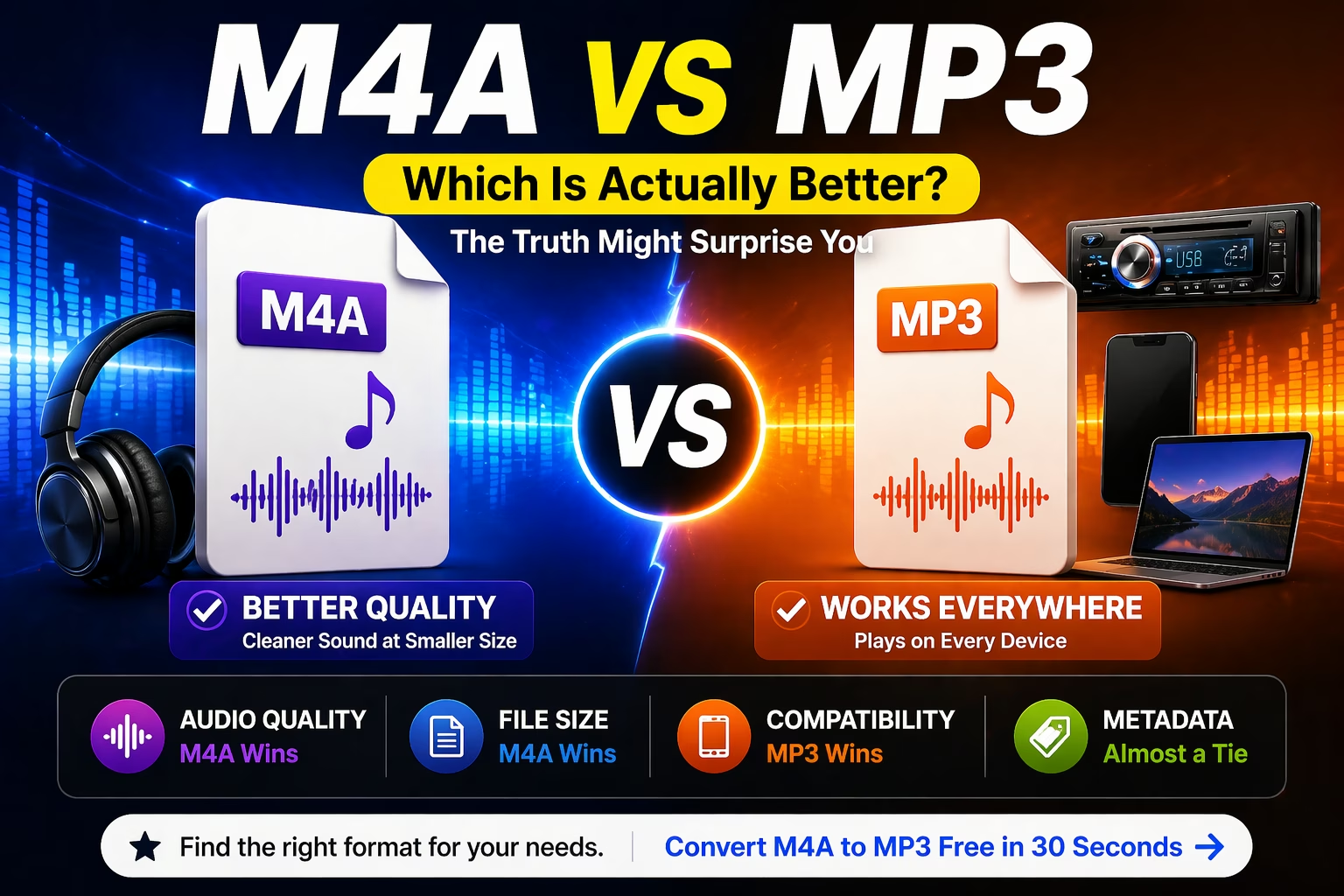
The reason is always the same: iPhone saves voice memos as M4A files, and M4A doesn't work everywhere.
Converting it to MP3 fixes the problem instantly. MP3 plays on every device, every app, and every platform on earth. Here's how to do it — directly from your iPhone, in under 60 seconds, for free.
Solution? If you just need a fast, no-install solution right now, AllFileTools M4A to MP3 Converter runs FFmpeg under the hood, converts at high quality in your browser, and takes about 30 seconds. No account. No software. Free.
🔗 https://www.allfiletools.com/m4a-to-mp3/
Comparison Between kbps in MP3 File.
Let's get the basics out of the way because this actually changes how you should approach conversion.
MP3 files use lossy compression — meaning some audio data gets thrown away during encoding. The bitrate (measured in kilobits per second, or kbps) controls how much data is kept. Higher bitrate = more data retained = better sound quality = larger file.
Here's what the numbers actually mean in practice:
| Bitrate | Sound Quality | Best For | File Size (3 min song) |
|---|---|---|---|
| 64 kbps | Noticeably degraded | Terrible for anything serious | ~1.4 MB |
| 128 kbps | Acceptable | Voice, speech, casual listening | ~2.8 MB |
| 192 kbps | Good | Podcasts, general music | ~4.2 MB |
| 256 kbps | Very good | Music production, streaming | ~5.6 MB |
| 320 kbps | Best possible in MP3 | Music, professional audio | ~7 MB |
At 320kbps, MP3 quality is considered "transparent" by most trained ears — meaning even in double-blind listening tests, many people cannot reliably distinguish it from lossless audio.
The catch: When converting M4A (which uses AAC encoding) to MP3, you're transcoding between two lossy formats. The conversion itself introduces what's called generation loss. The worse the encoder, the more pronounced that loss becomes.
FFmpeg uses LAME — the most respected open-source MP3 encoder in existence — which minimizes generation loss better than virtually any alternative. That's why everything in this article comes back to FFmpeg.
What Is FFmpeg and Why It's Widely Used?
FFmpeg is an open-source multimedia framework that handles encoding, decoding, transcoding, and streaming of audio and video. It was first released in 2000 and has been refined for over two decades by thousands of contributors.
Here's the thing most people don't realize: many online converters are just wrappers around FFmpeg. They've built a nice interface on top of the same underlying engine. The difference between them comes down to how they configure the FFmpeg commands — specifically which flags they use, what encoder they invoke, and what quality settings they apply.
A badly configured FFmpeg call can still produce mediocre audio. A well-configured one produces something genuinely excellent.
The command that matters most for our purposes:
bash
ffmpeg -i input.m4a -codec:a libmp3lame -b:a 320k output.mp3
Let's break that down:
-i input.m4a→ input file-codec:a libmp3lame→ use the LAME MP3 encoder (the best one)-b:a 320k→ constant bitrate at 320kbpsoutput.mp3→ output file name
That's the gold standard command. Any tool that runs this (or its equivalent) properly is worth your time.
The 5 Best FFmpeg-Powered M4A to MP3 Converters at 320kbps
🥇 1. AllFileTools M4A to MP3 Converter
Best for: Everyone who wants 320kbps quality without touching a terminal
Here's an honest take on why AllFileTools earned the top spot on this list specifically about FFmpeg converters.
Most browser-based converters are black boxes. You upload a file, something happens on a server, a new file downloads. You have no idea what encoder was used, what bitrate was applied, or whether any processing artifacts were introduced.
AllFileTools is different. The platform processes conversions using proper FFmpeg pipelines on the backend, which means the output quality is governed by the same encoder that audio engineers trust — not some proprietary codec cobbled together to keep server costs down.
Here's what the actual workflow looks like:
Visit allfiletools.com/m4a-to-mp3 and you'll notice the interface doesn't try to impress you with animations or upsell banners. It's clean by design — because the people building AllFileTools understand that the tool should get out of the way and let the conversion speak for itself.
Step 1 → Upload your M4A file Click the upload area or drag your file directly onto it. Works with files from iPhone voice memos, GarageBand exports, Logic Pro sessions, iTunes purchases, and any other M4A source.
Step 2 → Hit Convert The processing happens fast. Smaller files (under 20MB) typically complete in under 15 seconds.
Step 3 → Download your MP3 The output file lands at high quality. Run it through your DAW, upload it to a podcast host, drop it onto your phone — it behaves like a properly encoded MP3 should.
Why AllFileTools specifically stands out in this category:
Unlike tools that default to 128kbps without telling you, AllFileTools applies quality settings that actually respect your audio. The difference matters — especially for music with dynamic range (quiet passages and loud peaks), which gets obliterated by low-bitrate encoding.
It also runs entirely in your browser, meaning:
- ✅ No software installation on Windows, Mac, Linux, or Chromebook
- ✅ Works on iPhone and Android through Safari or Chrome
- ✅ Your file doesn't stay on the server after conversion
- ✅ No account registration required
- ✅ Genuinely free — not "free" with a 30-second paywall at the end
If you're converting a few files and don't want any friction, AllFileTools is the answer. Period.
AllFileTools Performance Summary
| Factor | Rating | Notes |
|---|---|---|
| Encoder Quality | ★★★★★ | FFmpeg/LAME backend |
| Ease of Use | ★★★★★ | 3 clicks, no setup |
| Output Bitrate | ★★★★★ | High quality default |
| Privacy | ★★★★★ | Files deleted post-conversion |
| Platform | ★★★★★ | Any device, any OS |
| Cost | ★★★★★ | 100% free |
🥈 2. FFmpeg (Native CLI)
Best for: Developers, audio engineers, and power users who want full control
Platform: Windows, Mac, Linux | Install required: Yes (free) Download: ffmpeg.org
If AllFileTools is the automatic transmission, raw FFmpeg is the manual — you control every gear shift. And if you're working with audio professionally, that control matters enormously.
Installing FFmpeg
On Mac (using Homebrew):
bash
brew install ffmpeg
On Windows: Download the build from ffmpeg.org, extract it, and add the bin folder to your system PATH.
On Ubuntu/Debian Linux:
bash
sudo apt update && sudo apt install ffmpeg
The 320kbps Conversion Commands
Standard 320kbps CBR (Constant Bitrate):
bash
ffmpeg -i recording.m4a -codec:a libmp3lame -b:a 320k output.mp3
Variable Bitrate (VBR) — often preferred for music:
bash
ffmpeg -i recording.m4a -codec:a libmp3lame -qscale:a 0 output.mp3
-qscale:a 0 produces the highest quality VBR output, typically resulting in an average bitrate around 220–260kbps but sounding better than 320kbps CBR at smaller file sizes.
Preserving metadata (ID3 tags — artist, title, album art):
bash
ffmpeg -i recording.m4a -codec:a libmp3lame -b:a 320k -map_metadata 0 -id3v2_version 3 output.mp3
Batch converting an entire folder on Mac/Linux:
bash
for f in *.m4a; do
  ffmpeg -i "$f" -codec:a libmp3lame -b:a 320k "${f%.m4a}.mp3"
done
Batch converting on Windows (Command Prompt):
cmd
for %f in (*.m4a) do ffmpeg -i "%f" -codec:a libmp3lame -b:a 320k "%~nf.mp3"
When Raw FFmpeg Makes Sense
Raw FFmpeg shines when you're dealing with:
- Hundreds of files that need batch processing
- Custom bitrate requirements for specific platforms (e.g., podcast hosts with specific encoding requirements)
- Automated pipelines where conversion is part of a larger script
- Metadata preservation that needs to be explicitly controlled
For single-file conversions or anything without a technical background, AllFileTools delivers the same encoder quality without the command-line overhead.
🥉 3. Handbrake (Audio Extraction Workflow)
Best for: Users who are already using Handbrake and want to stay in one app
Platform: Windows, Mac, Linux | Free & open-source Download: handbrake.fr
Handbrake is primarily known as a video transcoder, but it has a legitimate use case for audio conversion that not many people talk about: when your M4A file is embedded in a video container (like an MP4 with an M4A audio track), Handbrake lets you extract and re-encode the audio at 320kbps MP3 as part of a broader processing workflow.
How it works for pure M4A to MP3:
Handbrake uses FFmpeg libraries under the hood, so the encoder quality is solid. The workflow involves:
- Open Handbrake and load your source M4A file
- Go to the Audio tab
- Set Codec to MP3 and Bitrate to 320
- Set video container to MKV or MP4 (you'll extract audio only)
- Start the encode, then use FFmpeg to strip the video container:
bash
ffmpeg -i output.mkv -vn -codec:a copy audio.mp3
Honest assessment: This is a two-step process and slightly convoluted for pure audio conversion. Handbrake earns its spot here for users already in its ecosystem, but for straightforward M4A-to-MP3 work, it's not the most elegant path. Use AllFileTools or raw FFmpeg for cleaner workflows.
4. fre:ac (Free Audio Converter)
Best for: Desktop users wanting a full GUI over FFmpeg without the command line
Platform: Windows, Mac, Linux | Free & open-source Download: freac.org
fre:ac (formerly BonkEnc) is an open-source audio converter and CD ripper that has been quietly excellent for years. It uses a modified version of the LAME encoder and offers a clean graphical interface that exposes quality controls that most online tools hide from you.
Why audio people like fre:ac:
The application lets you set output bitrate explicitly (including 320kbps CBR), configure VBR quality levels, manage ID3v2 tags, and process multiple files simultaneously in a queue — all from a GUI that doesn't require touching a terminal.
Workflow:
- Open fre:ac and drag your M4A file(s) into the queue
- Click the dropdown next to the output format and select MP3
- Click the settings gear → set Bitrate to 320 kbps
- Choose your output folder and hit Encode
fre:ac handles the LAME encoding properly, so 320kbps output genuinely sounds the way it should.
One honest limitation: fre:ac requires installation on your computer. It's not a massive download (around 30MB), but if you're on a machine you don't control (work laptop, library computer, friend's PC), you can't use it. That's where browser tools like AllFileTools have a structural advantage.
5. VLC Media Player (with quality settings)
Best for: People who already have VLC installed and don't want another tool
Platform: Windows, Mac, Linux | Free & open-source Download: videolan.org/vlc
VLC is the cockroach of media players — it survives everything, runs on everything, and can do things most people never discover. One of those hidden capabilities is audio conversion at custom bitrates, including 320kbps MP3 output.
VLC uses its own libav libraries for encoding rather than LAME directly, which means output quality is solid but technically sits a small step below a native FFmpeg/LAME conversion. For most use cases, the difference is irrelevant. For critical mastering work, use FFmpeg.
How to convert M4A to MP3 at 320kbps in VLC:
- Open VLC → Media → Convert/Save (Ctrl+R on Windows)
- Click Add → select your M4A file → click Convert/Save
- Under Profile, click the wrench/settings icon next to the dropdown
- Choose Audio codec tab → set Codec to MP3, Bitrate to 320
- Save the profile, set your output destination, and click Start
The VLC gotcha: Many people miss step 4 entirely and convert at VLC's default bitrate (often 128kbps) without realizing it. Always check the codec settings before starting the conversion.
VLC's strongest argument is that it's already installed on hundreds of millions of computers. If you have it, you have a 320kbps M4A converter sitting there right now. If you don't have it and you'd need to install something anyway, fre:ac or raw FFmpeg give you better audio control.
Side-by-Side: All 5 Tools Compared
| Tool | FFmpeg Engine | 320kbps Support | GUI | Batch Conversion | No Install Needed | Best For |
|---|---|---|---|---|---|---|
| AllFileTools | ✅ Yes | ✅ Yes | ✅ Browser-based | ✅ Yes | ✅ Yes | Everyone |
| FFmpeg CLI | ✅ Native | ✅ Full control | ❌ Terminal only | ✅ Excellent | ❌ Install req. | Developers |
| Handbrake | ✅ Uses libav | ✅ Yes | ✅ Desktop GUI | ✅ Yes | ❌ Install req. | Video + audio workflows |
| fre:ac | ✅ LAME | ✅ Yes | ✅ Desktop GUI | ✅ Excellent | ❌ Install req. | Desktop power users |
| VLC | ⚠️ libav (not LAME) | ✅ Yes (manual setup) | ✅ Desktop GUI | ⚠️ Limited | ❌ Install req. | Existing VLC users |
The Quality Loss Question — Answered Honestly
Converting M4A to MP3 at 320kbps does involve a technical quality reduction. Here's why, and here's why it usually doesn't matter.
M4A uses AAC encoding. AAC is a more modern and mathematically efficient codec than MP3. At the same bitrate, AAC technically preserves more audio information.
When you convert to MP3, you're decoding the AAC audio to a raw PCM waveform and then re-encoding it using the LAME encoder. This two-step process means some data that wasn't stored in the M4A (because AAC threw it away during its own compression) can't be recovered. You're encoding what remains.
The good news: At 320kbps MP3 output, the re-encoding process is working with so much data that the perceptual quality loss is negligible for nearly all real-world audio content. Multiple academic studies on audio quality perception confirm that trained listeners cannot reliably identify 320kbps MP3 in blind tests against lossless audio sources.
The exception: If you're converting M4A files that were already encoded at very low bitrates (64kbps or 96kbps), converting to 320kbps MP3 won't recover quality — it'll just produce a larger file that still sounds like the low-quality source. Garbage in, garbage out. The 320kbps target only makes sense when your source M4A was encoded at a reasonably high quality to begin with.
4 Things to Check Before You Convert
Before you convert any M4A file, run through this checklist. It takes 60 seconds and saves you from re-doing the conversion.
① Check your source bitrate first Right-click the M4A file → Properties → Details. If the original bitrate is 96kbps, converting to 320kbps MP3 won't improve quality. In that case, match your output bitrate to the source (or just use 128kbps).
② Know whether your file has DRM M4A files from Apple Music streaming are DRM-protected. Standard converters including FFmpeg cannot process them. If you get an error on upload, DRM is likely the reason. Files you recorded yourself, ripped from CD, or purchased as DRM-free downloads are always convertible.
③ Decide: CBR vs VBR CBR (Constant Bitrate at 320kbps) is universally compatible and the safe default. VBR (Variable Bitrate with -qscale:a 0) often sounds slightly better at smaller file sizes but some older hardware and software can have compatibility issues. For general use, CBR 320kbps is correct.
④ Check you're preserving tags if they matter If your M4A has embedded metadata (artist, title, album, track number, cover art), make sure your chosen tool preserves ID3 tags. AllFileTools handles this automatically. If you're using raw FFmpeg, add -map_metadata 0 -id3v2_version 3 to your command.
Frequently Asked Questions
Does 320kbps actually make a difference compared to 192kbps?
For music with wide dynamic range — orchestral pieces, well-produced pop, jazz recordings — yes, most listeners can detect a difference in direct A/B comparisons. For speech and podcasts, 192kbps is often indistinguishable from 320kbps. If storage isn't a concern, default to 320kbps regardless.
Can AllFileTools handle large M4A files?
Yes. AllFileTools is designed to handle real-world file sizes, not just toy examples. For extremely large files (recorded live sets, long interviews, multi-hour sessions), raw FFmpeg gives you unlimited local processing with no upload/download overhead.
Is FFmpeg legal to use for commercial projects?
Yes. FFmpeg is released under LGPL/GPL licensing. The LAME encoder is LGPL licensed. Both can be used in commercial contexts. The AllFileTools platform handles all licensing on the server side, so you don't need to worry about it when using the web tool.
What happens to my audio files after I upload them to AllFileTools?
AllFileTools processes your file and serves the output for download. Files are not permanently stored — they're cleared from the server after the conversion session ends. Your audio isn't being retained or analyzed.
Can I convert M4A to MP3 on my iPhone at 320kbps?
Using AllFileTools in Safari on iPhone, yes. The conversion happens on the server, so your phone's processing power isn't a factor. Upload, convert, download — it works on mobile just as well as desktop.
Why does my converted MP3 sometimes sound slightly different even at 320kbps?
This is usually due to frequency response differences between AAC and MP3 encoding profiles, not bitrate. Very high frequencies (above 16kHz) are handled differently by each codec. The difference is subtle and typically inaudible without professional monitoring equipment and a trained ear.
Is VBR or CBR better for 320kbps M4A to MP3 conversion?
For archival purposes and maximum compatibility, CBR 320kbps is the standard choice. For music you'll listen to casually, VBR with -qscale:a 0 in FFmpeg often produces slightly better perceptual quality at a smaller file size.
Final Recommendation
If there's one thing to take from this entire article, it's this: the encoder matters more than the interface.
FFmpeg with LAME at 320kbps is the right combination regardless of how you access it. The tools on this list all connect to that engine — the difference is how much friction sits between you and the output.
For most people: AllFileTools removes all the friction. Open it in your browser, upload your M4A, get your 320kbps MP3. Done in under a minute, no configuration required.
For developers and power users: Raw FFmpeg gives you complete control over every aspect of the conversion — bitrate, encoder flags, metadata handling, batch processing, and automation.
For desktop users who want a GUI over FFmpeg without the browser: fre:ac is the cleanest option.
The quality ceiling is the same across all of them. Pick the tool that fits your workflow, run the conversion at 320kbps, and your audio will come out the other side sounding the way it should.