You have a PDF. You need to share it somewhere that doesn't support PDFs — WhatsApp, Instagram Stories, a Reddit post, a Notion page, a GitHub README. The standard move is to take a screenshot of each page, but that gives you eight separate images and nobody wants to receive eight separate images.
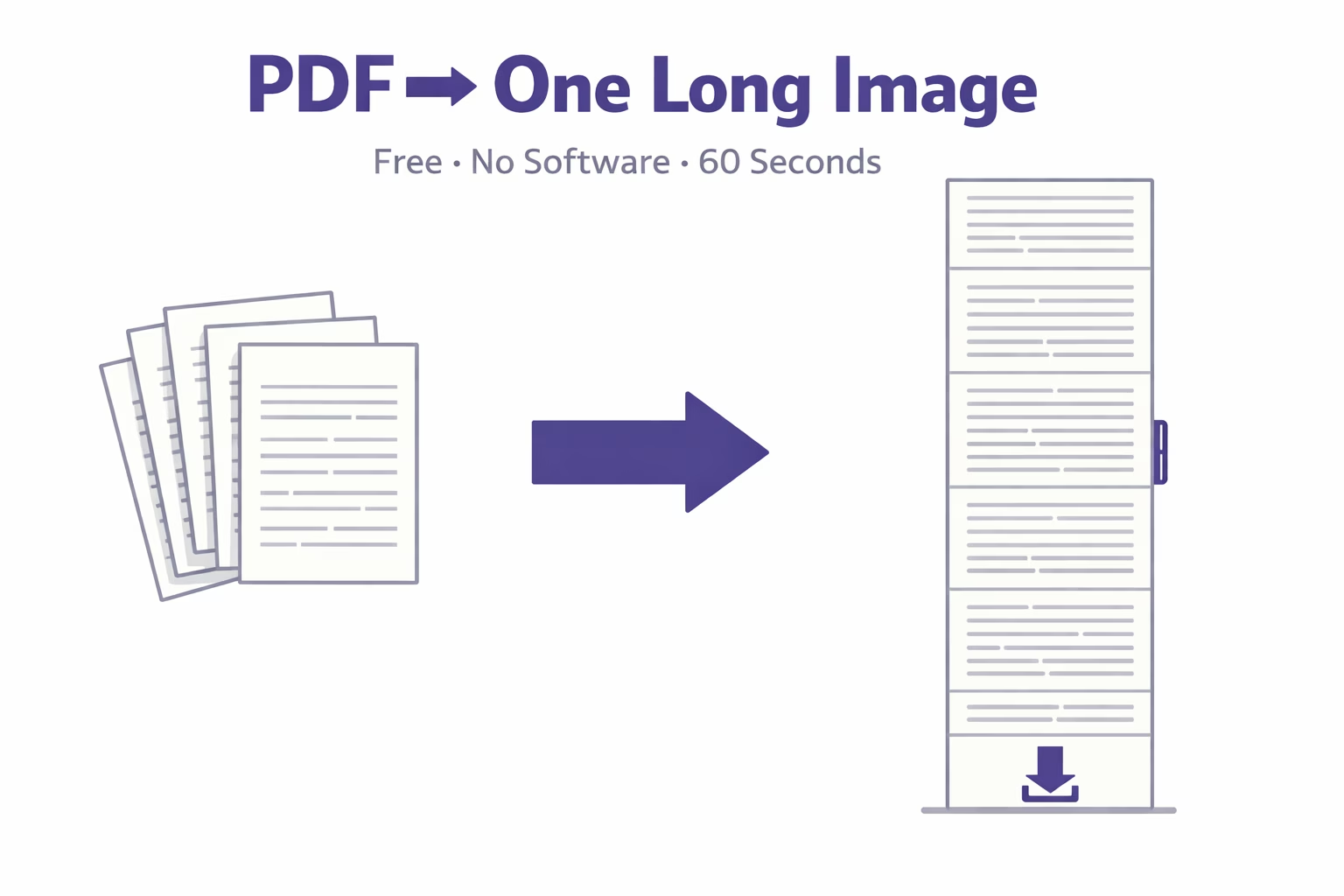
There's a cleaner option: convert the whole PDF into one long vertical image. Every page stacks top to bottom into a single scrollable file. One download, one share, done.
This guide shows you exactly how to do it — for free, without installing anything.
What "PDF to long image" actually means
A regular PDF-to-image conversion creates one image per page. Open a 10-page PDF in most converters and you get 10 separate JPG files. That's fine for some use cases. For sharing, it's annoying.
A PDF to long image converter does something different. It renders every page as an image, then stitches them vertically into one continuous PNG — like a very tall screenshot of the entire document. The result is a single file that scrolls from top to bottom without any page breaks.
People also call this a "scrolling image," "vertical image," or sometimes a "tall image." Same thing.
The fastest way: use a free online converter
You don't need Acrobat, Photoshop, or any desktop software for this. The whole process takes under a minute in a browser.
Use the free PDF to long image converter →
Here's how it works:
Step 1: Upload your PDF
Drag your file onto the upload area or click to browse. Files up to 100 MB are supported — that covers most documents, even multi-page reports and slide decks.
Step 2: Set your output width
The default is 1600px, which works well for most screens. If you're sharing on mobile or social media, 1000–1200px keeps the file size manageable. For high-resolution output — printing, zooming, detailed technical diagrams — use 2600px or 3600px.
Step 3: Adjust quality if needed
The default quality setting preserves sharp text. If your output file is too large for a platform's upload limit, use the "Fixed file size" option and enter a target — say, 3 MB — and the tool adjusts quality automatically to hit it.
Step 4: Convert and download
Click "Convert to Long Image." The tool renders each page, stacks them top to bottom, and gives you a single PNG to download. On a typical laptop, a 10-page PDF converts in about 5–8 seconds.
What about quality?
The most common concern: will text still be readable in the output image?
Yes, if you use the right settings. The converter renders pages at high DPI before stitching, so standard-sized text stays sharp. The main thing that hurts quality is setting the width too low — 500px for a document that was designed to be read at A4 size will look cramped. Stick to 1600px or above for anything text-heavy.
For a document with fine details — architectural drawings, data tables, small-print contracts — go to 2600px or higher. The file will be larger, but the output is genuinely printable quality.
One thing worth knowing: very large outputs sometimes get split into two files automatically. This happens when the total pixel area hits a browser memory limit (around 268 million pixels). It's not a bug — it's the tool protecting you from a corrupted file. A 200-page PDF at 3600px width will almost certainly split. A 20-page PDF at 1600px won't.
When would you actually need this?
Sharing on WhatsApp or Telegram. Both apps display images inline and let people pinch-to-zoom. A long image of a PDF shares cleanly as a single file — no PDF reader required on the recipient's end.
Instagram Stories and Pinterest. Stories are vertical by nature, which makes a tall scrollable image a natural fit. Pinterest's feed is built for long vertical content. Converting a PDF report, e-book chapter, or infographic to a single scrollable image works far better than uploading individual pages. For more on this workflow, see our guide to converting PDFs to vertical scrolling images for social platforms.
Notion, GitHub READMEs, and wikis. These platforms render images inline but often handle embedded PDFs poorly. A long PNG drops in cleanly and is visible without any plugin or viewer. Developers do this constantly for documentation.
Client presentations and portfolios. Instead of sending a PDF attachment that requires the recipient to have a compatible reader, you send an image link. It opens in a browser tab, no software needed.
Archiving documents in chat history. Some team chat tools (Slack included) render image previews but not PDF previews. A long image is searchable in visual history; a PDF attachment isn't.
PDF to long image vs. PDF to JPG — what's the difference?
They sound similar but produce different results.
PDF to JPG converts each page to a separate JPG file. You get multiple files. JPG uses lossy compression, which can introduce artifacts in text-heavy documents — fine lines and small characters look slightly blurry.
PDF to long image merges all pages into one PNG. PNG uses lossless compression — no artifacts, no blurriness. One file. If your PDF has text, diagrams, or charts you need to stay sharp, PNG is the better format.
The short version: use JPG if you need separate files for each page and file size is a priority. Use long image / PNG if you need everything in one scrollable file with clean text.
How to convert only specific pages
You don't always need the entire document. If you want pages 3 through 7 of a 30-page report, use the "Custom Range" option before converting. Enter the pages you want — for example, 3-7 or 1, 5, 9 — and only those pages are stitched into the long image. Useful for extracting a specific section without touching the rest of the document.
Does it work on mobile?
The converter runs in a browser, so yes — iPhone, Android, it doesn't matter. Open the page in Safari or Chrome on your phone, upload a PDF from your files app, and download the output to your camera roll. No app to install, no account to create.
The output even lands in your photos library on iOS, which means you can share it directly from there to WhatsApp, iMessage, Instagram, or anywhere else.
What if your PDF is very large?
A few practical limits to know:
- File size limit: 100 MB per upload. Most PDFs — even long reports — are well under this. Scanned PDFs (which are essentially photos of pages) can get large; compress them first if needed.
- Page count: No hard limit on pages, but very long documents at high resolution will produce enormous images or trigger the automatic split into multiple files.
- Browser memory: The conversion runs locally in your browser, which means performance depends on your device. On an older phone or low-RAM laptop, a 100-page conversion might run slowly or time out. Try reducing the output width to 1000px for large files on slower devices.
For a complete walkthrough of merging all PDF pages into one long image without quality loss, including settings for large files, see our step-by-step guide. (internal link to Cluster 1 quality page)
Do your files stay private?
The tool processes everything in your browser. Your PDF never gets uploaded to a server — the conversion happens locally using your device's processing power, same way a browser-based game works. Disconnect from the internet and try it; it still works.
This matters if your document contains anything sensitive — contracts, financial records, private correspondence. Nothing leaves your device.
The reverse: turning a long image back into a PDF
Sometimes you need to go the other direction — you have a long screenshot or a tall infographic and need it as a paginated PDF. That's a different process, and there's a tool for it. Our long image to PDF converter handles this in the same browser-based way, no software needed. (internal link to Cluster 3 page)
Quick comparison: online converter vs. desktop software
| Free online converter | Adobe Acrobat Pro | |
|---|---|---|
| Cost | Free | ~$25/month |
| Setup | None | Download + install |
| Speed | Fast (seconds) | Fast |
| Output: single long image | Yes | No (exports per-page only) |
| Works on mobile | Yes | Limited |
| Files stay on device | Yes | No (cloud processing) |
| Batch conversion | No | Yes |
For the specific task of converting a PDF to one long image, desktop software doesn't offer much. Acrobat Pro actually doesn't export a single merged vertical image — you'd need to use Photoshop or a script to stitch pages together. The online converter does the whole thing automatically.
Summary
Converting a PDF to a single long image is a two-minute job if you use the right tool. Upload the PDF, set the width, download the PNG. The output works natively on every platform that supports images — which is every platform.
The main settings that matter: width (1600px for most uses, higher for detailed documents) and quality (leave it at 90–100% unless you need a smaller file size). Everything else is automatic.
Convert your PDF to a long image now — free, no account needed →
