Choose the Right Image Format for Your Next Task
An image file can look perfect on your computer but still create problems when you try to upload, share, or use it in another application. A website might require a smaller image, a document submission portal might accept only PDF files, or a photo viewer might not recognize a raw camera file.
The solution isn't always to find a better image. Sometimes, you simply need a different file format.
Converting PNG to JPG, JPG to PDF, DNG to images, or DNG to JPG can help you prepare files for different purposes. However, each conversion serves a different need. Choosing the right format can help you manage file size, preserve useful image details, and avoid compatibility problems.
This guide explains which conversion to use, how the process works, and what to check before using your converted files.
PNG to JPG: Prepare Images for Websites and Everyday Sharing
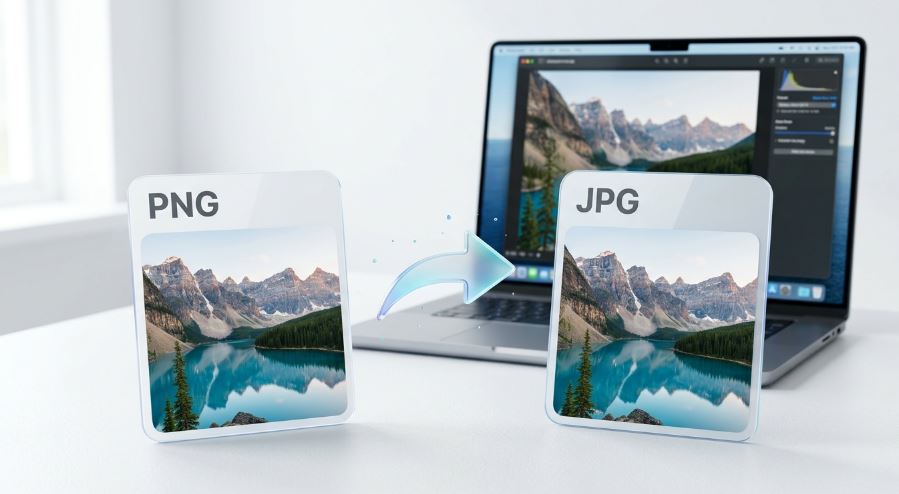
PNG is useful for screenshots, interface graphics, illustrations, and images that require transparent backgrounds. JPG is commonly used for photographs and situations where a smaller file may be more convenient.
If you need to convert PNG to JPG, start by considering how the image will be used. A photograph intended for an online listing may work well as a JPG. A logo with a transparent background, however, may be better left as a PNG.
When Does PNG to JPG Make Sense?
Imagine you've captured a screenshot for a presentation or downloaded a photograph that needs to be uploaded to a website. If the destination accepts JPG but not PNG, converting the image can solve the compatibility issue.
JPG compression can also reduce file size, although the result depends on the original image and conversion settings. This can be useful when uploading photographs or sharing images through platforms with file-size restrictions.
There is one important trade-off. JPG does not support transparency, and its lossy compression can introduce visible artifacts. Fine text, sharp edges, and simple graphics may therefore look better in PNG.
How to Convert PNG to JPG
Open a PNG-compatible image converter and upload your file. Select JPG as the output format, start the conversion, and download the finished image. Open the new file to check its appearance and background.
For website images, use dimensions appropriate for the page rather than relying on conversion alone to improve performance. A smaller file is helpful, but the image must still look good at its intended display size.
JPG to PDF: Turn Individual Images into Documents
A JPG image is convenient for displaying a photograph, but a PDF can be more practical when you need to organize images as pages in a document.
A JPG to PDF converter helps you place an image inside a PDF file for easier storage, sharing, printing, or submission. Depending on the tool, you may also be able to combine several images into one document.
Practical Uses for JPG to PDF Conversion
Consider a person who photographs several receipts and wants to submit them together. Instead of sending separate image attachments, they can convert the photographs into a single PDF if their converter supports multiple files.
The same approach can be useful for scanned pages, photographed paperwork, visual references, and image-based reports.
However, a PDF containing a JPG doesn't automatically become a searchable document. If you need to search or copy the words shown in a photograph, you'll generally need optical character recognition, commonly called OCR.
How to Convert JPG to PDF
Upload your JPG image to a conversion tool that supports PDF output. Choose the page size and orientation if those options are available, then convert and download the document.
If you're working with several images, review their order before creating the PDF. Check that the photographs aren't cropped unexpectedly and that any text remains readable when the document is opened or printed.
DNG to Images: Make Raw Camera Files Easier to Use
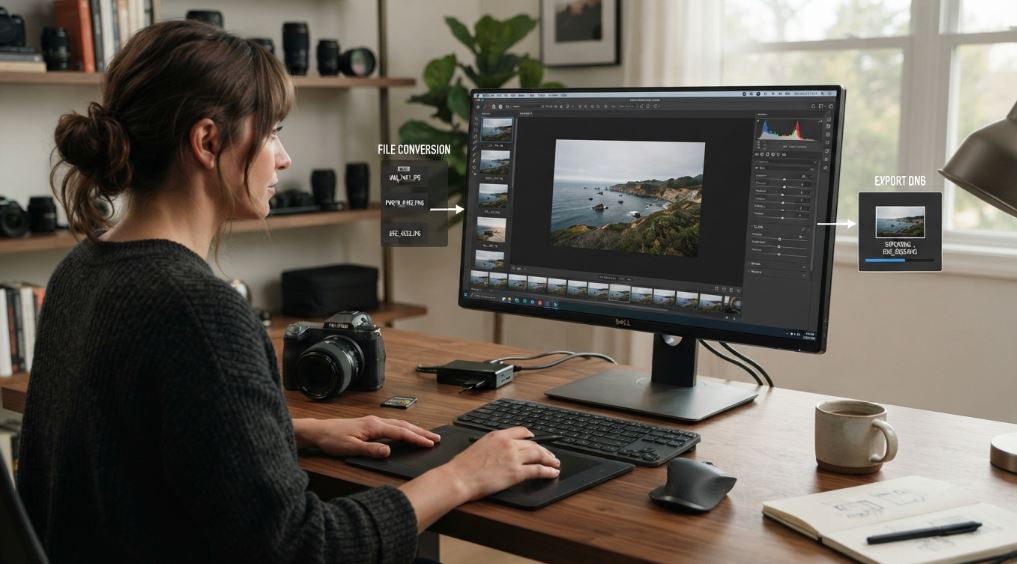
Digital photography involves more than choosing between PNG and JPG. Some cameras and photography applications use raw image formats to retain information that is useful during editing.
DNG, short for Digital Negative, is a raw image format developed by Adobe. Depending on the source and workflow, a DNG file can offer greater editing flexibility than a finished JPEG photograph.
The difficulty is compatibility. Not every image viewer, website, or application supports DNG files in the same way.
Converting DNG to images means exporting the raw photograph into a more widely supported image format, such as JPG or PNG, when the converter offers that option.
Why Convert DNG to a Standard Image?
Suppose you've transferred photographs from a camera or mobile photography workflow, but the application you're using can't display the DNG files. Exporting them as standard images can make the photographs easier to review, share, or publish online.
A photographer might retain the original DNG files for editing while creating JPG copies for a client gallery. Someone preparing a presentation might export selected photographs to a format supported by their presentation software.
The important distinction is that the exported image may not retain the full editing flexibility of the raw original. Different converters also handle color, embedded previews, and image processing differently.
How to Convert DNG to Images
Choose a converter that specifically supports DNG files. Upload your photograph and select an available output format, such as JPG or PNG. Start the conversion, download the resulting image, and compare it with the original preview.
If color accuracy or editing flexibility matters, preserve the original DNG file. Don't assume every converter processes raw image data in exactly the same way.
DNG to JPG: Create Shareable Versions of Raw Photographs
DNG is useful for photography workflows that involve raw editing, while JPG is widely supported for everyday viewing and sharing. When you convert DNG to JPG, you create a standard image file that is often easier to upload to websites, attach to emails, or send to people who don't use raw photography software.
Should You Convert DNG to JPG?
The answer depends on what you intend to do with the photograph.
If you're preparing a finished picture for a website, an email, or an online gallery, JPG is often a practical option. If you expect to adjust exposure, white balance, or other raw-specific settings later, keep the original DNG file.
Conversion also involves a trade-off. JPG uses lossy compression, and the exported image may not contain all the original raw data. Output quality depends on the conversion process and selected settings.
How to Convert DNG to JPG
Upload your DNG file to a compatible conversion tool. Select JPG as the output format, adjust the quality setting if available, and run the conversion. Download the result and inspect the photograph at a useful viewing size. Check the colors, orientation, and details, particularly if the image will be used for professional work. For a dependable photography workflow, treat the DNG as your editable original and the JPG as a version prepared for a specific purpose.
PNG, JPG, PDF, and DNG: Which Format Should You Use?
The best format depends on the type of file and what you need to accomplish.
Choose PNG when transparency, lossless compression, or crisp graphics are important.
Choose JPG when you need a widely supported photograph and want to balance image quality with file size.
Choose PDF when images need to be presented as document pages or combined into a shareable file.
Choose DNG when you're working with raw photographs and want to retain the flexibility provided by your photography workflow. Before converting anything important, consider the destination application's requirements. Check whether transparency must be preserved, whether text needs to be searchable, and whether you'll need to edit the original later.
Common Image Conversion Problems and How to Avoid Them
A successful conversion should produce a file that works for its intended purpose. If an image looks different after conversion, check whether the output format supports the features used in the original.
A transparent PNG may acquire a solid background when exported to JPG. A JPG inside a PDF may remain an ordinary image rather than searchable text. A DNG conversion may produce different colors or details depending on the processing method.
File size also deserves attention. Changing the extension alone doesn't convert the underlying format, and choosing a new format doesn't guarantee a smaller file. Always use a proper conversion tool and check the resulting file.
For important photographs and documents, keep an original copy until you've confirmed that the converted version meets your requirements.
Frequently Asked Questions
Can I convert PNG to JPG online?
Yes. Use a converter that supports PNG input and JPG output. Upload your image, select the output format, and download the converted file.
Does JPG to PDF reduce image quality?
It can, depending on the converter's image handling and compression settings. Review the resulting PDF at the size you intend to display or print it.
Can DNG files be converted into JPG images?
Yes, with a converter that supports DNG input. The resulting JPG is suitable for many sharing and publishing tasks, although it won't retain all the raw data of the original.
Is converting DNG to images the same as changing a filename?
No. A genuine conversion processes the file into another image format. Renaming a DNG file with a JPG or PNG extension doesn't change its underlying data.
Should I keep my original files?
Yes. Retaining the original PNG, JPG, or DNG file gives you a source to return to if the conversion affects transparency, quality, or editing flexibility.
Convert Your Images for the Way You Work
Different image formats solve different problems. PNG to JPG can help prepare photographs for common uploads, JPG to PDF can organize images into documents, and DNG conversions can make raw photographs easier to share.
Start with the purpose of your file, choose a compatible output format, and review the result before using it. Keeping important originals also gives you more flexibility when your needs change.
Use the appropriate image conversion tool to prepare your files for the next step, whether that's publishing a website, sharing a photograph, or organizing a document.