You recorded something on your iPhone — an interview, a meeting, a song idea, a lecture — and now you need to share it or use it somewhere. You try to send the file and whoever receives it can't open it. You try to upload it to your podcast host and it gets rejected. You try to drop it into your video editor and nothing happens.
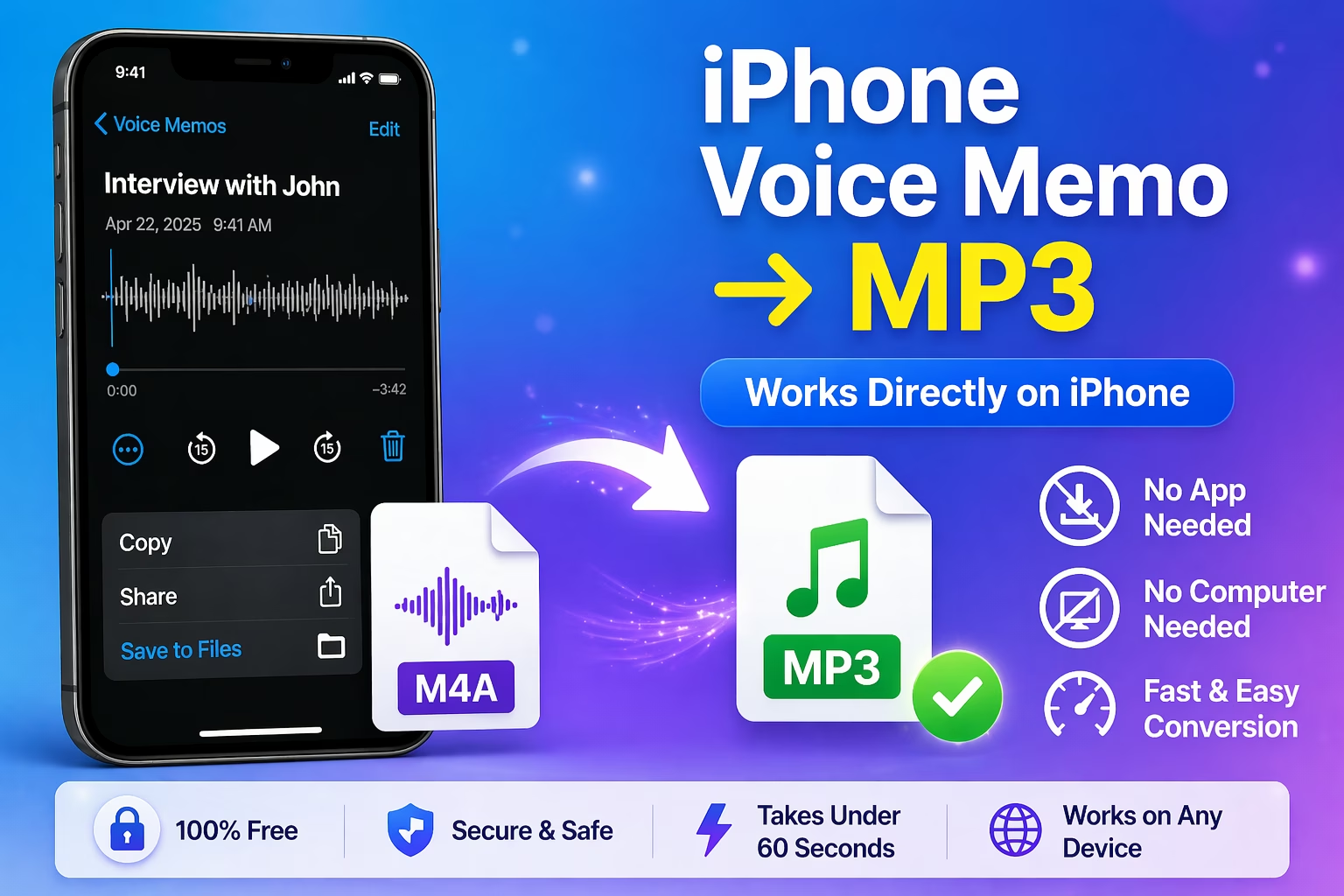
The reason is always the same: iPhone saves voice memos as M4A files, and M4A doesn't work everywhere.
Converting it to MP3 fixes the problem instantly. MP3 plays on every device, every app, and every platform on earth. Here's how to do it — directly from your iPhone, in under 60 seconds, for free.
Why iPhone Voice Memos Save as M4A (Not MP3)
When you tap record in the Voice Memos app, your iPhone automatically saves the file as an M4A file. You never chose this. Apple made it the default because M4A uses AAC encoding, which is genuinely more efficient than MP3 — the same audio quality at a smaller file size.
That's great inside Apple's world. Your Mac, your iPad, your AirPods, your iCloud — everything Apple handles M4A without a hiccup. But step outside that ecosystem and the problems start.
Podcast platforms like Buzzsprout, Anchor, and Spotify for Podcasters require MP3. Most Android devices don't play M4A natively. Older car stereos won't read M4A from a USB drive. Many video editors and transcription apps only accept MP3 or WAV. Windows users getting your file often can't open it at all.
It's not that M4A is a bad format. It's just that MP3 has 30 years of universal adoption behind it, and M4A doesn't. Converting takes under a minute, so there's no reason not to.
How to Convert iPhone Voice Memos to MP3 in 3 Steps
This method works entirely on your iPhone. No computer, no app download, no account needed. Open Safari and follow along.
Step 1 — Export the Voice Memo from Your iPhone
Open the Voice Memos app (it's in the Utilities folder if you've never opened it). Tap the recording you want to convert.
Tap the three-dot menu icon (•••) in the top right corner of the recording.
Select Share from the menu that appears.
From the share sheet, scroll down and tap Save to Files. Choose a folder — On My iPhone works fine — and tap Save.
Your M4A file is now in your Files app, ready to convert.
Note: If you have multiple recordings to convert, repeat this for each one and save them all to the same folder. The converter handles batches, so you only need to upload once.
Step 2 — Upload to the M4A to MP3 Converter
Open Safari on your iPhone and go to:
https://www.allfiletools.com/m4a-to-mp3/
The page loads as a normal website — nothing to install or sign in to.
Tap the upload area or Select Files button. Your Files app opens. Navigate to where you saved the voice memo and tap it to upload. If you're converting multiple files, select all of them.
Step 3 — Convert and Download Your MP3
Tap Convert to MP3.
The tool processes your file and outputs it at 320kbps — the highest standard quality for MP3. After conversion, you'll see the file details: duration, sample rate, file size, and quality confirmation.
Tap Download to save the MP3 to your iPhone. If you converted multiple files, tap Download All to get them bundled in a ZIP.
Your MP3 is ready. It'll play anywhere.
Your files are automatically deleted from the server after 2 hours. You don't need to do anything — the cleanup is fully automatic.
Convert Your Voice Memo Now — Takes Under 60 Seconds
→ Free M4A to MP3 Converter — No Signup, Always 320kbps
Can I Convert Multiple Voice Memos to MP3 at Once?
Yes, and this is one of the most useful things about the converter when you have a backlog of recordings to deal with.
Export each voice memo from the Voice Memos app using the steps above and save them all to the same folder in Files. Then upload them all in one go to the converter. Every file converts independently — if one has a problem, the rest still complete. When they're all done, hit Download All and you get every MP3 in a single ZIP file.
This is particularly useful if you record interviews or lectures regularly, or if you've been building up voice memos for months and want to convert the whole archive at once.
Does Converting Voice Memos to MP3 Reduce Quality?
This is the question that stops most people. The short answer: at 320kbps output, no — not in any way you'll actually hear.
Here's why. iPhone voice memos are typically recorded at 64–128kbps. When you convert to MP3 at 320kbps, the output bitrate is higher than the source bitrate. The converter can't invent audio data that wasn't there, but it's not losing anything either — you're getting a clean 320kbps MP3 that faithfully represents the original recording.
The one scenario where you'd notice a quality drop is converting music or high-quality audio files from M4A to MP3 repeatedly — each conversion introduces a small generation loss. But for voice memos, which are voice recordings at moderate bitrates, you're not going to hear a difference.
Other Ways to Convert Voice Memos to MP3
The online method above is the fastest for most people, but there are a few other approaches depending on your setup.
On Mac — Using the Music App
This is Apple's built-in method and it works, but it's more steps than most people want.
Open the Music app on your Mac. Go to Music → Settings → Files → Import Settings and change the encoder to MP3 Encoder. Then import your voice memo file by dragging it into the Music library. Find the track, right-click it, select Convert → Create MP3 Version, and right-click the new version to Show in Finder.
It works, but it's genuinely clunky. The online converter is faster.
On Windows — Using VLC Media Player
If you have the M4A file on a Windows PC (via AirDrop, email, or USB), VLC can convert it. Open VLC, go to Media → Convert/Save, add the file, select MP3 as the output profile, and save. VLC is free and handles this fine.
On iPhone — Using a Third-Party App
Apps like The Audio Converter (available on the App Store) can convert M4A to MP3 directly on your device. They work, but they involve App Store downloads, storage permissions, and often ads or in-app purchases. The browser-based method is simpler.
Where Voice Memos Go After You Export Them
A quick practical note: when you save a voice memo to Files and then convert it, you end up with two files — the original M4A in your Files app, and the converted MP3 in your Downloads (or wherever you saved it).
The original in Voice Memos is still there too. Nothing gets deleted when you export.
Once you have the MP3 working wherever you need it, you can safely delete the M4A from Files to free up space. Keep the original in Voice Memos if you want — recordings stay there unless you manually delete them.
Common Use Cases: Why People Convert Voice Memos
Podcast recording. Lots of podcasters record interviews or solo segments on iPhone. Most podcast hosts — Buzzsprout, Podbean, Transistor, Riverside — want MP3. Convert before uploading.
Sharing with Android or Windows users. If the person you're sending a file to uses Android or Windows, M4A probably won't open for them. MP3 will.
Video editing. Dropping a voice memo into Premiere Pro, DaVinci Resolve, or CapCut is smoother with MP3 than M4A, especially on Windows.
Transcription tools. Most transcription services and AI tools — Otter.ai, Descript, Rev — accept MP3 more reliably than M4A.
Car audio. If you're putting recordings on a USB drive to play in your car, older cars won't read M4A from USB. MP3 works on everything.
Academic recordings. Students who record lectures need to share them, submit them, or run them through note-taking tools. MP3 is almost universally accepted; M4A is not.
Related Audio Tools
If you work with audio files regularly, these free tools might also come in handy:
- WAV to MP3 Converter — Convert large uncompressed WAV files to portable MP3
- AAC to MP3 Converter — AAC audio (the codec inside M4A) converted to MP3
- Audio Joiner — Merge multiple voice memos or audio files into one track
- OGG to MP3 Converter — Convert OGG audio files to MP3
- FLAC to MP3 Converter — Convert high-quality lossless FLAC files to MP3
- MP3 to WAV Converter — Convert MP3 back to uncompressed WAV for editing
- Video to MP3 — Extract the audio track from any video file as MP3
Frequently Asked Questions
What format does iPhone save voice memos in? iPhone saves voice memos as M4A files (MPEG-4 Audio) using AAC encoding. This is Apple's default audio format, chosen because AAC delivers good quality at small file sizes. It works perfectly on Apple devices but not universally elsewhere.
Can I convert iPhone voice memos to MP3 without a computer? Yes. Open allfiletools.com/m4a-to-mp3/ in iPhone Safari, upload your voice memo from the Files app, and download the converted MP3 — entirely on your iPhone with no computer or app required.
Will converting voice memos to MP3 reduce audio quality? For voice recordings, no — you won't hear a difference. iPhone voice memos are recorded at 64–128kbps. When the converter outputs at 320kbps MP3, that's already a higher bitrate than the source. No quality is lost in any meaningful sense.
Can I convert multiple voice memos at once? Yes. Upload as many M4A files as you need in one session. The converter handles them all at once and lets you download every converted MP3 as a ZIP file when done.
Are my voice memos safe when I upload them? Your files are automatically and permanently deleted from the server after 2 hours. Nothing is stored permanently, and no one else can access your recordings.
How long does conversion take? Most voice memos convert in 5–15 seconds. Longer recordings (30+ minutes) may take up to a minute. The conversion time depends on file size, not duration of the recording.
Does this work on iPad too? Yes. The converter runs in any browser — iPhone, iPad, Mac, Android, Windows — without any downloads or installations.


Leave a Comment
No comments yet. Be the first to comment!