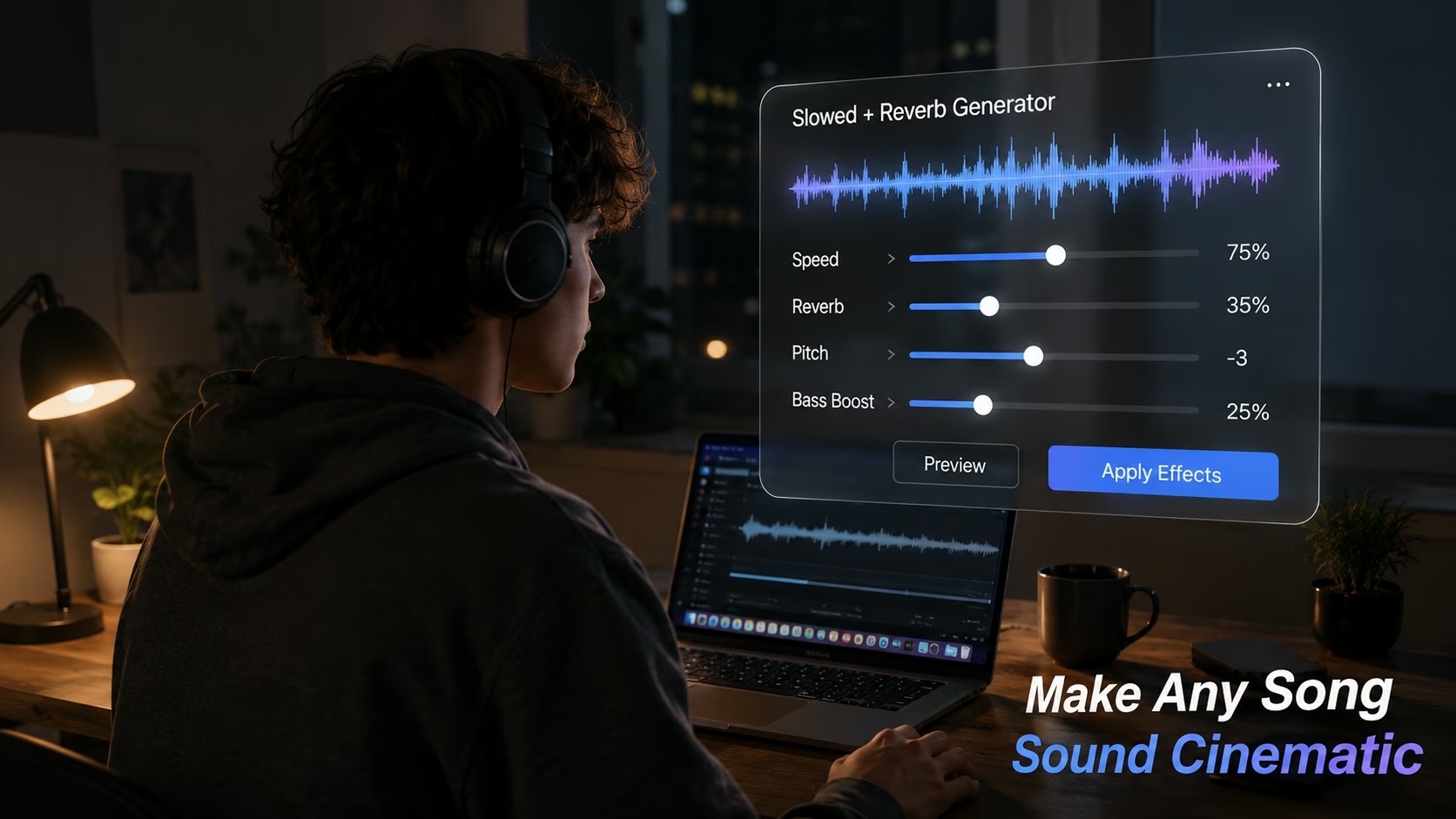
You know that sound — a song playing like it's coming from two rooms away, vocals dragging just a little, every note hanging in the air longer than it should. That's slowed + reverb. And if you've spent any time on TikTok's late-night side or YouTube's 3 AM playlists, you've heard it hundreds of times without realizing there was a name for it.
Making that sound used to require Audacity, or a DAW, or at least knowing what "time-stretching" means. Not anymore. The Slowed and Reverb Generator on AllFileTools does the whole thing in your browser — upload your audio file, move four sliders, hit preview, and download. No account. No watermark. No install.
This guide walks through exactly how to use it, what settings actually work, and why this tool holds up against the other options floating around online.
What Is a Slowed and Reverb Generator?
At the technical level, it's an audio processor that does two things: slows the tempo of a song (without automatically dropping the pitch) and adds reverb — the acoustic echo effect that makes sound feel like it's bouncing off the walls of a large space.
At the practical level, it turns regular songs into something that feels more cinematic and emotional. Vocals breathe differently when they're slowed down. Melodies linger. The bass sits heavier. It's why tracks with slowed + reverb effects consistently rack up millions of plays.
The style goes by a few names — daycore, slowed reverb, lo-fi adjacent — and it's the deliberate opposite of nightcore (sped-up audio with a higher pitch). Both are easy to make with the right tool.
How to Use the Slowed and Reverb Generator
Head over to allfiletools.com/slowed-and-reverb-generator and you'll see the upload area and the four-slider Audio Effects Studio right away. Here's the process:
Step 1 — Upload Your Audio File
Drag and drop your file onto the upload box, or click to browse. Supported formats are MP3, WAV, M4A, FLAC, OGG, and AAC. You can upload multiple files at once and process them all in a single pass with identical settings.
One thing worth knowing: the quality of your output is tied to the quality of your source. A 128kbps MP3 that gets processed and exported at 320kbps won't magically become higher quality — it'll just be a larger file. Start with the best source you have.
Step 2 — Adjust the Four Sliders
This is where the actual work happens.
Speed Control (50%–200%) This uses time-stretching, which changes tempo independently from pitch. Pull it below 100% to slow the track down. For slowed + reverb, anywhere between 70% and 85% tends to hit the right spot. Below 65% starts to sound strange on most tracks. Above 100% and you're heading toward nightcore territory.
Reverb Level (0%–100%) Reverb simulates how sound behaves in a physical space — small room, large hall, cathedral. For a subtle depth boost, 20–40% works well without washing out vocals. For that heavy "underwater echo" sound, push it to 60%+. Just know that heavy reverb at a high setting can make vocals muddy, especially on tracks that already have a lot of production layering.
Pitch Shift (−12 to +12 semitones) Because speed and pitch are decoupled here, you can slow a song without lowering the key, or lower the pitch without touching the tempo. The classic slowed reverb sound uses both together — slow the speed to 75–80% and drop the pitch by 2–4 semitones. That's the combination that gives vocals that deep, melancholy tone.
Bass Boost (0%–100%) Amplifies the low-frequency range. Works especially well with hip-hop, trap, and R&B. On tracks that already have a heavy low end, keep this below 40% or the bass can get muddy and clip.
Step 3 — Preview Before You Commit
The Preview button processes your first uploaded file with the current settings and plays it back in the browser. This is the fastest way to test without committing. Adjust, preview again, repeat until it sounds right.
Step 4 — Apply Effects and Download
Once you've got the settings dialed in, click Apply Effects. The generator processes every uploaded file using the same settings. Each result shows up in the list below with its filename, size, duration, and which effects were applied. Download files individually or click Download Audio to grab everything in a single ZIP.
Starter Settings That Actually Work
Most guides online give vague advice like "slow it down and add reverb." Here are some concrete starting points for different sounds:
| Sound Style | Speed | Reverb | Pitch | Bass Boost |
|---|---|---|---|---|
| Classic Slowed + Reverb | 75% | 35% | −3 | 25% |
| Heavy Daycore | 70% | 50% | −4 | 30% |
| Subtle / Lo-fi | 85% | 20% | −1 | 15% |
| Nightcore | 130% | 0% | +3 | 0% |
| Ethereal / Dreamy | 80% | 65% | −2 | 10% |
These are starting points, not formulas. Use the preview feature to hear how each track responds — bass-heavy songs behave differently from acoustic or vocal-forward ones.
What Makes This Tool Worth Using
There are a handful of slowed and reverb generators online. Here's what separates this one:
Four independent controls. Most competitors give you speed and reverb and nothing else. The AllFileTools generator separates pitch from speed (so you can slow without tuning down, or tune down without slowing), and adds bass boost as a fourth variable. That combination is what makes the output sound more polished than a basic two-slider tool.
Batch processing. Upload several files at once and apply the same settings to all of them in a single pass. If you're building a playlist or processing an album, this saves real time.
320kbps export. All output is exported as MP3 at 320kbps — the highest standard MP3 bitrate. Some competitors cap at lower quality or require a paid plan for high-quality exports.
No account, no watermark, no limits. Fully free. No per-file cap, no login wall, no watermark on the output.
Works on mobile. The interface adapts for smaller screens and works in Chrome on Android and Safari on iOS. The sliders are easier on a desktop, but mobile use is fully functional.
Files are deleted after an hour. Uploaded and processed files live on the server temporarily and get deleted automatically. Your audio isn't stored long-term.
Slowed + Reverb, Daycore, and Nightcore — What's the Difference?
They all come from the same family of remix styles:
Slowed + Reverb is the umbrella term. Slow the tempo, add reverb, often drop the pitch slightly. The mood is melancholy, cinematic, late-night.
Daycore is the community name for the same style. It got coined as the counterpart to nightcore — daycore is slow and heavy, nightcore is fast and bright. Functionally they're the same thing, just different communities using different vocabulary.
Nightcore flips the formula: speed above 100% (usually 125–135%), pitch up +2 or +3, reverb low or zero. Higher energy, brighter tone. The AllFileTools generator handles this just as easily — just push Speed above 100% and adjust pitch upward.
Supported Formats
The tool accepts MP3, WAV, M4A, FLAC, OGG, and AAC on the input side. It validates the file type on upload and will throw an error if the format isn't recognized. The output is always a 320kbps MP3.
If you're starting with a lossless source like FLAC or WAV, you'll get the cleanest output. MP3 sources work fine — just be aware that the processing can't recover information that wasn't there in the original.
Can You Upload YouTube Links?
No, and that's intentional. The generator works with audio files you upload directly. It doesn't accept YouTube links, SoundCloud URLs, or any external source.
If you want to convert a YouTube video to audio first, the Video to MP3 tool on AllFileTools handles that step, and then you can bring the result into the slowed reverb generator.
A Note on Copyright
Making slowed + reverb edits of songs you own or have licensed is fine. Uploading them to YouTube or TikTok is a different question — most major-label songs are registered with Content ID systems, and a slowed + reverb version still triggers copyright claims. The effect doesn't mask the track from detection.
For YouTube uploads, you'd need to use royalty-free music, public domain tracks, or original compositions where you hold the master rights. The tool itself doesn't restrict what you process — that's on you to sort out on the platform side.
Frequently Asked Questions
Does slowing down the song automatically change the pitch?
No. The Speed slider uses time-stretching, which adjusts the tempo without touching the pitch. If you want to lower the pitch too (which most people do for the classic sound), use the Pitch Shift slider separately.
Can I use this to make nightcore?
Yes. Set Speed above 100% (around 125–135%), push Pitch to +2 or +3, and keep Reverb low or at zero.
Why is slowed and reverb popular on YouTube and TikTok?
Because it:
- Fits aesthetic edits and edits with visuals
- Enhances emotional storytelling
- Works well for background music in short videos
What genres work best for slowed and reverb?
It works especially well with:
- Hip-hop
- R&B
- Lo-fi
- Pop ballads
- Trap music
Is slowed and reverb legal?
It depends:
- If created from copyrighted music and redistributed → may violate copyright
- If used personally or under fair use (varies by country) → usually tolerated but not guaranteed legal
- Official slowed versions released by artists → fully legal
Related Tools on AllFileTools
If you're working with audio and video more broadly, these tools are worth knowing about:
- Video to MP3 — Strip audio from any video file
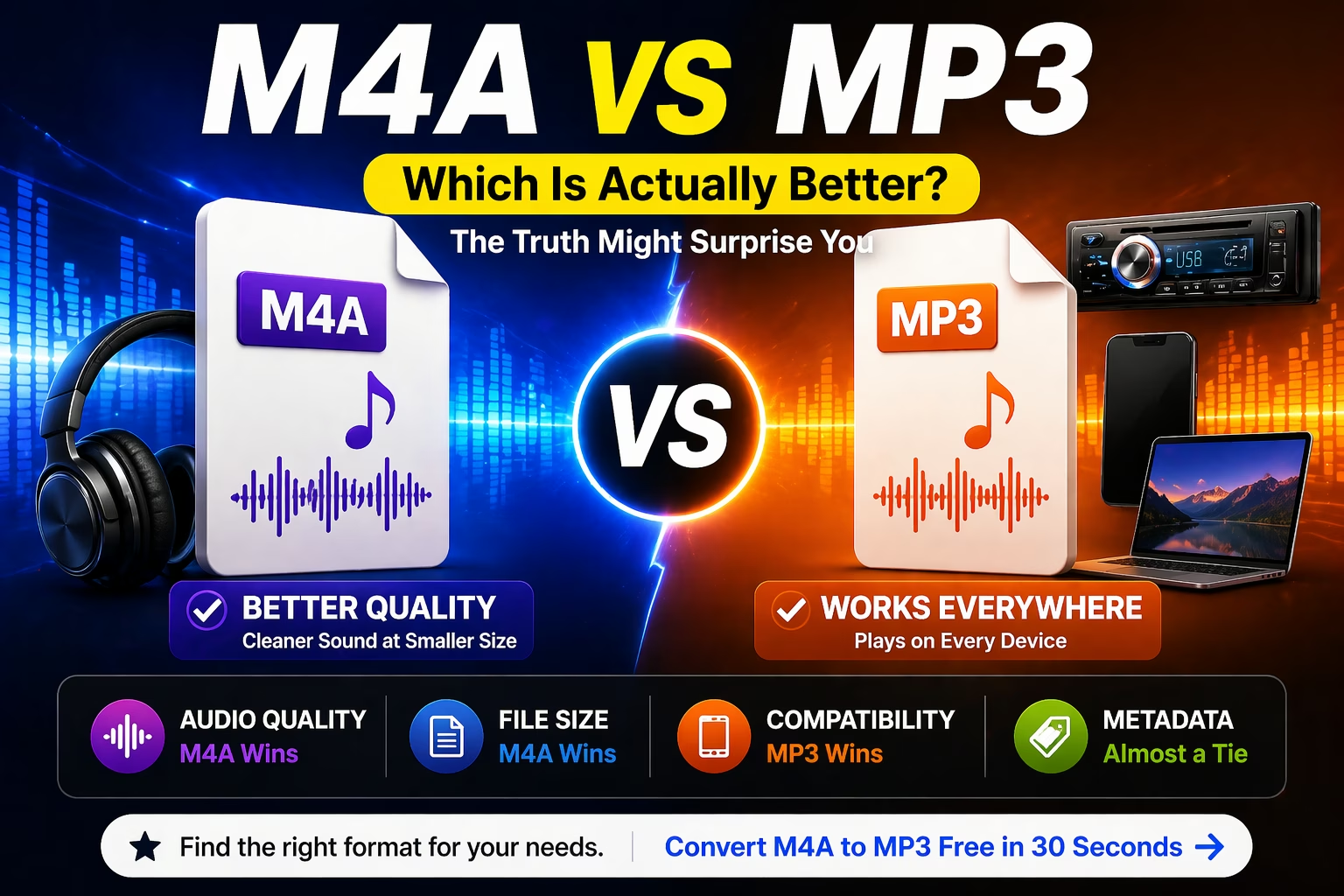
- M4A to MP3 — Convert M4A files at 320kbps
- Audio Joiner — Merge multiple tracks into one file
- AAC to MP3 — Convert AAC audio files online

Leave a Comment
Loading comments...