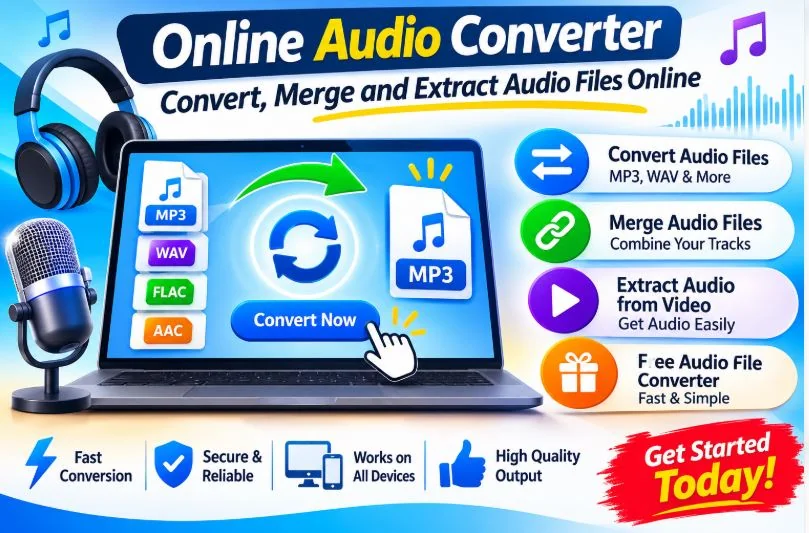
Audio files come in different formats, and not every device, application, or media player supports the same file type. You might need to convert an audio recording into MP3, change WAV files into a more compatible format, combine multiple recordings, or extract sound from a video. Finding the right solution can make these tasks much easier.
An online MP3 converter provides a convenient way to change audio formats without installing dedicated desktop software. Whether you're working with music, voice recordings, podcasts, interviews, or video soundtracks, an online audio format converter can help you prepare files for different platforms and everyday uses.
With the right audio conversion tool, you can manage common audio tasks directly through your browser. This guide explains how audio conversion works, which formats to choose, and how to convert, merge, and extract audio files.
What Is an Online MP3 Converter?
An online MP3 converter is a web-based tool that changes audio files into MP3 format or converts MP3 files into other supported formats. It helps users prepare recordings for smartphones, computers, media players, websites, and other applications.
MP3 is widely supported because it uses lossy audio compression to reduce file size while maintaining a practical listening experience. This makes it useful when you want smaller audio files that are easier to store, share, or transfer.
For example, you might convert a WAV recording into MP3 when you need a smaller file for sharing. You could also convert an MP3 into WAV when a particular editing application or audio workflow requires WAV input.
The important thing is to choose an output format that matches your intended use.
What Is an Audio Format Converter?
An audio format converter changes the format or encoding of an audio file so it can work with a different device, application, or workflow.
Different audio formats serve different purposes. Some prioritize smaller file sizes, while others preserve more audio information or support professional editing workflows.
Common audio formats include:
MP3: A widely compatible compressed audio format suitable for everyday listening and sharing.
WAV: Commonly used for uncompressed PCM audio, recording, editing, and production workflows.
FLAC: A lossless compressed format that preserves the original audio information.
AAC: A lossy compressed format commonly used in digital media and streaming.
OGG: A container format commonly associated with the Vorbis audio codec.
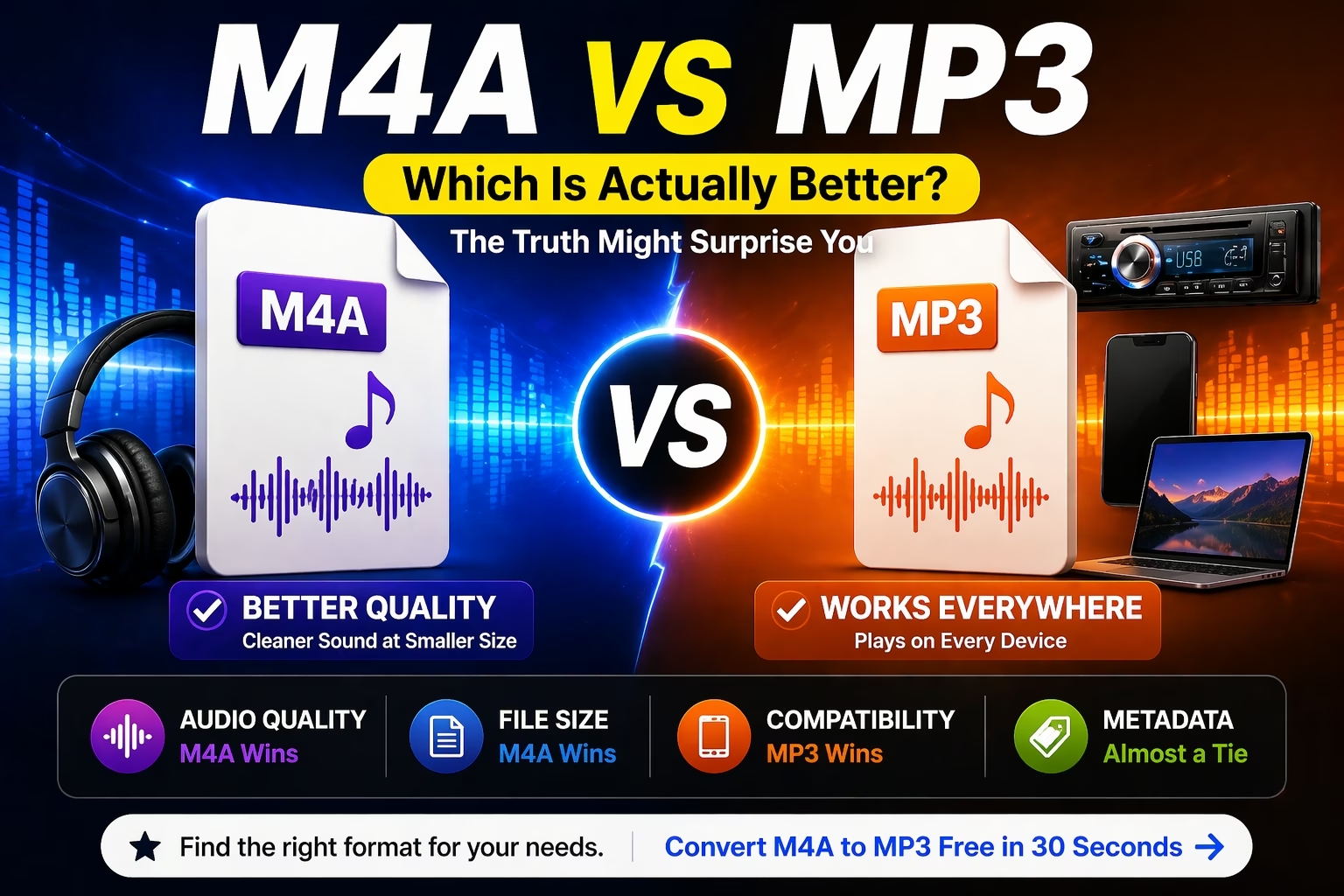
M4A: An audio file extension commonly used for AAC-encoded audio.
An audio format converter helps you select an appropriate format according to file compatibility, storage requirements, and sound quality.
How to Convert Audio Files Online
You don't always need desktop editing software to change an audio file's format. A browser-based audio converter can provide a straightforward conversion workflow.
Follow these general steps:
Open an online audio converter.
Select the audio file from your computer or mobile device.
Choose the required output format, such as MP3 or WAV.
Review any available conversion settings.
Start the conversion process.
Download the converted file when processing is complete.
Play the downloaded file to check that it works correctly.
The available formats and settings depend on the converter. Always check its supported input and output formats before selecting your file.
Why Use a Free Audio File Converter?
A free audio file converter can be useful for people who regularly work with recordings and media files but don't need a full professional audio editing application.
Some common reasons to use an online converter include:
Convenient file conversion: Change supported audio formats through a browser instead of installing separate software.
Better compatibility: Prepare audio files for applications or devices that require a particular format.
Simplified file sharing: Convert large uncompressed recordings into smaller compressed files when appropriate.
Flexible workflows: Prepare audio for presentations, podcasts, educational projects, websites, and personal recordings.
Easy access: Use a browser-based tool from a compatible desktop or mobile device.
Before choosing a free audio format changer, check its actual features, supported formats, file restrictions, and privacy policy.
How to Change an Audio Format
An audio format changer allows you to select a different output format for an existing recording. The best format depends on how you intend to use the file.
For example, MP3 may be appropriate when you need a widely compatible file for everyday listening. WAV can be useful for editing applications that require uncompressed PCM audio. FLAC is another option when you want lossless compression.
Keep in mind that changing the file extension alone does not convert the audio. A proper conversion process must encode the audio into the selected format.
You should also understand that converting a lossy MP3 file into WAV does not restore audio information that was discarded during the original MP3 encoding.
How to Merge Audio Files Online
Sometimes, multiple recordings need to become one continuous audio file. This is where an audio merger becomes useful.
For example, you might want to combine separate podcast recordings, join interview sections, connect voice recordings, or arrange multiple audio clips into one track.
A typical audio merging process involves:
Open an online audio merger.
Select the audio files you want to combine.
Arrange the files in your preferred playback order.
Check the available output settings.
Start merging the selected recordings.
Download and listen to the combined audio file.
Before merging, check that the recordings have compatible formats and that the resulting audio plays in the correct order. If the tool provides transition or crossfade settings, you can use them when a smoother transition is required.
How to Extract Audio from Video
Videos often contain useful audio that you may want to save separately. This could include a recorded presentation, an educational lecture, an interview, or your own video footage.
An audio extraction tool separates the audio track from a supported video file and exports it into an available audio format.
Here is the general process:
Open an audio extraction tool.
Select a supported video file.
Choose the required audio output format.
Start the extraction process.
Download the resulting audio file.
Play the extracted recording to check its quality and completeness.
Extracting audio can be useful when you want to listen to a lecture without playing its video, work with a recorded voice track, or prepare your own video narration for editing.
Only extract or reuse media that you own or have permission to use. Copyright restrictions may still apply to audio taken from videos.
When Should You Convert MP3 to WAV?
Convert MP3 to WAV when your editing software or workflow requires a WAV file. It can also help standardize files for certain production processes.
However, remember that converting an MP3 into WAV does not improve the original recording's quality or recover lost audio details.
When Should You Convert WAV to MP3?
WAV to MP3 conversion is useful when you want to reduce file size for sharing, uploading, or everyday playback.
The resulting MP3 file will generally take up less storage space, although the encoding process involves some audio quality loss.
Tips for Choosing the Right Audio Converter
Not every online audio converter offers the same features. Before processing your recordings, consider the following factors.
Supported formats: Check whether the tool supports the input and output formats you need.
Audio quality: Look for available bitrate, sample rate, and channel settings where relevant.
File compatibility: Make sure the converted file works with your intended device or application.
Privacy and security: Understand whether files are uploaded to a server or processed locally in your browser. Review the site's privacy information before using sensitive recordings.
Processing limitations: Check file-size restrictions, supported browsers, and device requirements.
Ease of use: Choose a tool with a clear interface and straightforward conversion steps.
Frequently Asked Questions
1. How can I convert an MP3 file online?
Open an online audio converter, select your MP3 file, choose a supported output format, and start the conversion. Download the resulting file and check that it plays correctly.
2. Is a free online audio converter safe?
Safety depends on the website and how it processes files. Check its privacy policy, file-handling practices, security information, and supported features before uploading personal recordings.
3. Can I convert WAV to MP3 without installing software?
Yes. A compatible browser-based audio converter can convert WAV files into MP3 without requiring a separate desktop application.
4. Does converting MP3 to WAV improve sound quality?
No. Converting MP3 to WAV does not restore audio information lost during MP3 compression. It changes the file format but cannot recreate the original recording quality.
5. Can I merge multiple audio files into one?
Yes, if your chosen audio merger supports the input formats. Select the recordings, arrange them in the correct order, choose an available output format, and export the combined file.
6. How do I extract audio from a video?
Use an audio extraction tool that supports your video format. Select the video, choose an available audio output format, and process the file to obtain its separate soundtrack.
7. Which audio format is best for everyday use?
MP3 is a practical option for everyday listening and sharing because of its broad compatibility and relatively small file size. WAV and FLAC may be more suitable for specific editing or lossless audio workflows.
Convert and Manage Your Audio Files Online
Managing audio files doesn't have to involve complicated software or unnecessary steps. Whether you need an online MP3 converter, an audio format changer, an MP3 WAV converter, or a tool to merge recordings and extract audio from video, choosing the right tool can simplify your workflow.